
Understanding Color-Coded Style Labels
Table of Contents
While using the Style tab, you will notice that some of the setting labels light up in different colors! Levo Studio uses these color-coded labels as helpful hints to tell you exactly where a styling rule is coming from.
Blue: A Custom Edit!
If a label turns blue, it means you (or someone else on your team) have made a custom edit specifically for this item.
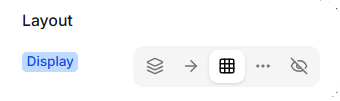
How to fix it: If you made a mistake, just click the blue label to wipe your custom edit away and return to normal.
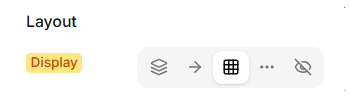
Orange: Screen Size Copycat
An orange label means the setting is currently copying its style from a completely different screen size. For example, if you are editing an iPad (Tablet) view, but the label is orange, it means that setting is just quietly copying whatever you picked on the Desktop view!
Purple: State Copycat
A purple label means the setting is copying its style from a different interaction state. For example, if you are currently editing your "Hover" state, a purple label means the setting is just copying whatever you picked for your "Default" state.
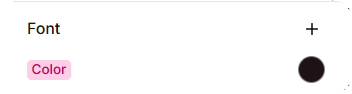
Pink: Coming from the Theme
If a label turns pink, it means that style is coming straight from your main Theme settings or the Variant you applied. It's a great reminder that changing this value will overwrite your beautiful theme!
Teal: Group Default
A teal label means the setting is applying a default value that controls an entire group of settings at once.
No Color: Completely Blank
If a label has no color at all, it means no styling rules have been applied to this setting yet. It is just the raw, normal default behavior.
A Quick Example: Button Background Color
Let's pretend you are changing the Background Color of a button:
Pink: The button is nicely inheriting your brand color straight from your Theme!
Blue: You specifically changed the color of this one button to be Red.
Purple (while editing Hover): Your Hover state is just copying whatever color your normal button was.
Orange (while editing Mobile): Your mobile button is just copying whatever color you picked on Desktop.