
Getting Started with Campaigns
Table of Contents
Great communication builds stronger communities but managing emails, WhatsApp messages, audiences, and performance across different tools can quickly become overwhelming.
Campaigns helps you manage your Email and WhatsApp campaigns from a single place, with everything you need to create, send, schedule, and track them.
What is Campaigns?
Campaigns is your all-in-one tool for planning and managing audience communication. It helps you create Email and WhatsApp campaigns, organize your messages, reach the right audience, and measure engagement with detailed reports.
Where to find Campaigns?
From your Workspace Dashboard, open Campaigns.
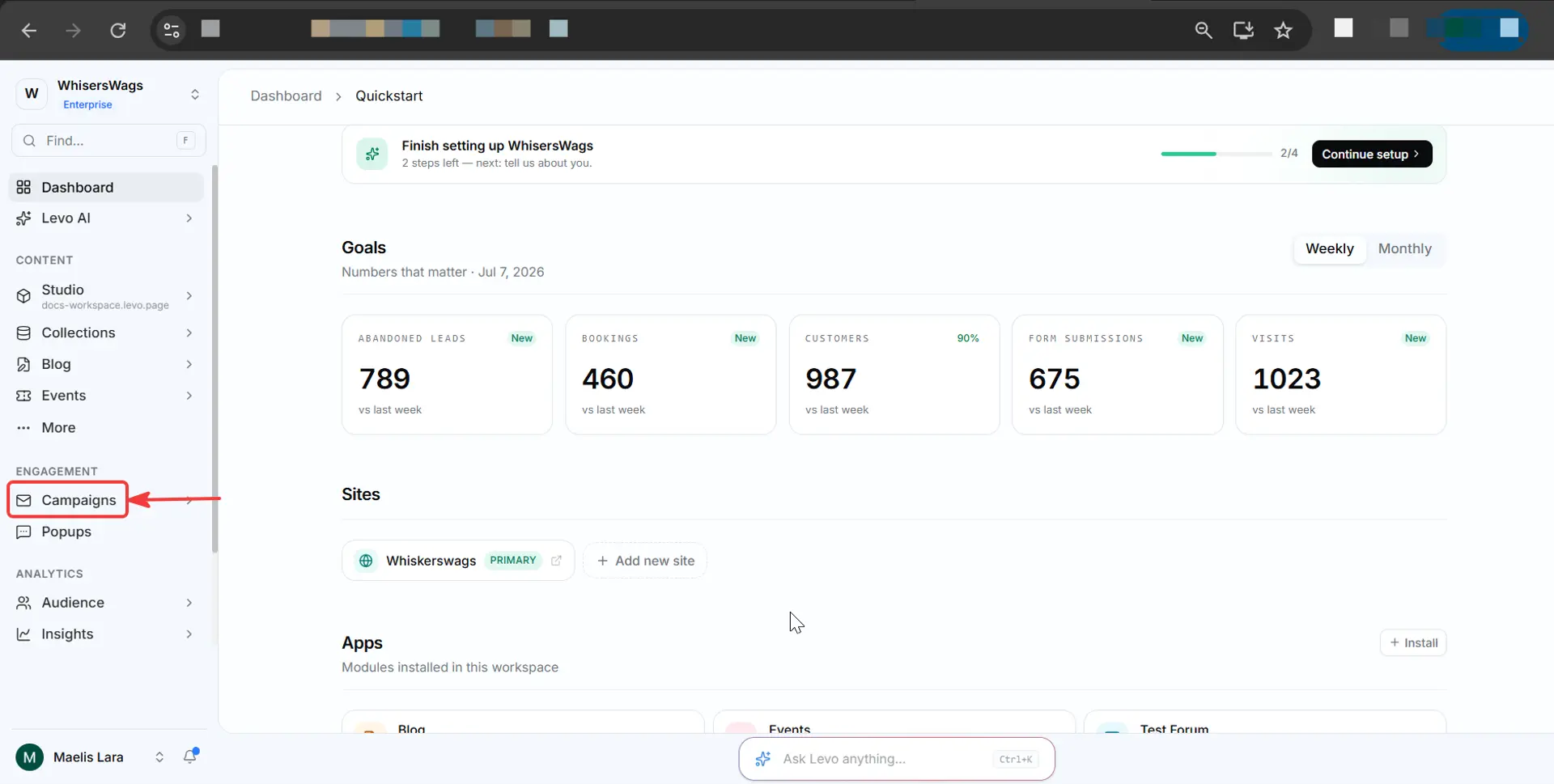
The Campaigns dashboard will open.
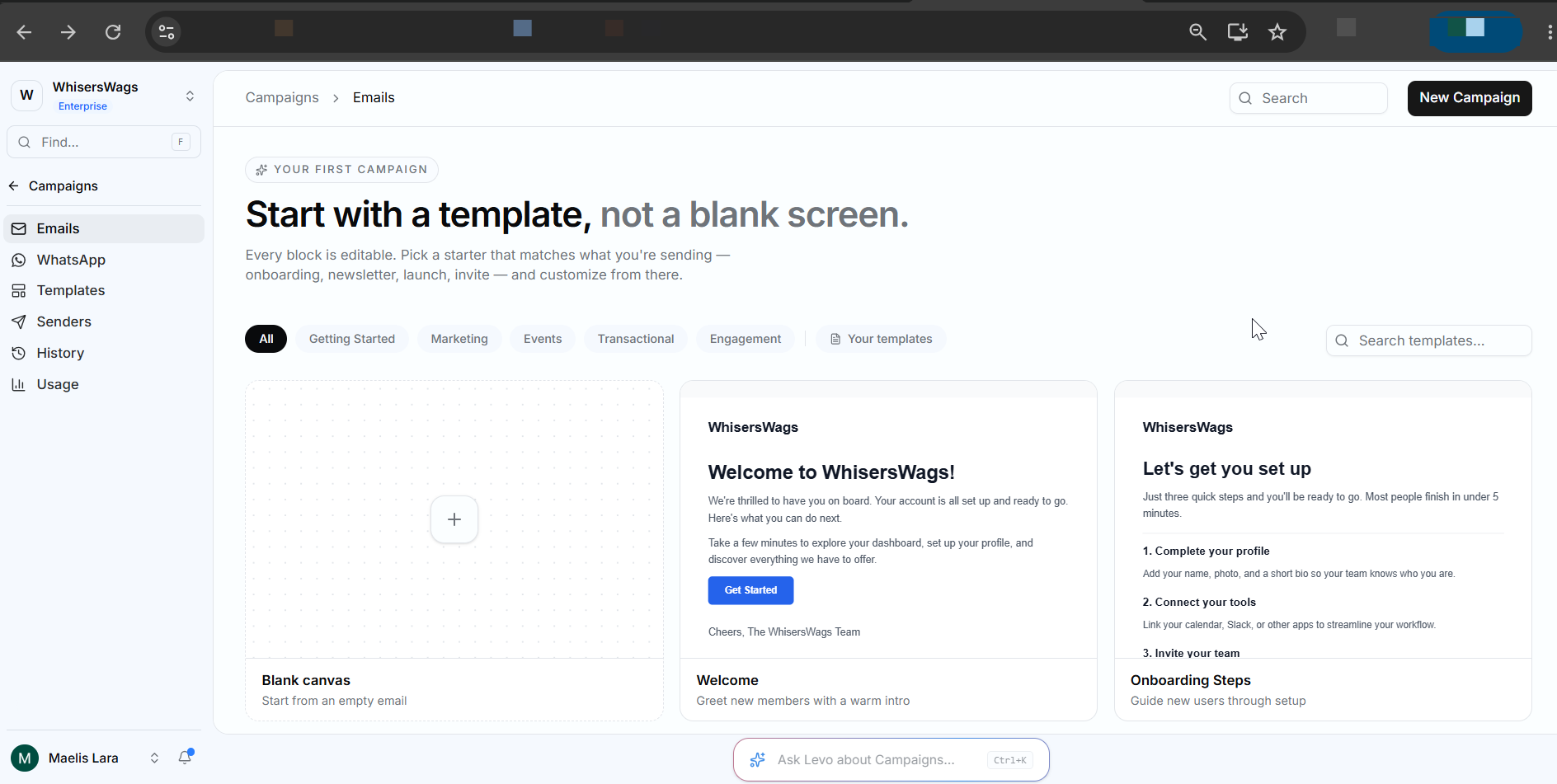
From here, you can:
Create a new campaign
Manage Email and WhatsApp campaigns
Access Templates
Manage Senders
View Campaign History and Reports
Email Campaigns
Email Campaigns help you send emails to your audience. You can use them for newsletters, event invitations, product announcements, community updates, blog promotions, and more.
To create an Email Campaign:
Click Create Campaign and select Email.
Choose an existing email template or create a new one.
Customize the template by updating the subject line and email content.
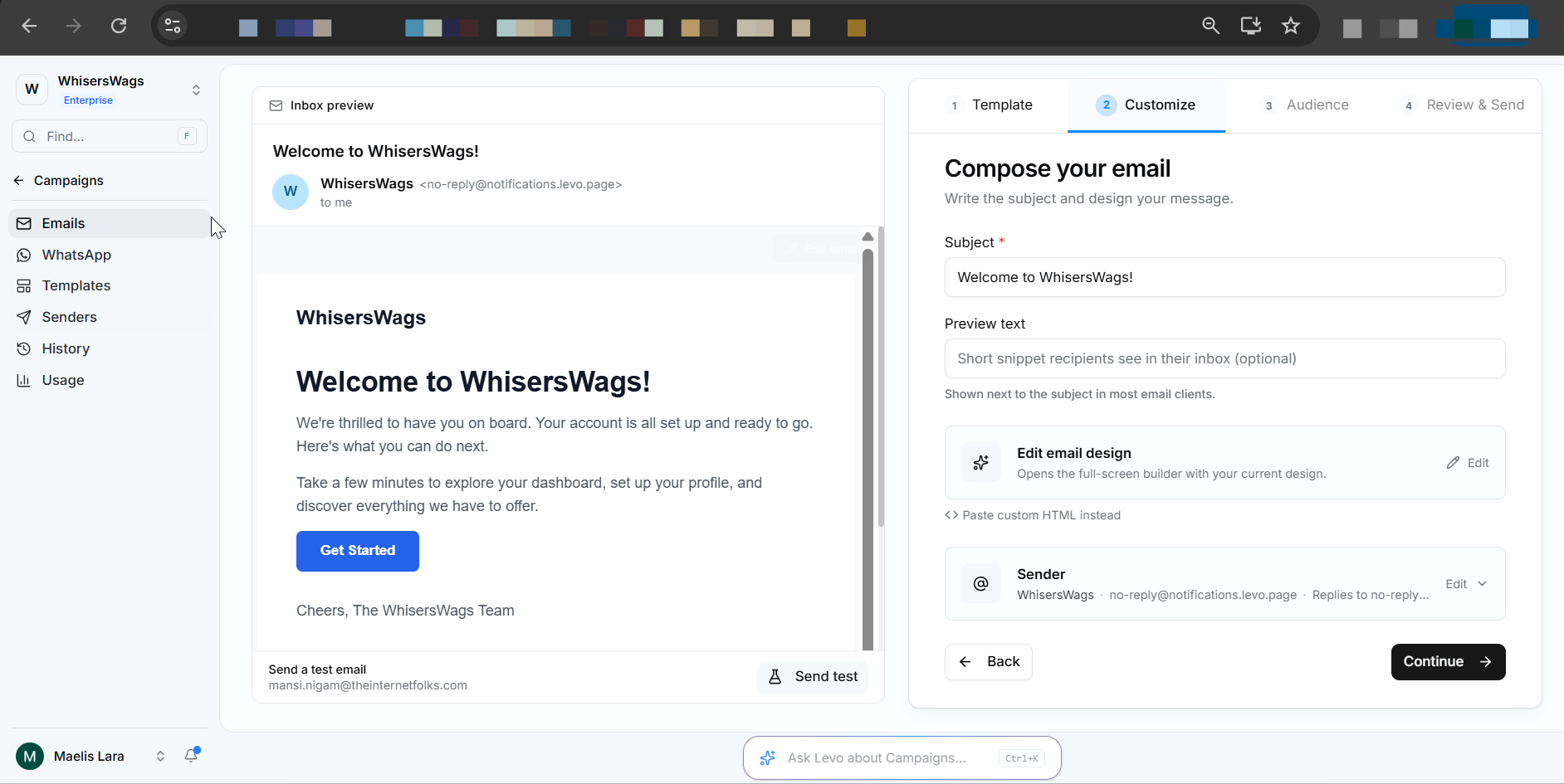
Select your recipients.
Choose an existing Recipient Segment, or
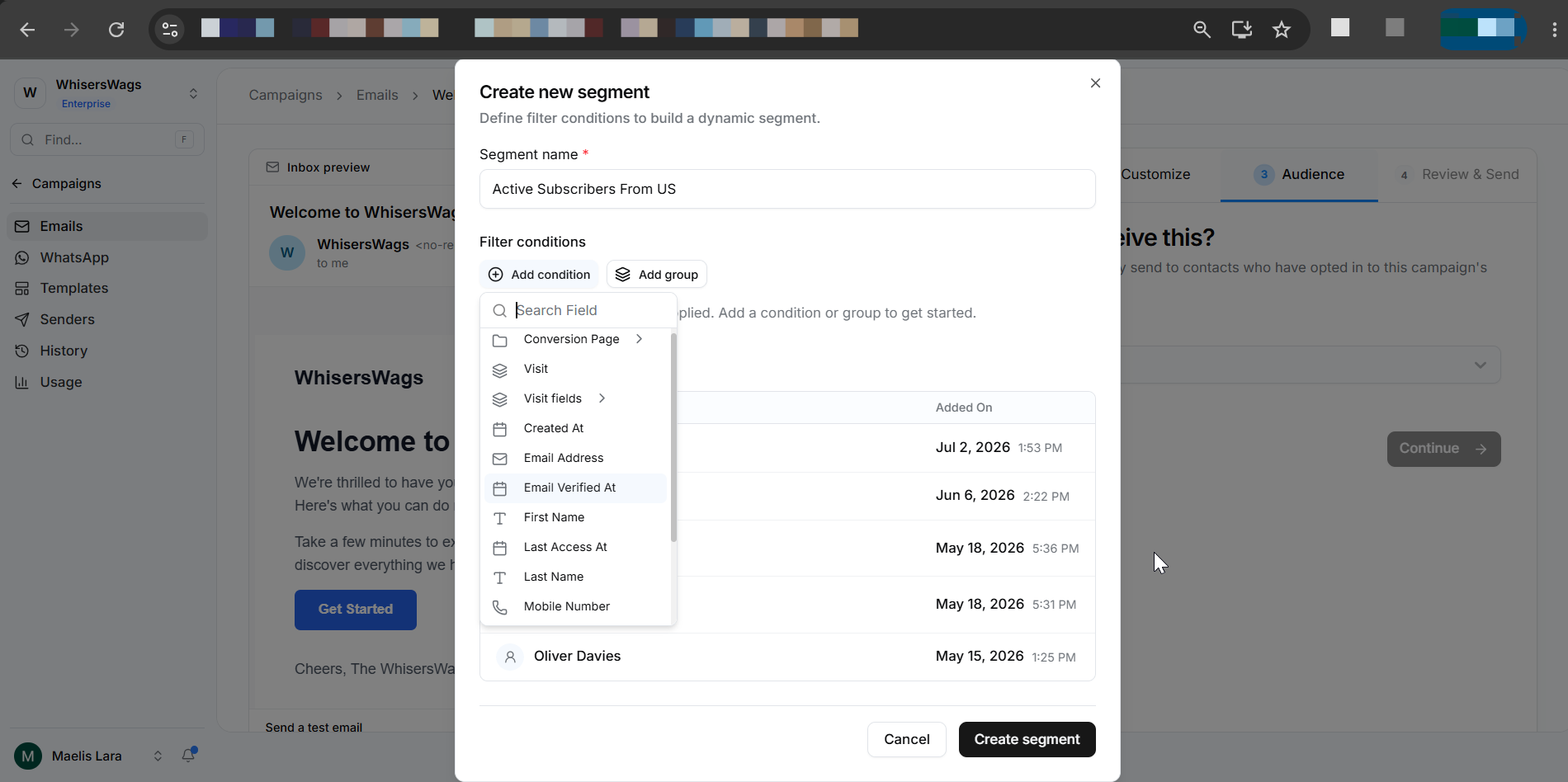
Click Create New Segment to create one.
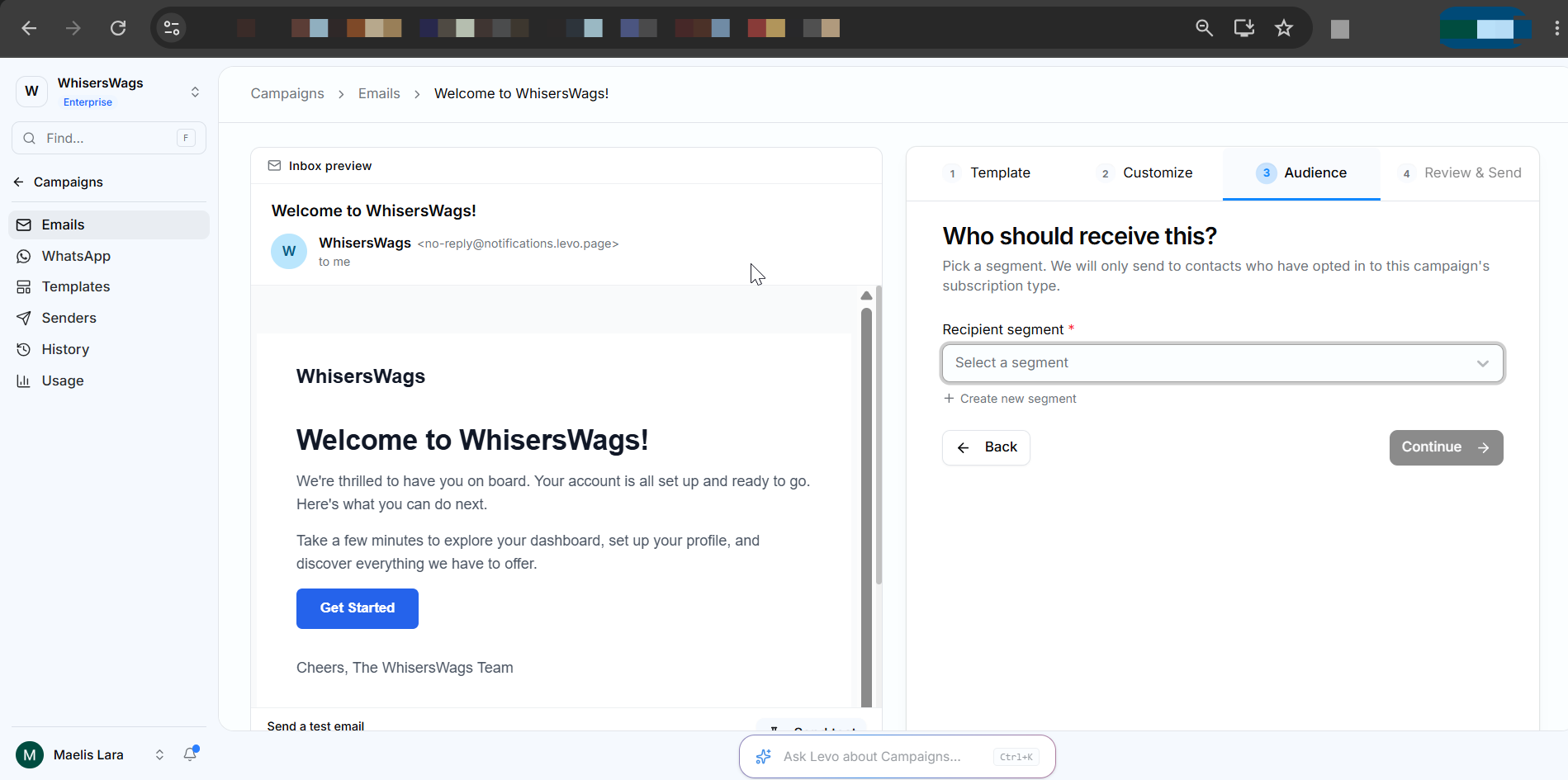
If you're creating a new segment:
Enter a clear and descriptive segment name.
Add Filter Conditions to define your audience.
Use Groups to combine multiple conditions for more precise targeting.
Select a verified sender.
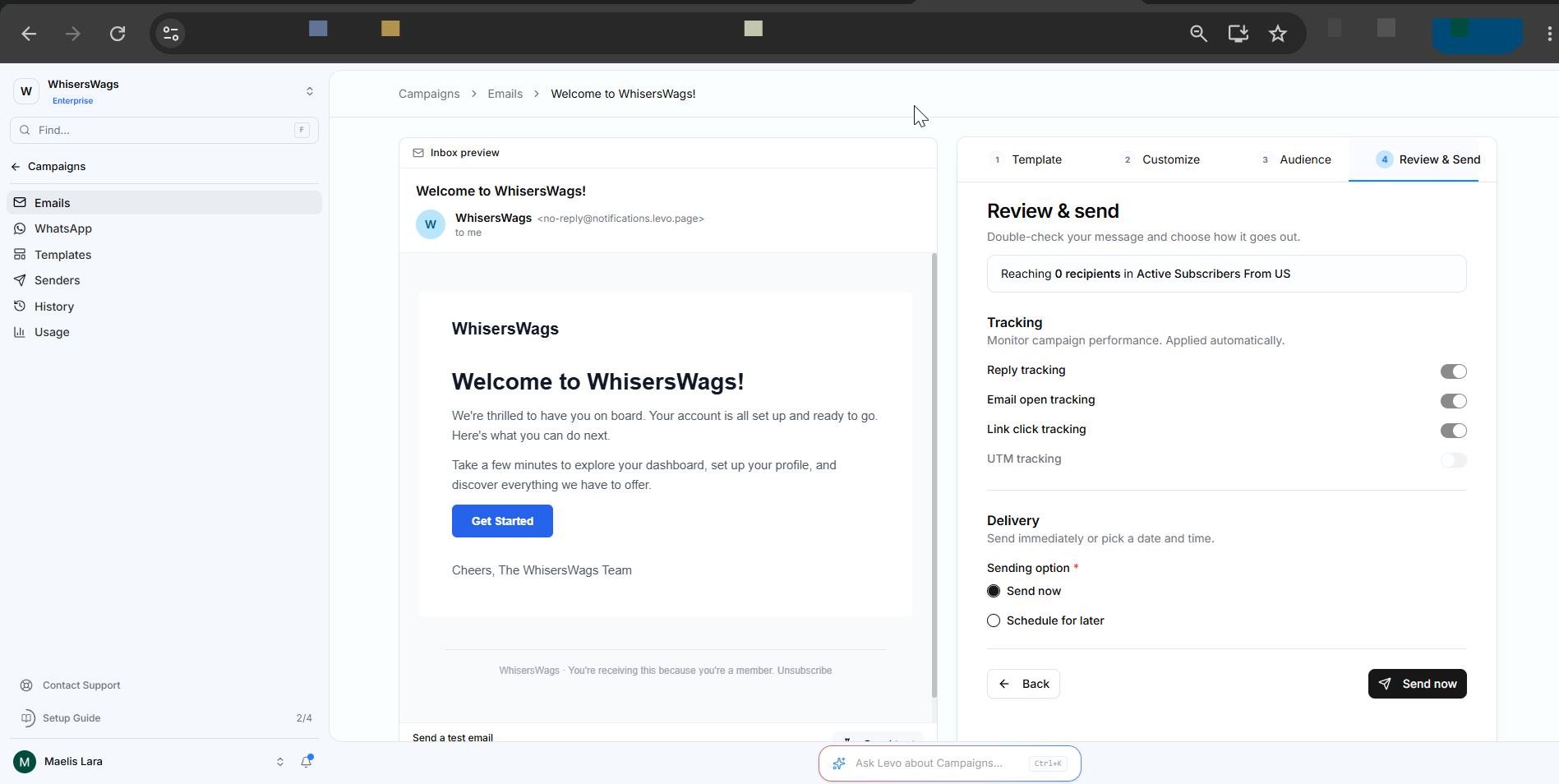
Review your campaign details.
Choose to Send Now or Schedule the campaign for a later date and time.
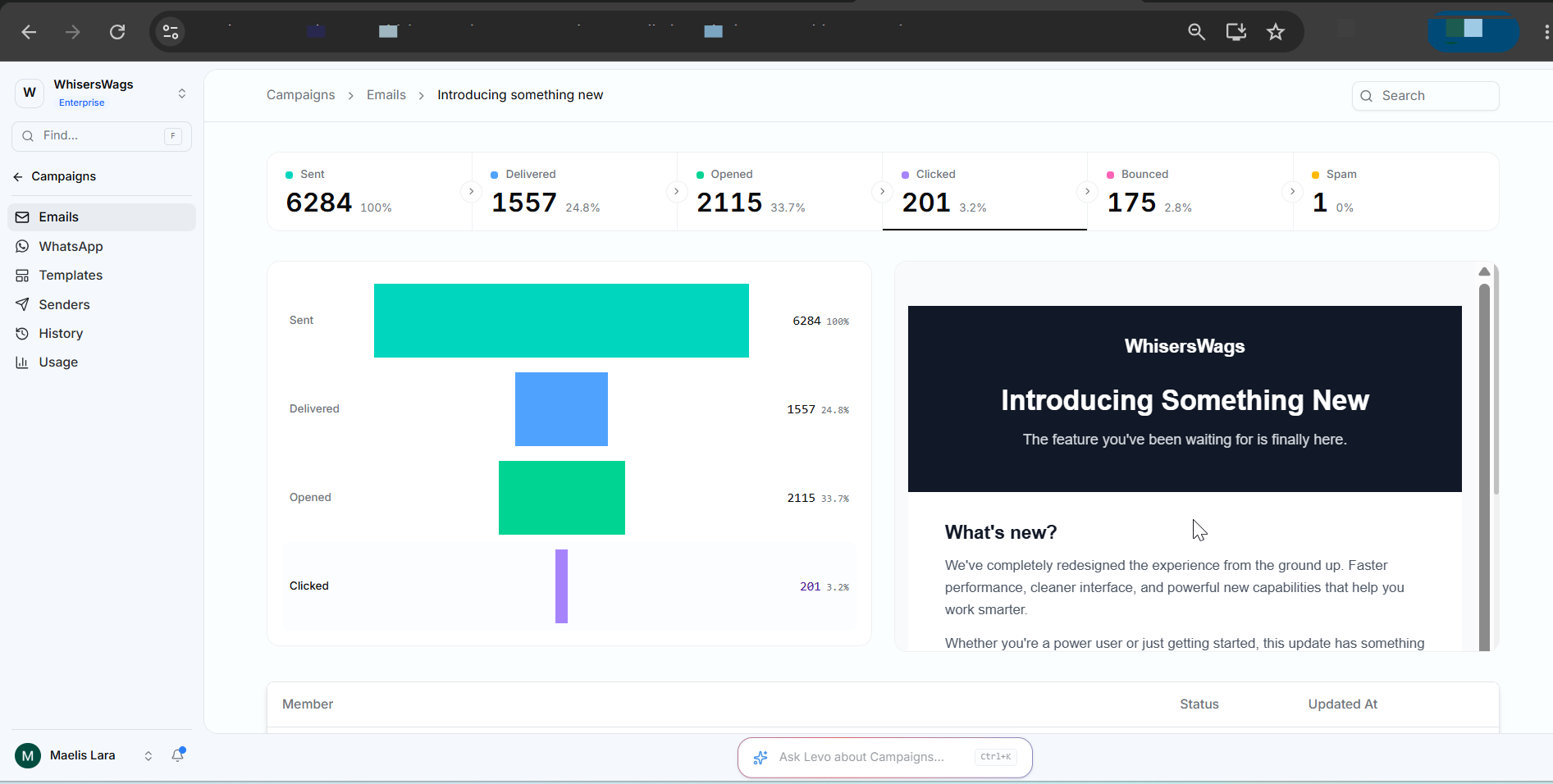
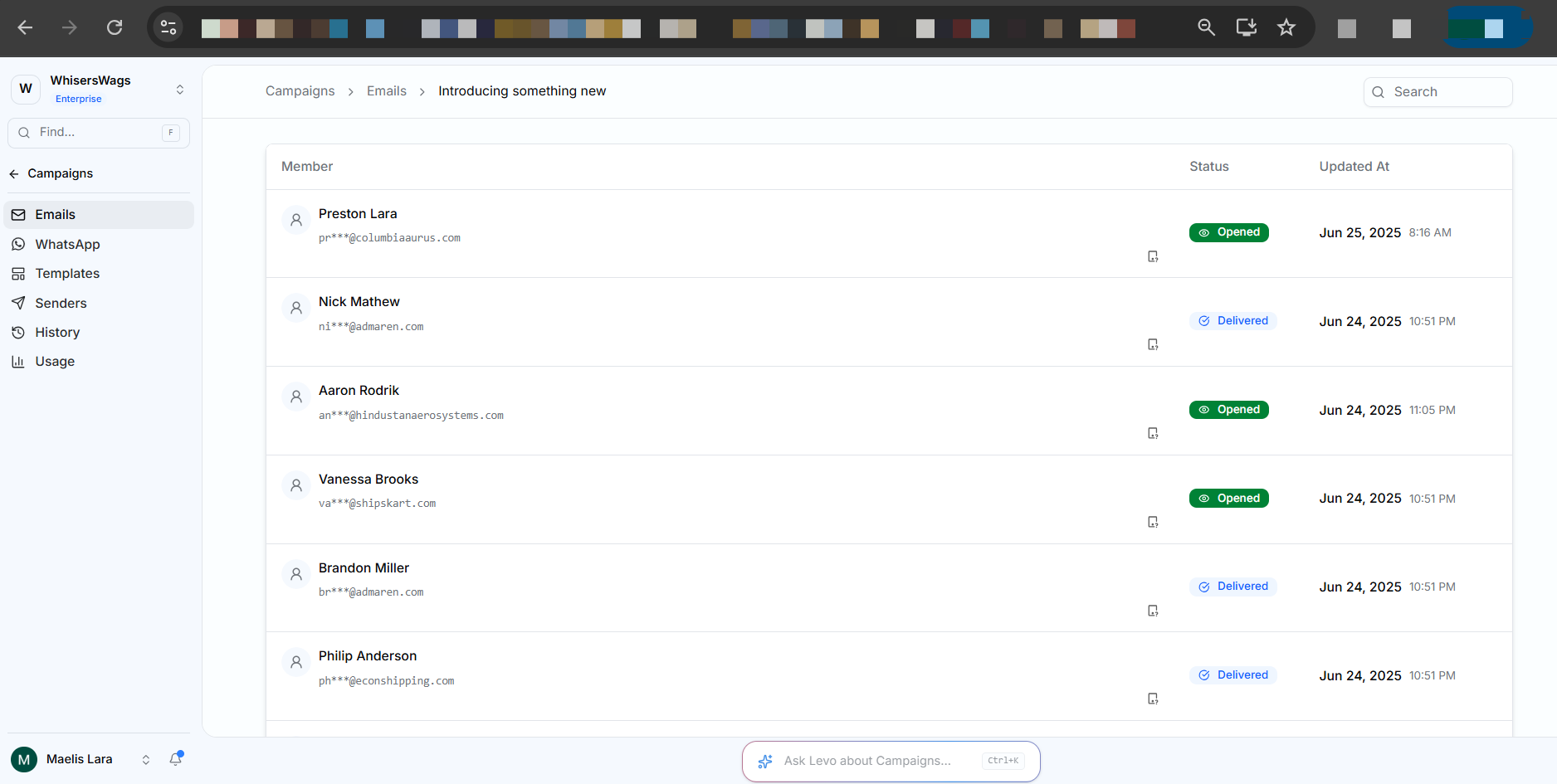
After your email has been successfully sent to the target audience, click on the email campaign entry to view its analytics, including delivery, open, and click performance.
WhatsApp Campaigns
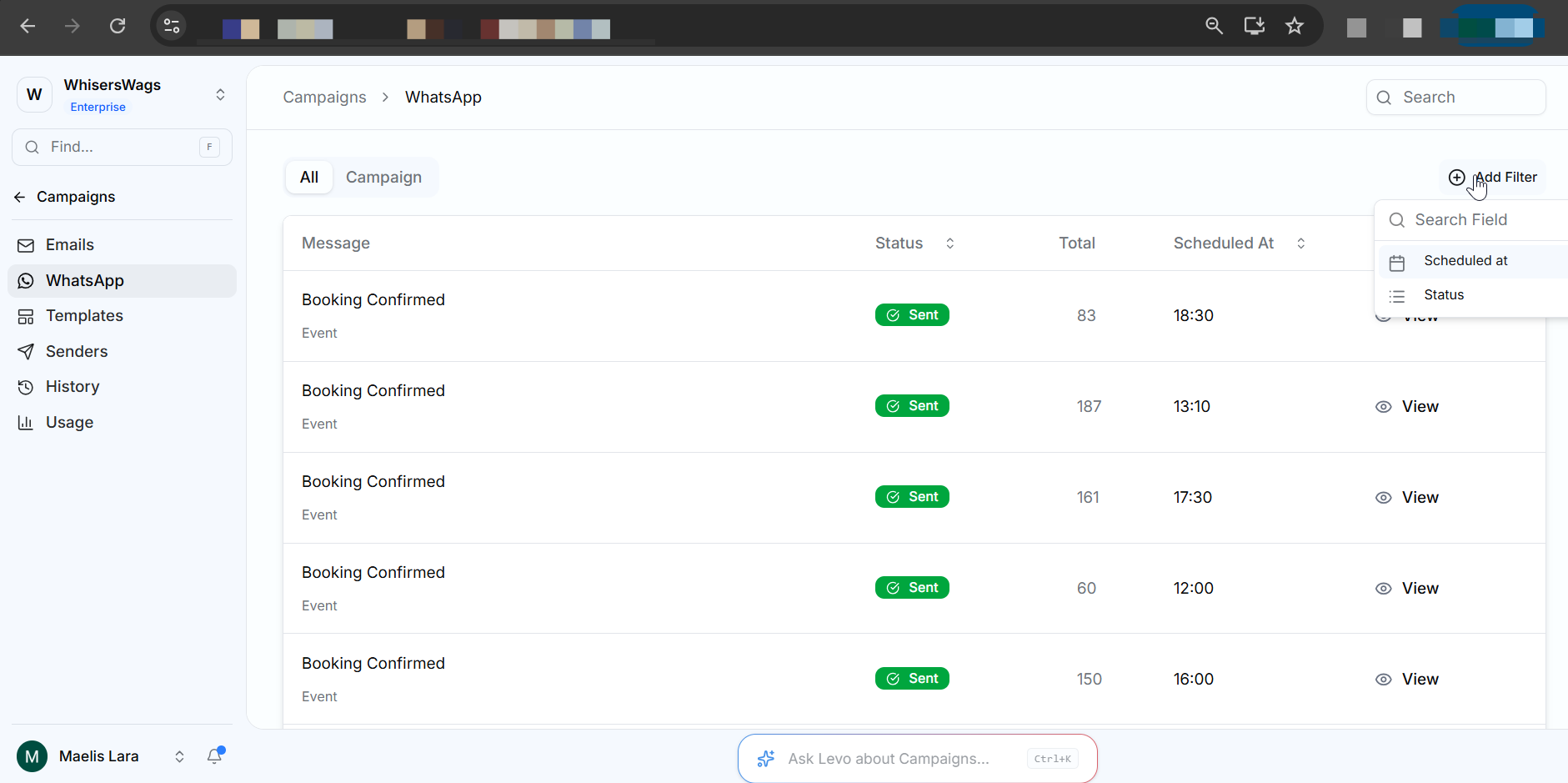
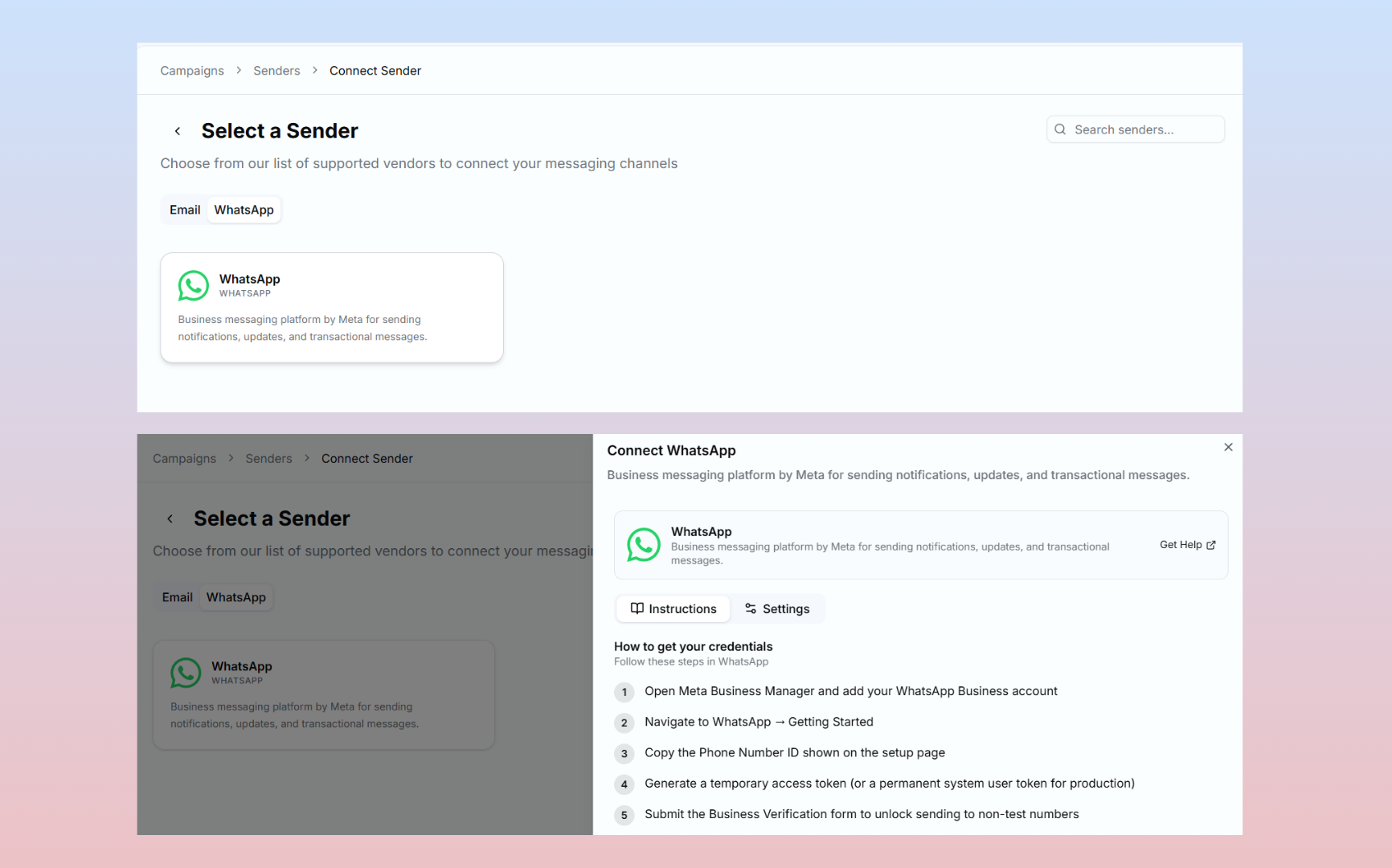
WhatsApp Campaigns let you send messages to your audience using the WhatsApp Business Platform. They are best suited for time-sensitive communication and use approved WhatsApp templates.
What you can do:
Send event reminders and registration confirmations.
Share announcements and follow-up messages.
Use approved WhatsApp templates for messaging.
View the status of each campaign.
Check the scheduled date and time.
Filter campaigns based on status or other criteria.
Note: Before sending WhatsApp campaigns, you must connect your WhatsApp Business account through Meta. This integration enables Levo to send messages using the WhatsApp Business Platform.
Templates
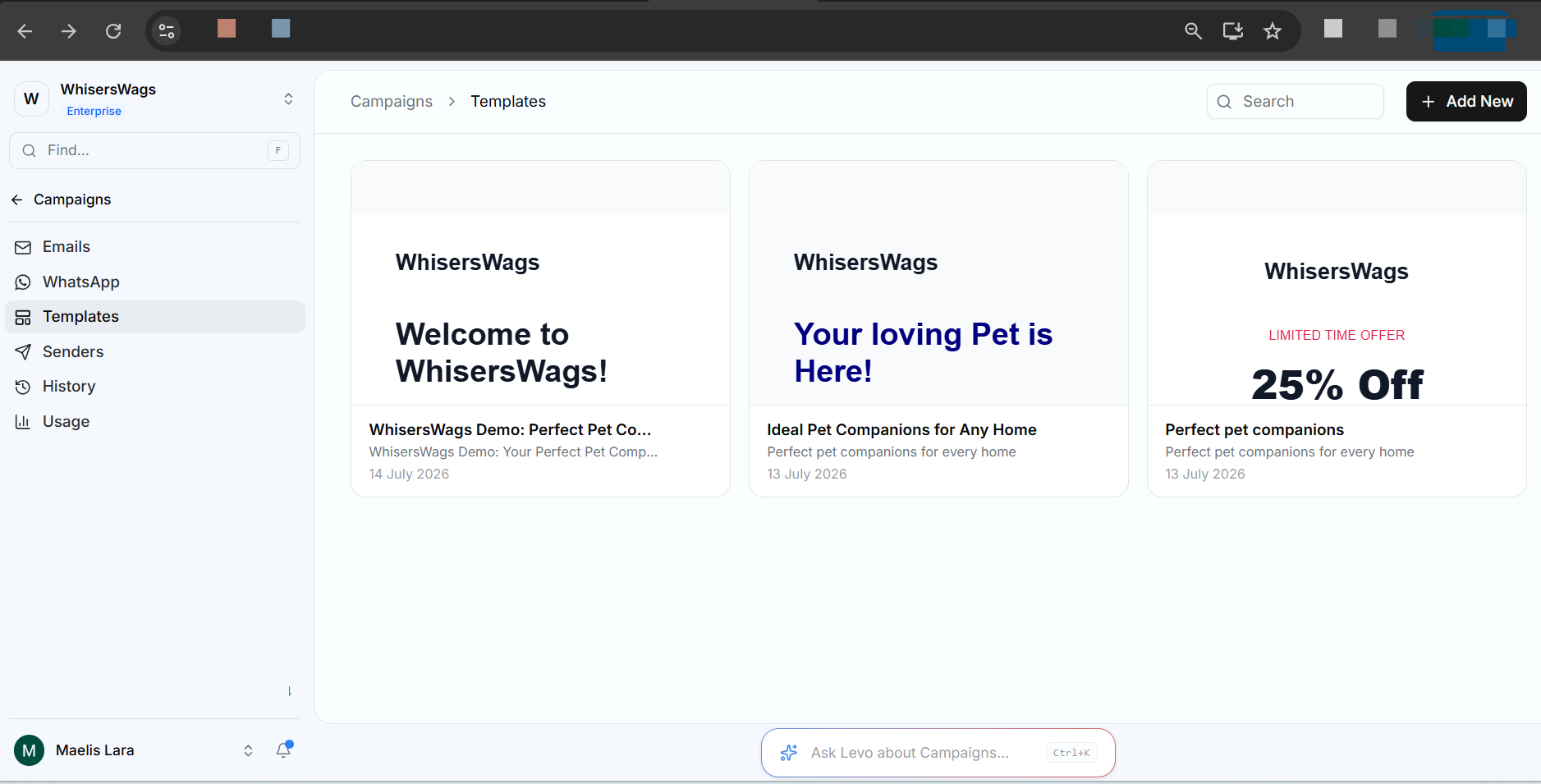
Templates save messages that you use often.
Instead of creating a new message every time, you can reuse a template.
Templates help you to Save time, Keep branding consistent, Maintain the same format across campaigns. you can create new template or edit the already created table.
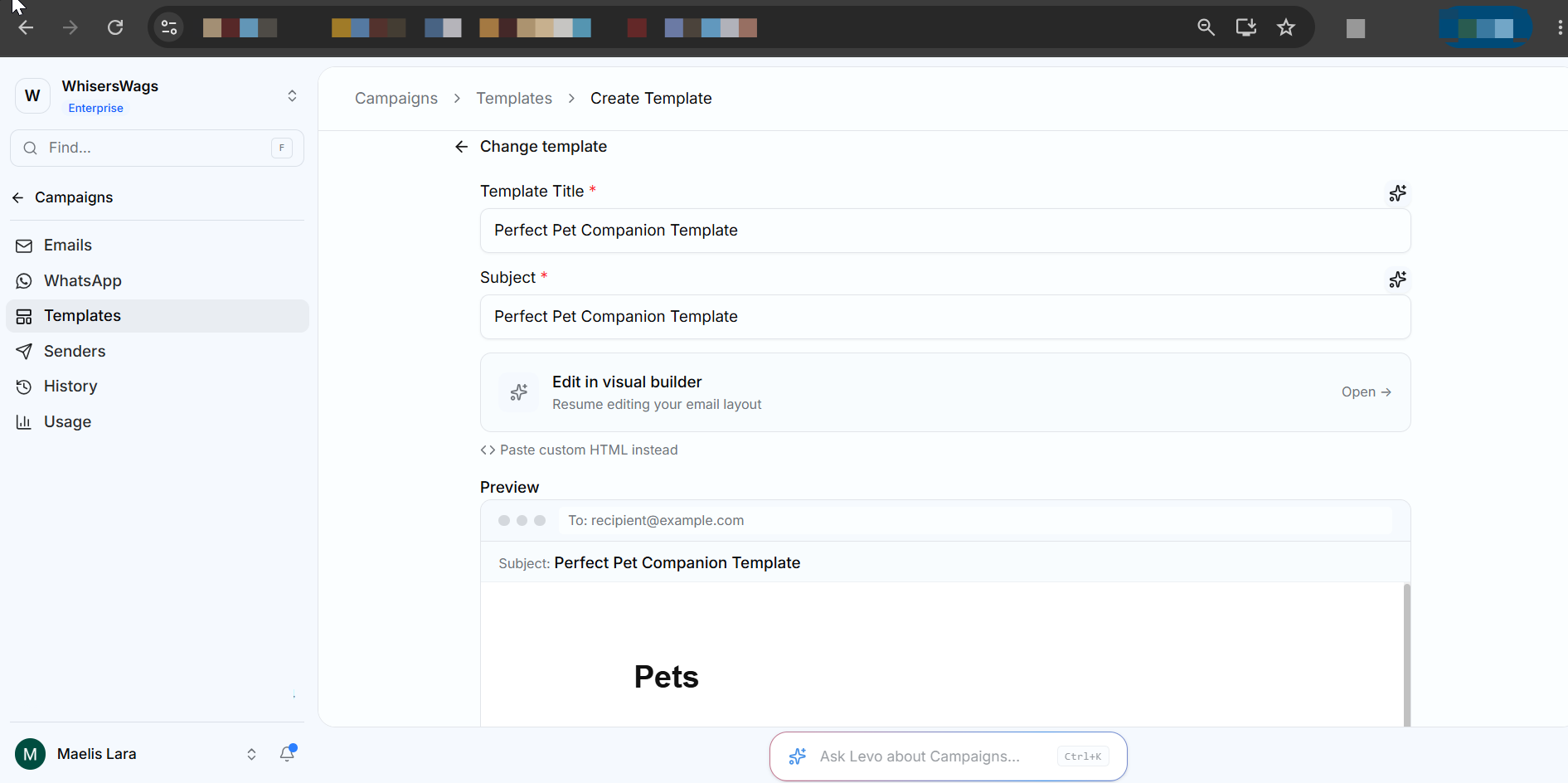
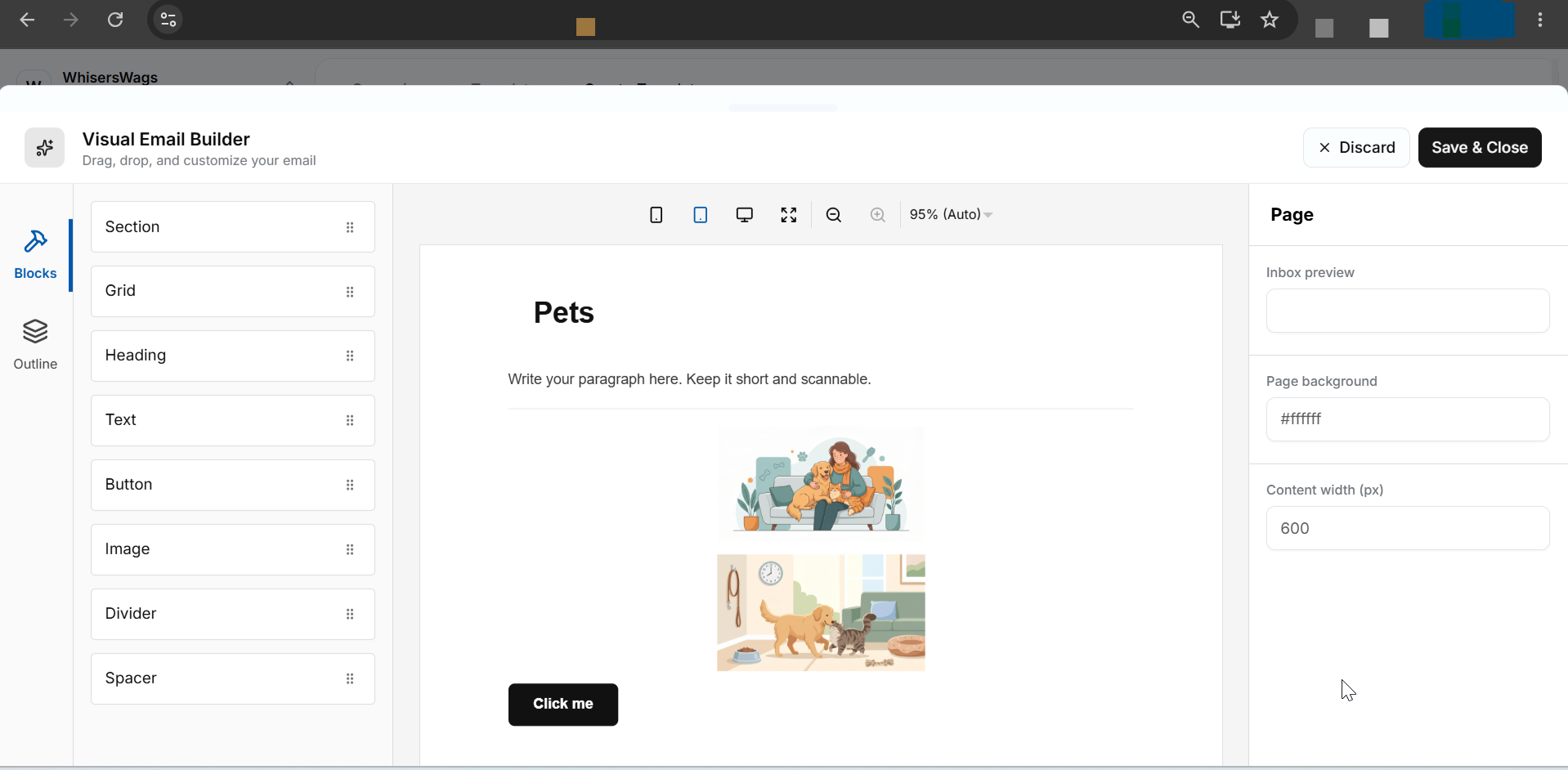
To create the new templated simply click on add new u can create from black template or existing template by filling Template title, Subject , and edit its Visuals in studio.
Senders
A Sender is the email address and name that recipients see when they receive your email campaign. Before you can send emails, the sender must be verified.
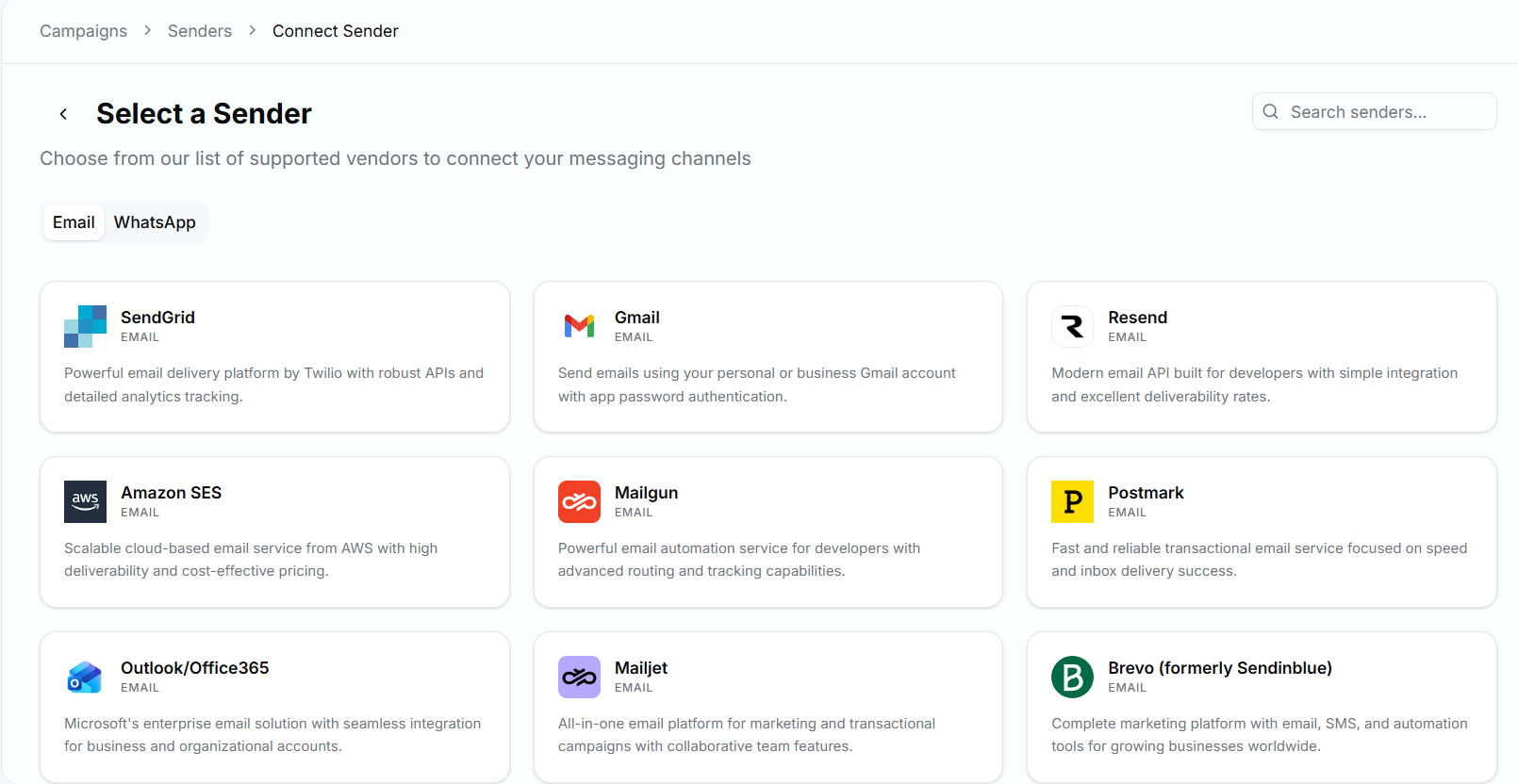
From the Senders page, you can:
Add a new sender.
Verify the sender's email address.
View the verification status of each sender.
Edit or delete existing senders.
Set a default sender to use for future campaigns.
Note: Only Verified Senders can be used to send email campaigns.
Campaign History
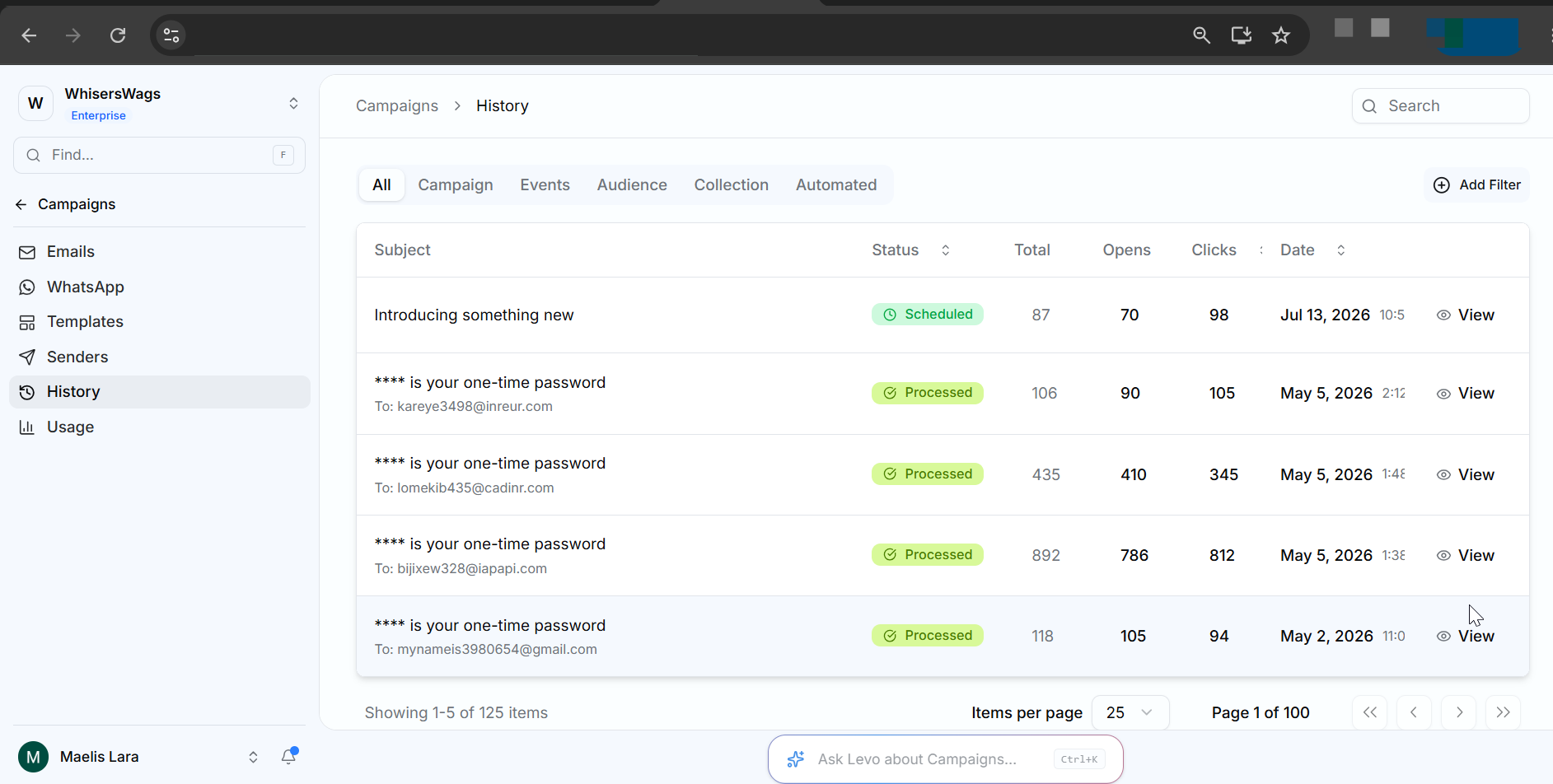
Campaign History gives you a complete view of all your previously created campaigns in one place. It provides key insights into each campaign, helping you monitor performance, review engagement, and quickly find the information you need.
What you can do:
View the campaign subject, status, and date.
Check the total recipients and emails sent.
Monitor opens and clicks to measure engagement.
Use the Filter option to sort campaigns based on your requirements.
Compare campaign performance over time.
Track audience engagement and overall campaign effectiveness.
Usage
Credits show how many email and WhatsApp credits you have used, along with your daily usage insights. Your available credits depend on your subscription plan, allowing you to track consumption and manage your campaign usage effectively.