
Filtering Collection Entries
Table of Contents
Filters
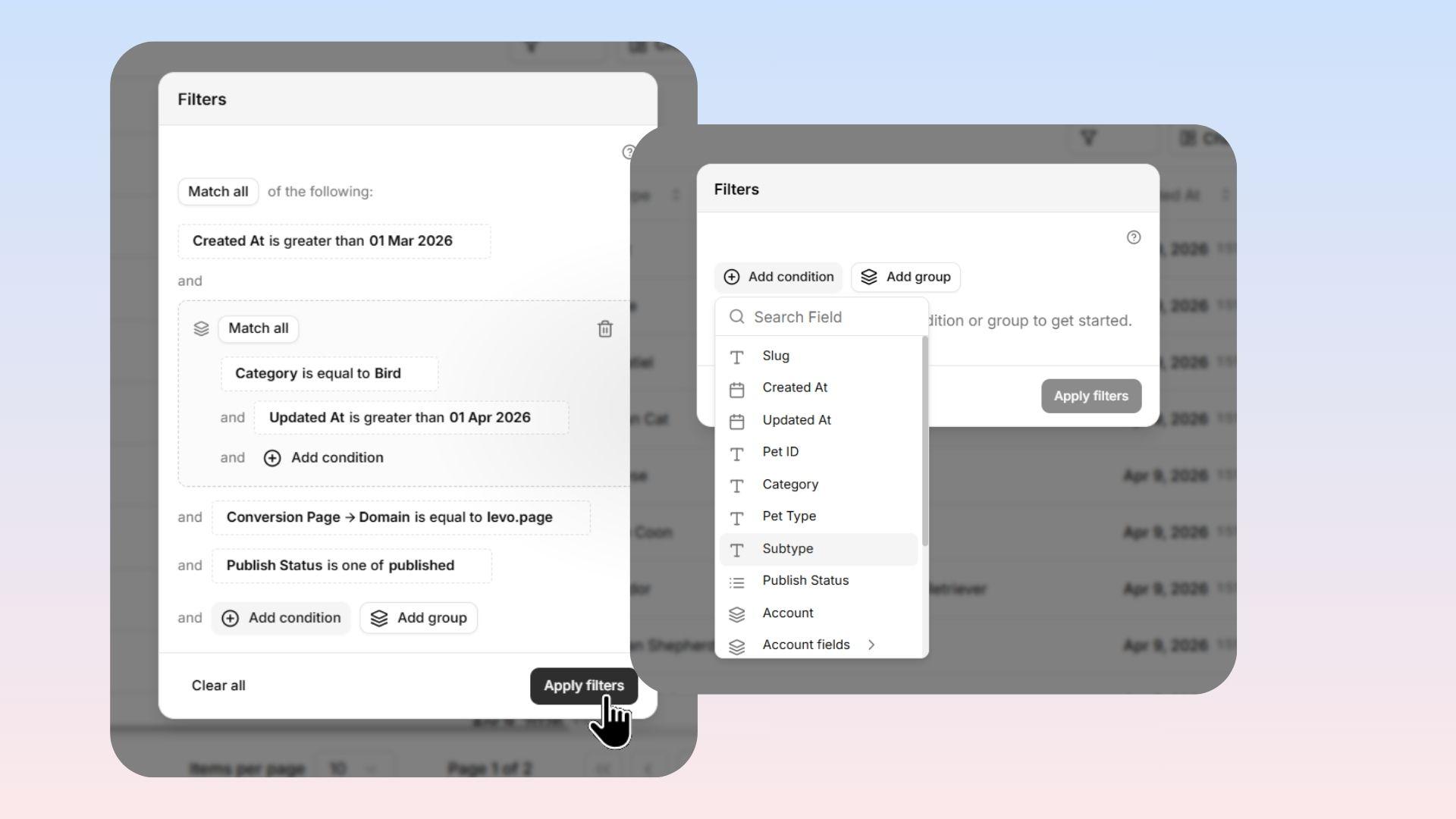
Filters let you narrow down which entries are shown in your Collection view. You can filter by any field, combine multiple conditions, and save your filters for quick access.
How to Add a Filter
Users can activate filtering by selecting the Filter button located in the Collection toolbar. The process involves picking a field, selecting an operator, and inputting a value, with immediate view updates.
Filter Operators by Field Type
Text Fields
Text, Textarea, Email, URL, and Slug fields offer the following operators:
Contains
Does not contain
Equals
Does not equal
Starts with
Ends with
Is empty
Is not empty
Number Fields
Number and Currency fields include:
Equals
Does not equal
Greater than
Less than
Greater than or equal to
Less than or equal to
Between
Date Fields
Date and DateTime fields feature:
Equals
Before
After
Between
In the last N days
In the next N days
Is empty
Is not empty
Boolean Fields
Toggle and Switch fields provide:
Is true
Is false
Selection Fields
Dropdown, Multi Dropdown, Radio, and Checkbox fields contain:
Equals
Does not equal
Is one of
Is none of
Is empty
Is not empty
Relation Fields
Collection relation fields offer:
Has relation
Does not have relation
Combining Multiple Filters
You can apply multiple conditions using logical operators:
AND — requires all conditions to be satisfied
OR — requires at least one condition to be met
Examples include filtering for published electronics items, and filtering for recent or draft content.
Saving Filters
You can preserve frequently-used filters through the Save View functionality. Sample use cases include:
Needs Review
This Week
High Priority
Published Products