
Importing & Exporting Data with CSV
Table of Contents
Moving Data: Importing and Exporting CSV Files
If you have a lot of data in a spreadsheet (like Excel or Google Sheets), you can easily move it into or out of Levo using CSV files.
1. Exporting: Taking Data Out of Levo
To take your data out, open your Collection and click the Menu button in the top toolbar. Select Export CSV, and your file will download automatically.
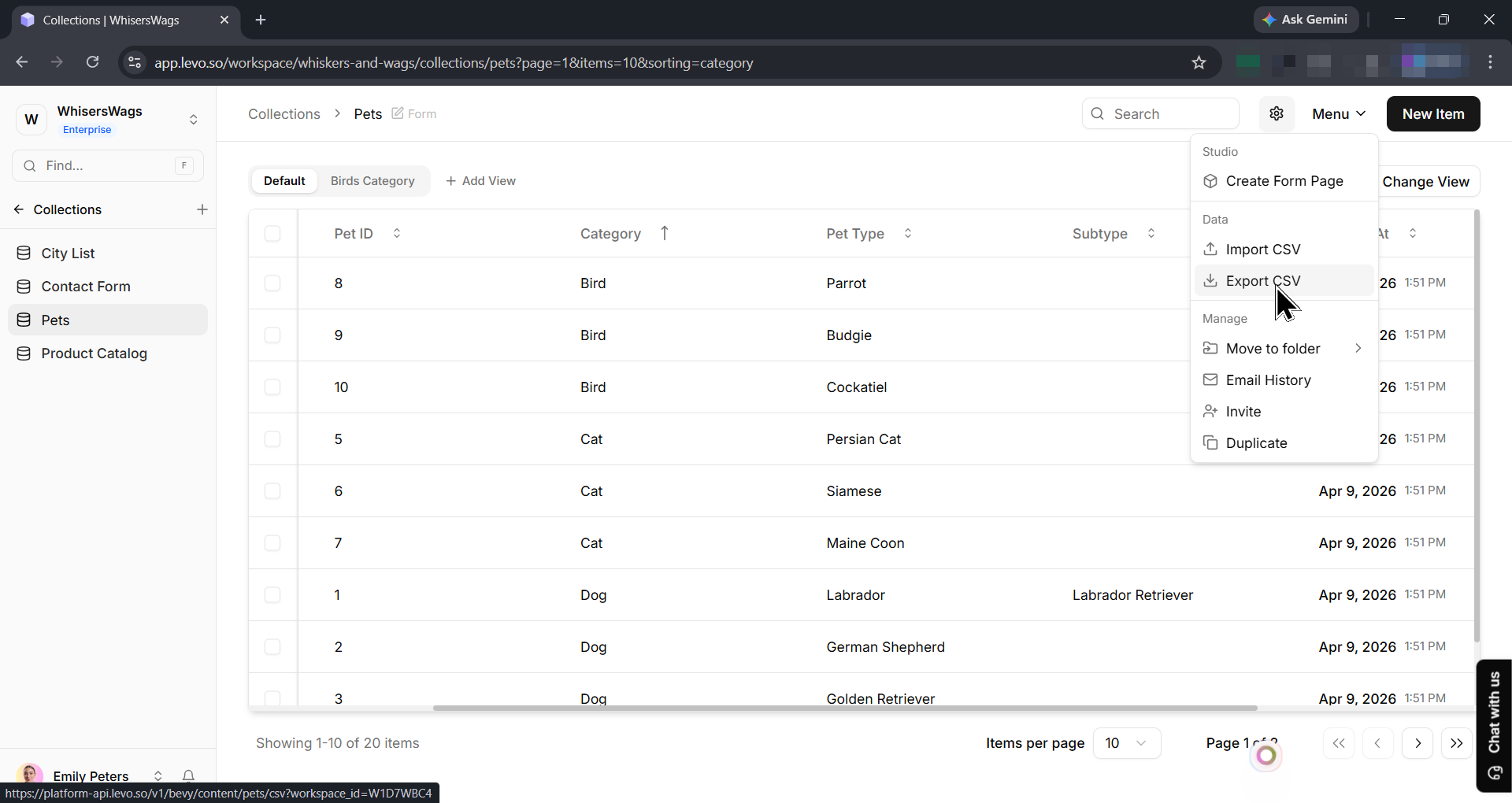
What’s in the file?
Your file will have one row for every item in your collection. The top row (the headers) will show your Field Keys (the unique IDs for your columns). It also includes secret system fields like _id, slug, and created_at.
Important Export Limitations:
No Lists: If you have a column that holds a list of items (like a "repeatable" group), it won't be exported. Only single-value columns work.
Secret IDs for Links: If one item is linked to another, you’ll see a long string of random letters and numbers (the
_id). You’ll need to look at another export to find out what that ID belongs to!Photos are Links: You won't see actual images in your spreadsheet; you’ll see the web link (URL) where the photo is stored.
Exports Everything: An export always drains the entire collection. It doesn't matter if you have a filter turned on in your dashboard.
2. Importing: Putting Data Into Levo
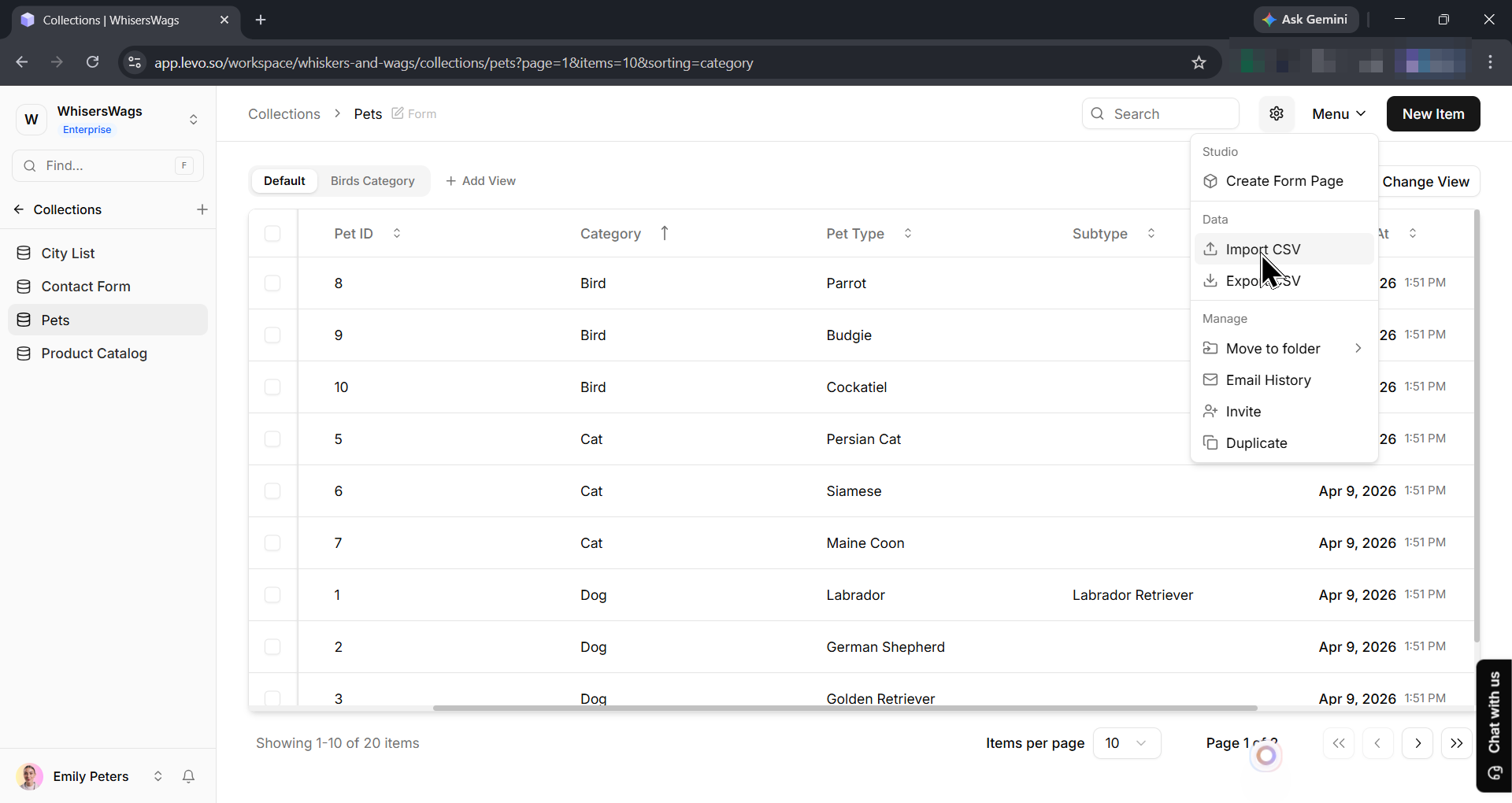
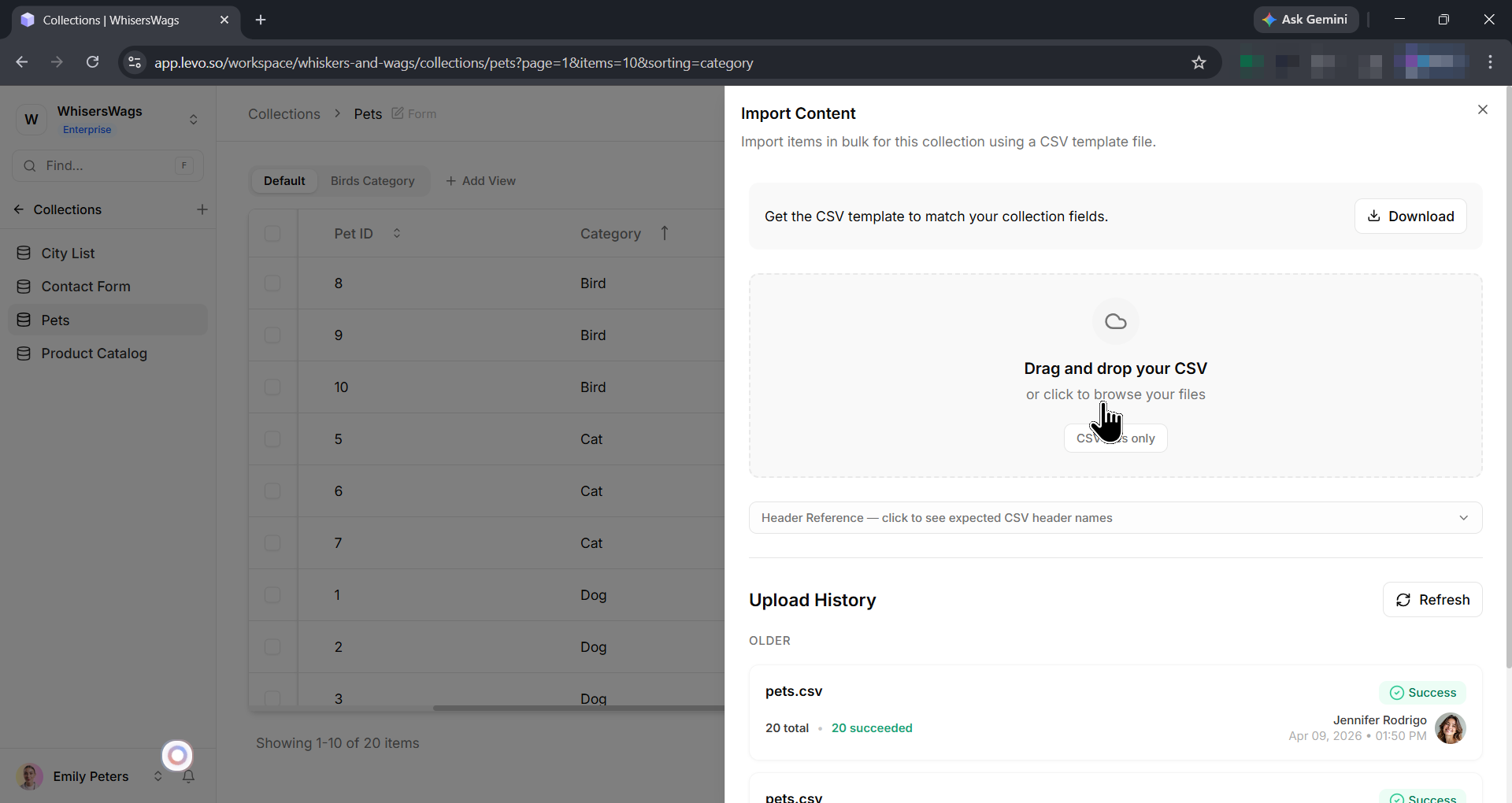
To add data, click the Menu button and select Import CSV. You can then drag and drop your file.
Important Import Limitations:
No "Bulk" Lists: You cannot import data into "Array" or "Repeatable" fields. The importer only handles columns with single pieces of information.
Exact IDs Required: To link two items together, you must use the exact secret
_id. You cannot match items by using their Name or Slug.URLs Only for Files: You can't "upload" a PDF or Image through a spreadsheet. You can only paste in a web link (URL) to where that file is already hosted online.
Flat Data Only: The importer is designed for simple spreadsheets. Complex data types (like JSON or nested records) are not supported.
 Best Practices for Success
The Pro Trick: Before you upload a huge file, Export a sample from Levo first. This shows you exactly how Levo wants your headers to be named!
Formatting: Use
YYYY-MM-DDfor dates,true/falsefor Yes/No, and plain numbers (no $ or commas).Start Small: Upload a "test file" with only 10 rows to make sure everything looks right before you upload thousands of records.
Check the Log: After your import finishes, Levo shows you an Import History. If anything went wrong, it will tell you exactly which rows had errors and why.