
Managing Staff Members & Invitations
Table of Contents
Staff
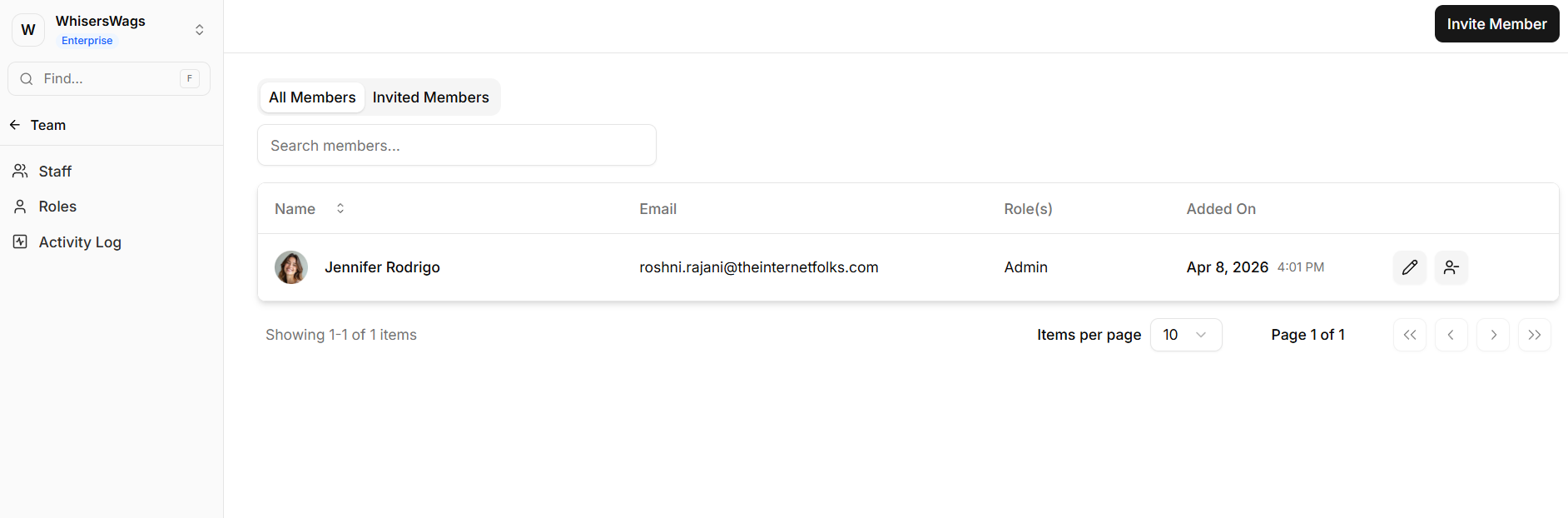
The Staff section provides workspace access management, displaying both active members and pending invitations while enabling role administration.
Inviting Team Members
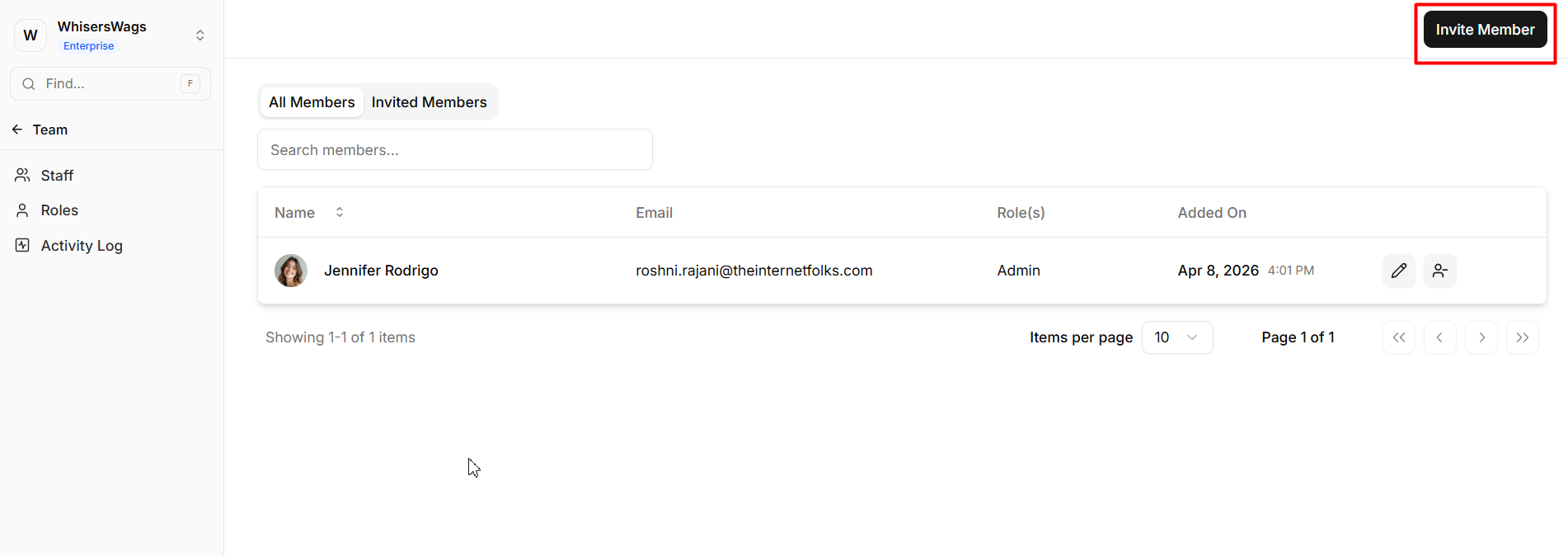
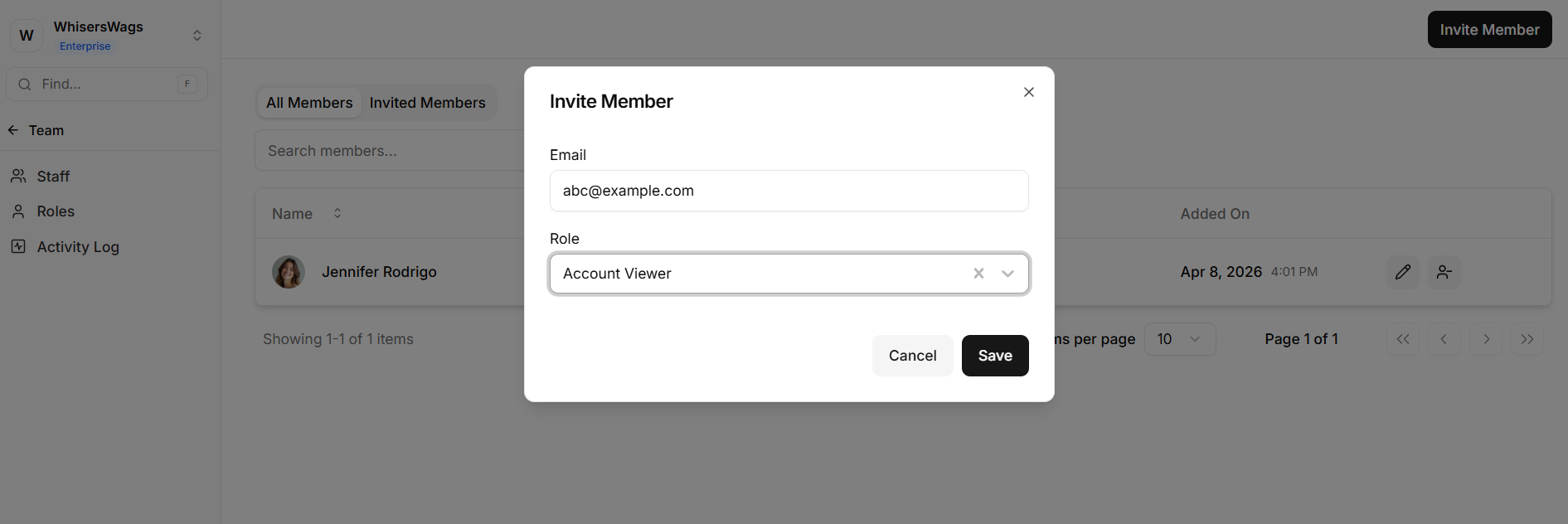
The invitation process begins by selecting Invite Member. Enter an email address and choose a role from a dropdown menu. The role selection determines permission levels. After clicking Send Invite, the recipient receives an email containing a workspace join link.
Important: If you have not created a custom role yet, do that first in Roles so you can assign the right level of access on invite.
All Members Tab
This tab displays every active team member with their name, email, assigned role(s), and join date.
Role editing: Click the pencil icon to update a member's role assignment.
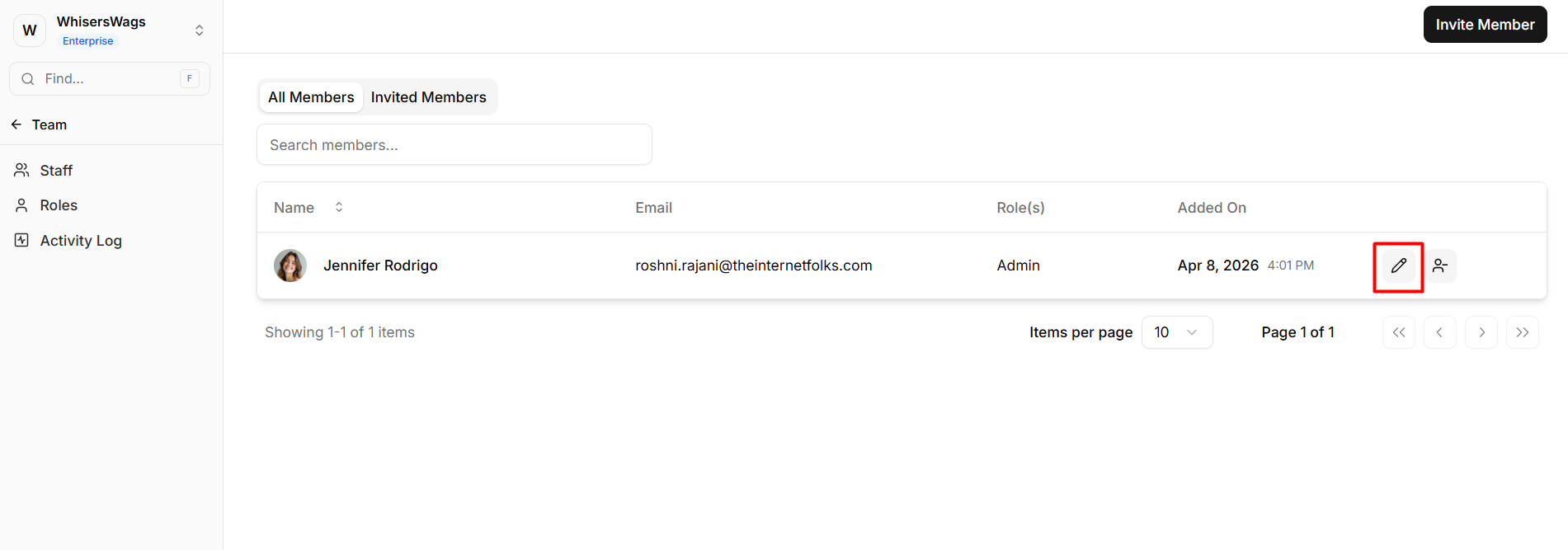
Member removal: Click the remove icon and confirm. The person immediately loses workspace access.
Invited Members Tab
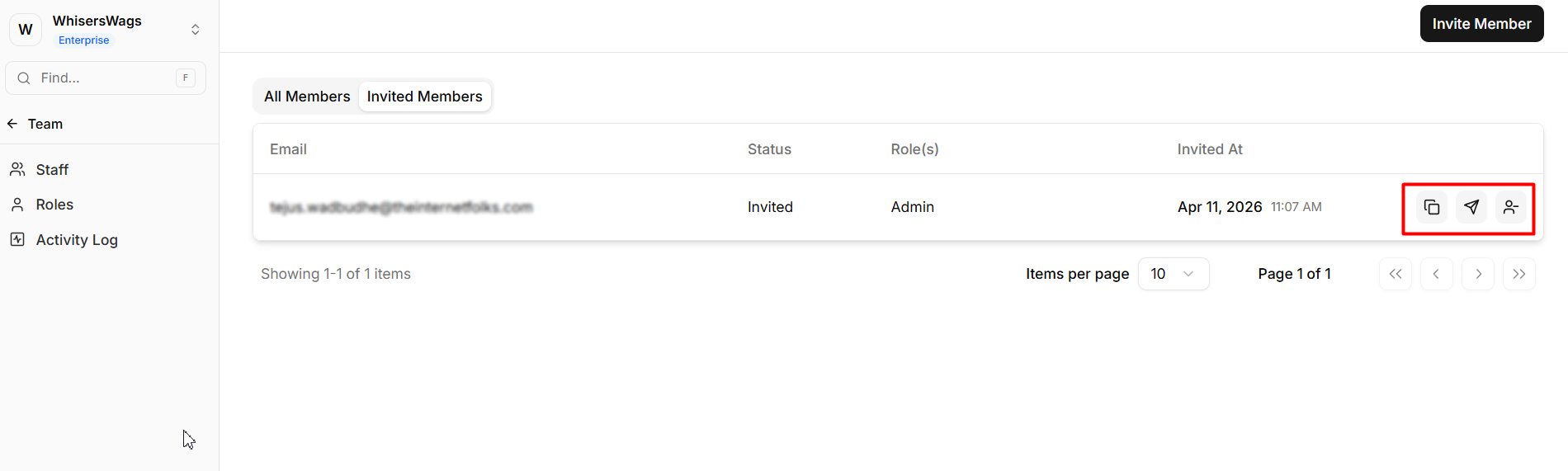
This section shows pending invitations not yet accepted, listing the invited email, status (Pending/Accepted/Rejected), assigned role, and invitation date.
Available actions:
Resend — retransmit the invitation email
Copy invite link — share the direct join link through alternative channels
Revoke — cancel the invitation
Staff Member Detail Pages
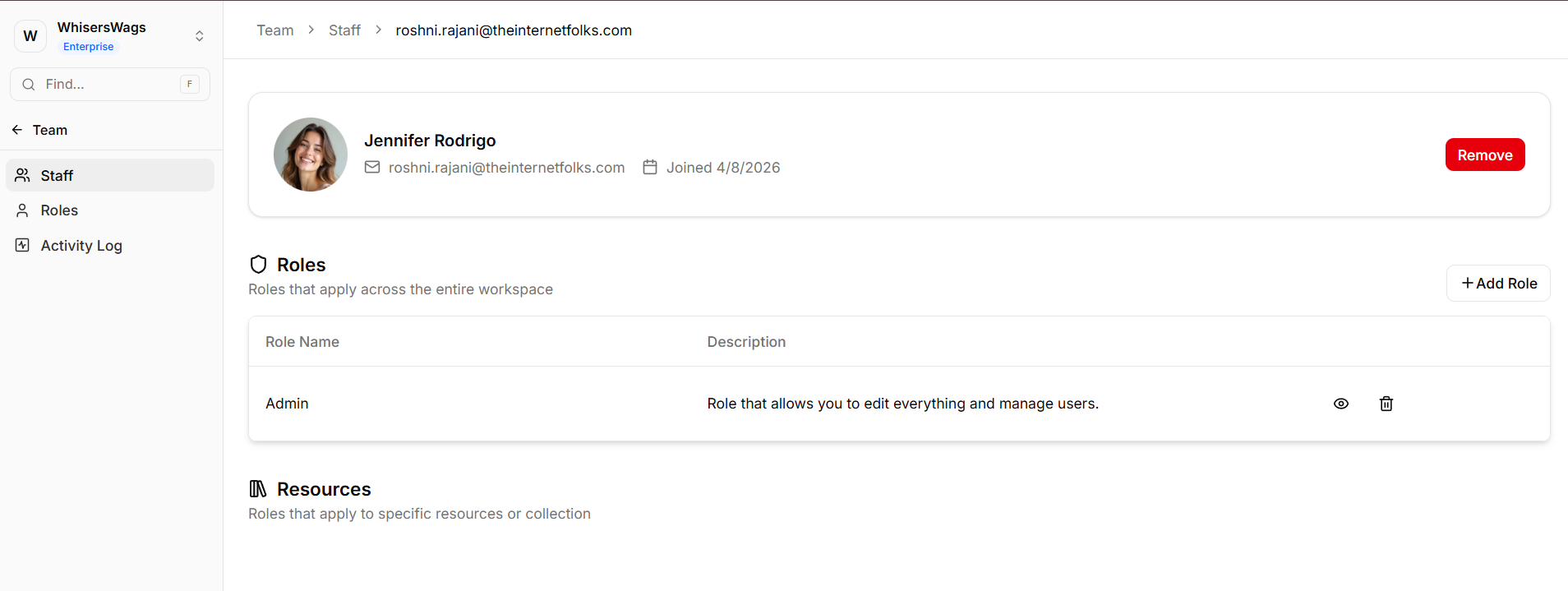
Clicking any staff member opens their detail page with two access sections.
Workspace-Wide Roles
These unrestricted roles grant access across the entire workspace according to role permissions, enabling broad access like read/write access to all Blogs and Collections. You can add or remove roles in this section.
Resource-Specific Roles
These restricted roles limit access to specific resource instances. A person might have the 'Blog Editor' role specifically for one Blog, but not others.
Capabilities include granting access to individual sites, blogs, collections, or event series; assigning varied roles per resource; and removing resource-specific access independently.