
Levo logo

Pricing

Dashboard

Switching Between Workspaces

LA

Levo Academy

Table of Contents
Switch Workspace
From the Sidebar
What Changes When You Switch

Switch Workspace

Users with multiple workspaces can navigate between them without logging out.

From the Sidebar

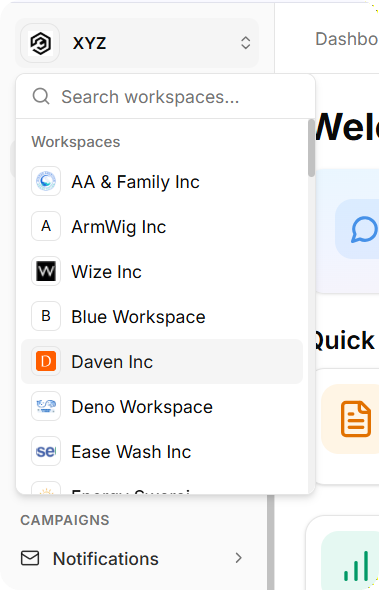
Located at the bottom of the left sidebar, the Switch Workspace button opens a dropdown displaying all available workspaces.

Each workspace entry shows its logo (or initial letter if no logo exists) and name. Selecting any workspace triggers a page reload into that workspace's dashboard.
What Changes When You Switch

Each workspace operates as an independent environment. Switching workspaces affects:

  • Content access (pages, posts, events, collections) varies by workspace

  • Audience and Insights data remains workspace-specific

  • Team membership and permission levels are workspace-specific

  • Billing structures apply per-workspace

Personal account information (email, password, profile) remains consistent across all workspaces.


← Prev
Your Workspace Dashboard

Next →
How Levo AI Works Across the Platform


← Prev
Your Workspace Dashboard

Next →
How Levo AI Works Across the Platform

Related Docs

Workspace Identity, Billing & Developer Access

The Workspace Hub is the foundational control layer of your platform. It centralizes critical administrative functions, including organizational identity, billing management, integrations, and developer access.

Activity Log — Track Every Workspace Change

The Activity Log provides a clear record of important actions within your workspace. It shows who performed an action and when, helping you maintain visibility and accountability.

Roles & Permissions — Controlling Team Access

A Role is a defined set of permissions that determines what a team member can view and perform within the platform. Levo operates on a granular, action-based permission model, allowing administrators to explicitly control whether a user can:
1/0
Levo logo

Level up engagement on any website

Pricing

Contact Us

Help & Support

Copyright © 2026. All Rights Reserved

Terms & Conditions

Privacy Policy