Your Profile & Account Settings
Table of Contents
How to Access Account Settings?
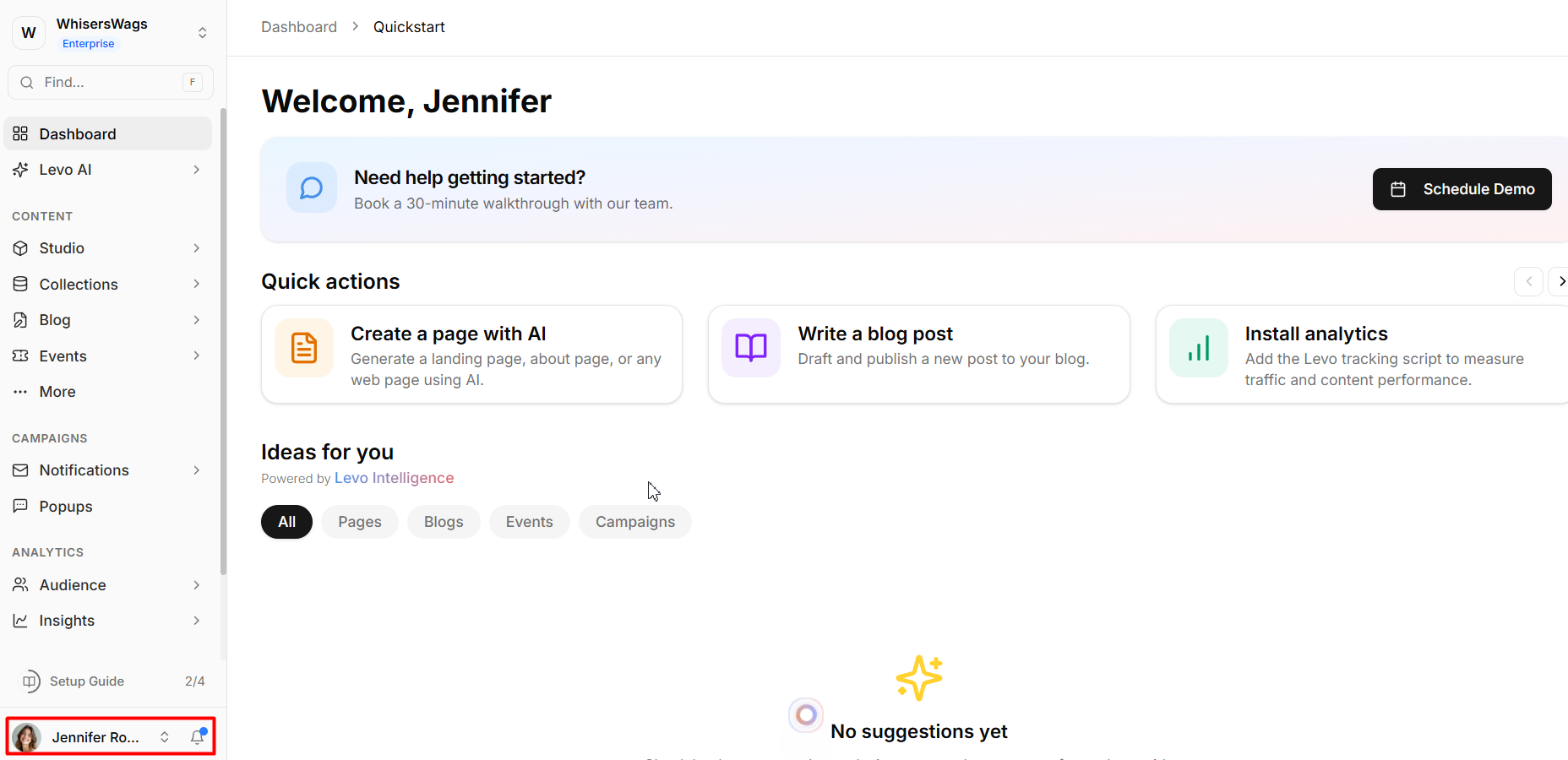
Click your avatar at the bottom-left of the main sidebar, then select Account from the menu.
Select Account from the menu
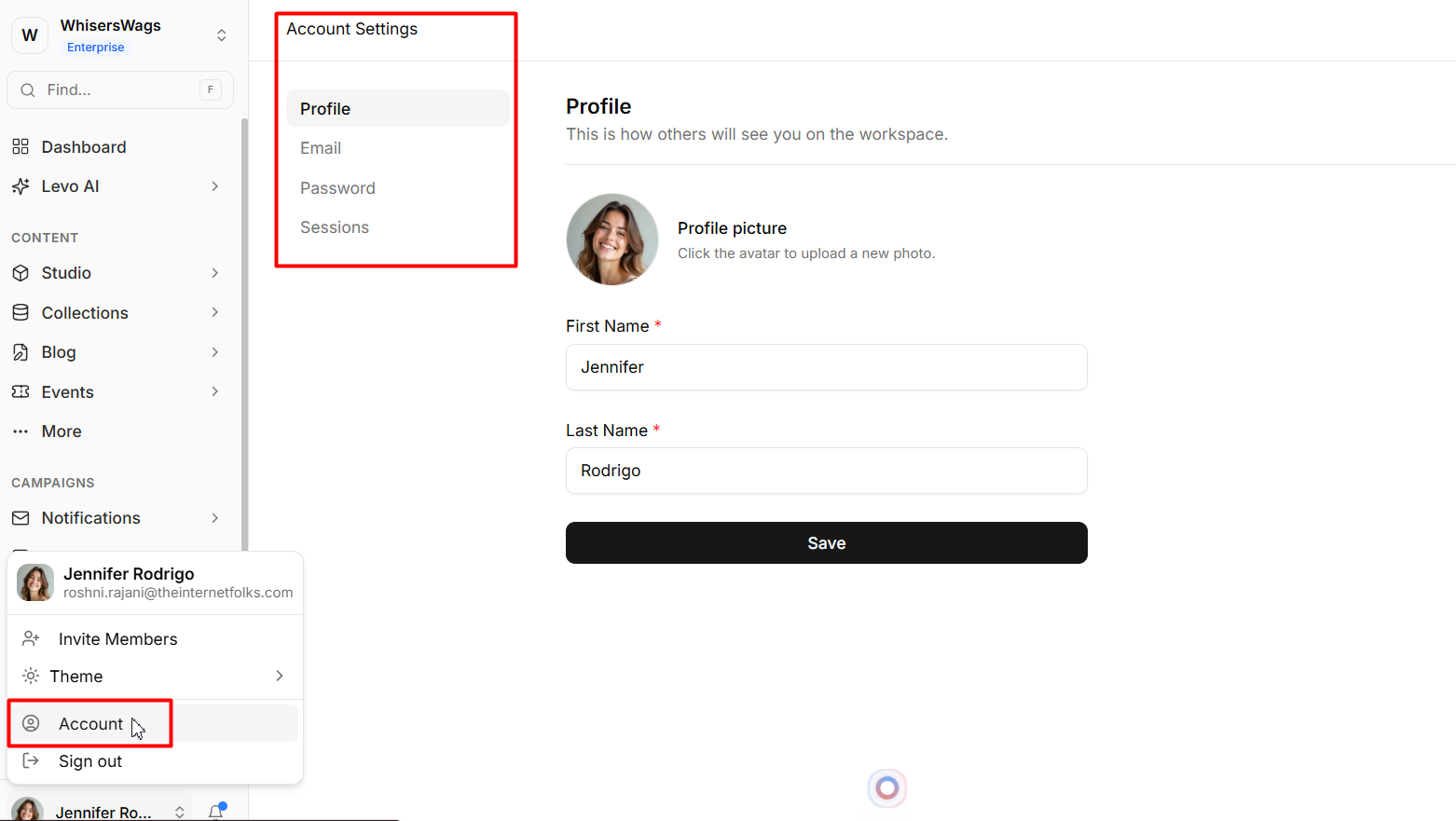
Open the Account Settings section
Manage your personal details
Update your authentication credentials
Monitor your active logins
1. Profile
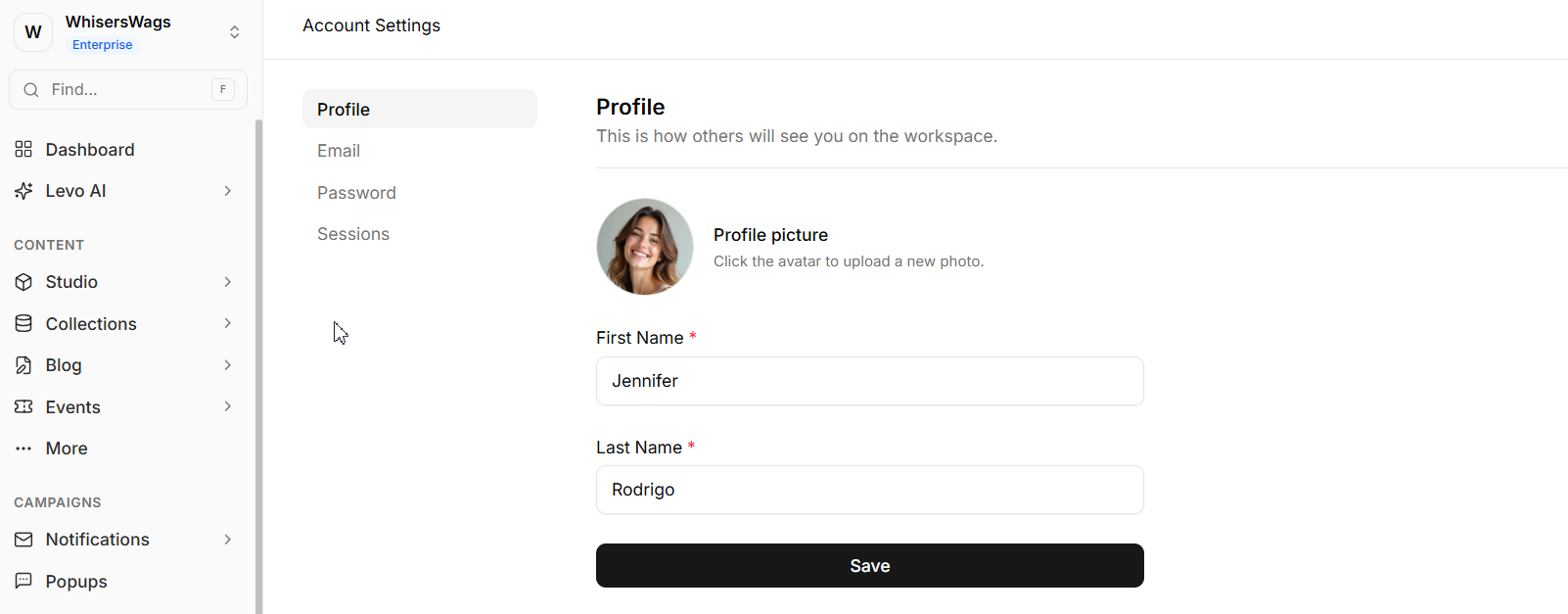
Update your core identity on the platform. This is how other team members will see you.
Profile picture: Click your current avatar to upload a new account photo.
First Name: Modify your given name.
Last Name: Modify your family name.
To apply changes: Click the Save button.
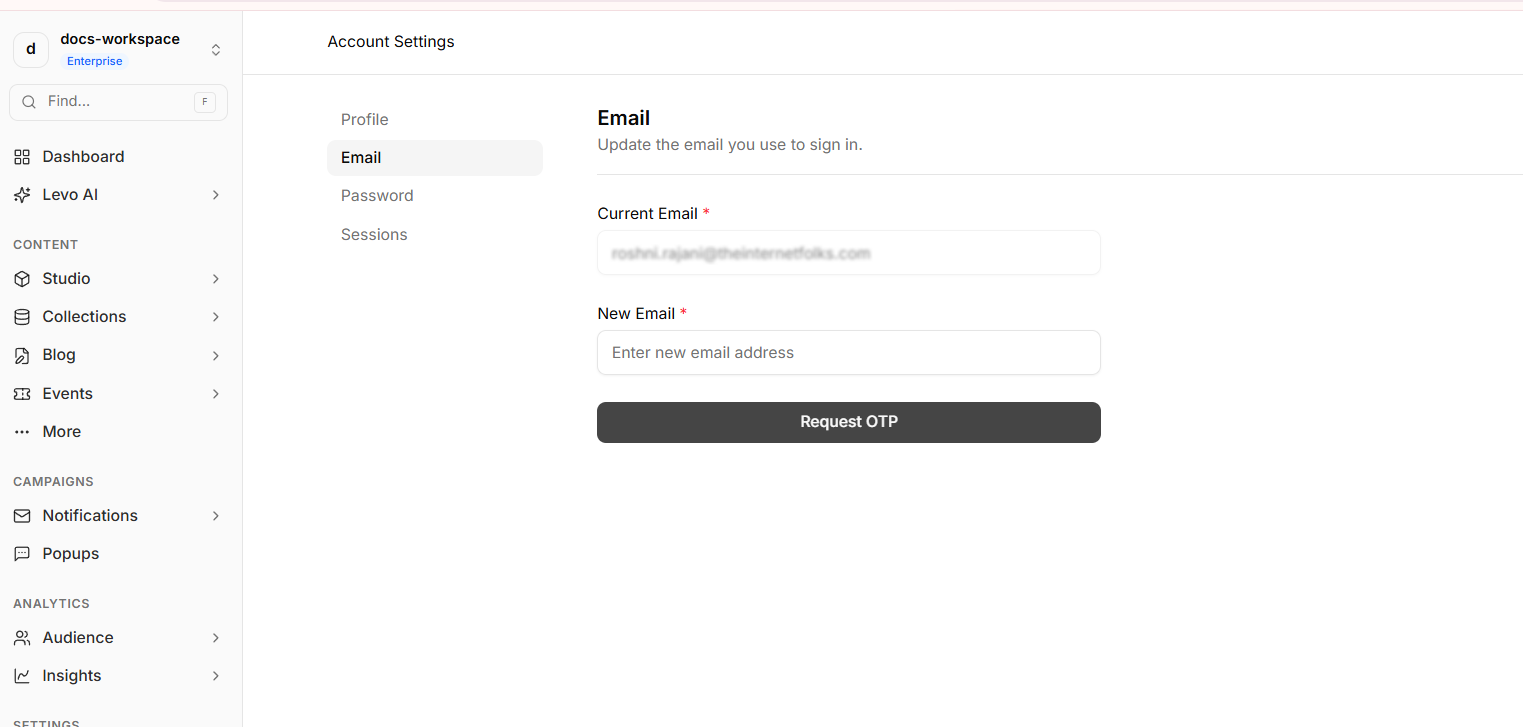
Modify the email address associated with your sign-in.
Current Email: Displays your currently registered email address.
New Email: Enter the new email address you wish to use.
Steps to finalize:
Click Request OTP to receive a one-time password in your new inbox.
Enter the 4-digit verification code.
Click Verify and Change to finalize the swap.
3. Password
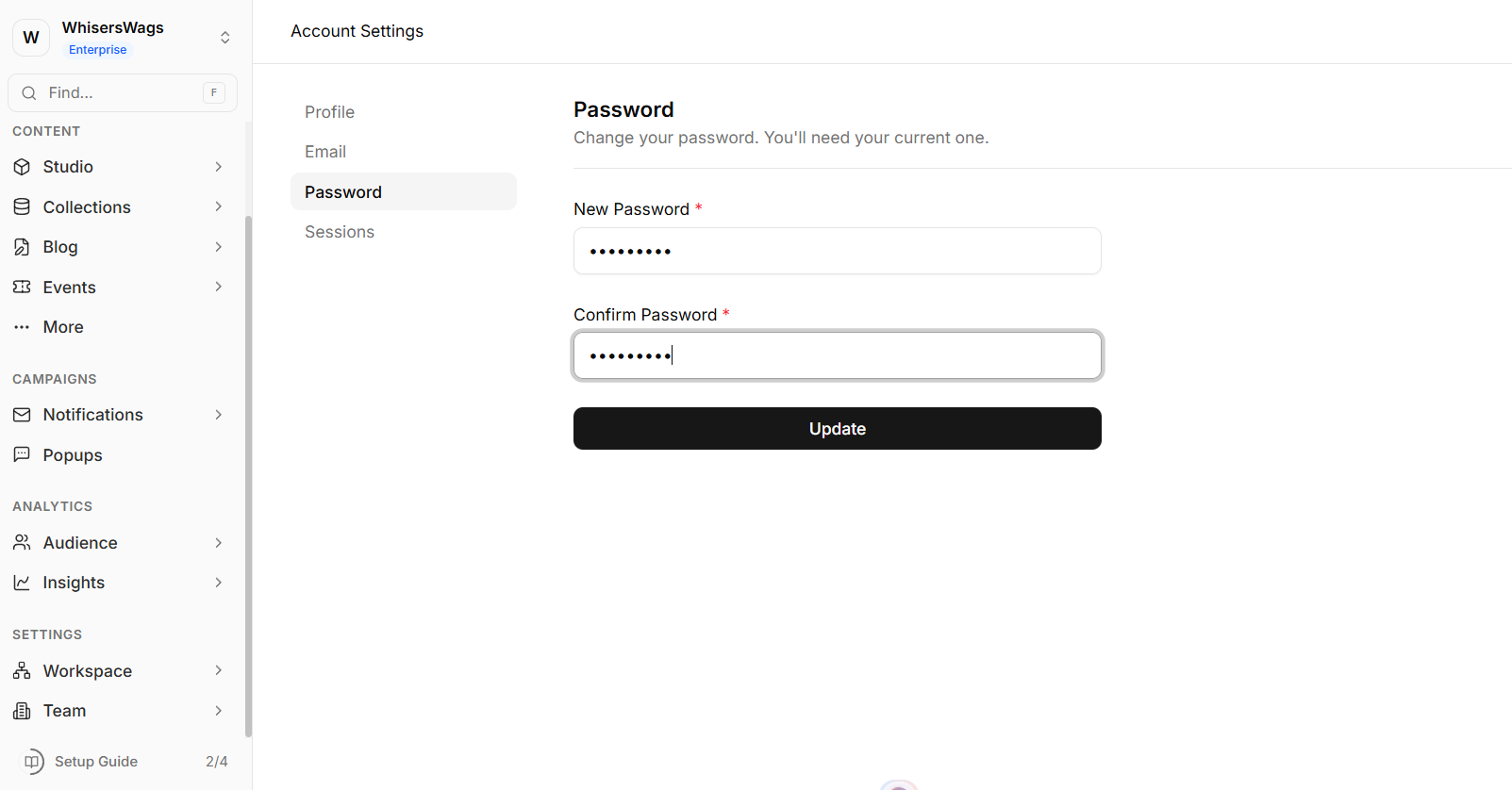
Secure your account by creating a new login password.
New Password: Enter your chosen replacement password (requires minimum 8 characters, an uppercase letter, a lowercase letter, and a number).
Confirm Password: Re-enter the new password to validate against typos.
To apply changes: Click the Update button to finalize the password modification.
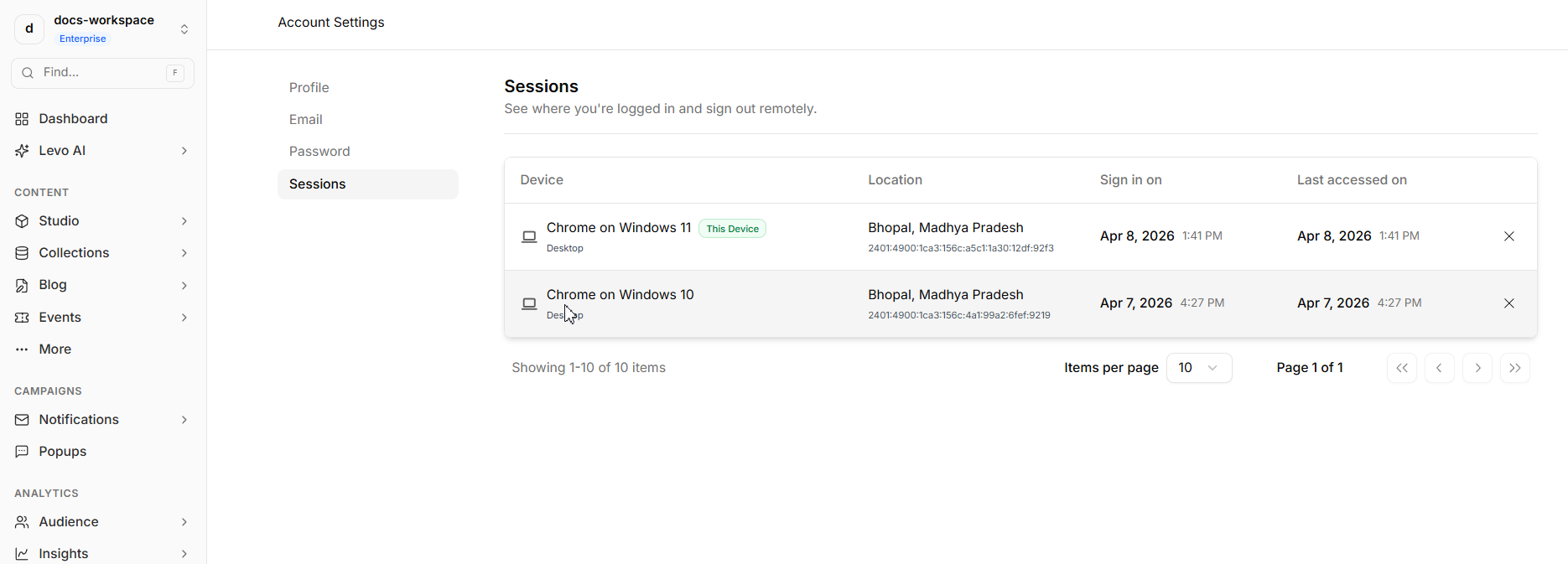
4. Sessions
Monitor and govern the devices currently logged into your account. Each chronological entry highlights:
Device: The equipment category (desktop, mobile, etc.).
Location: The geographic origin of the session.
Signed In On: The exact date and time the session started.
Last Accessed On: The timestamp of the most recent activity.
To terminate a session:
Click the Cross (X) icon next to the session you want to close.
Select Confirm on the prompt to immediately revoke that device's access.