
Adding & Managing Collection Entries
Table of Contents
Entries represent the rows of data in a Collection. Each entry contains values for all defined fields.
Adding an Entry
Steps to add an entry on Levo:
Select the Collection where you want to add data.
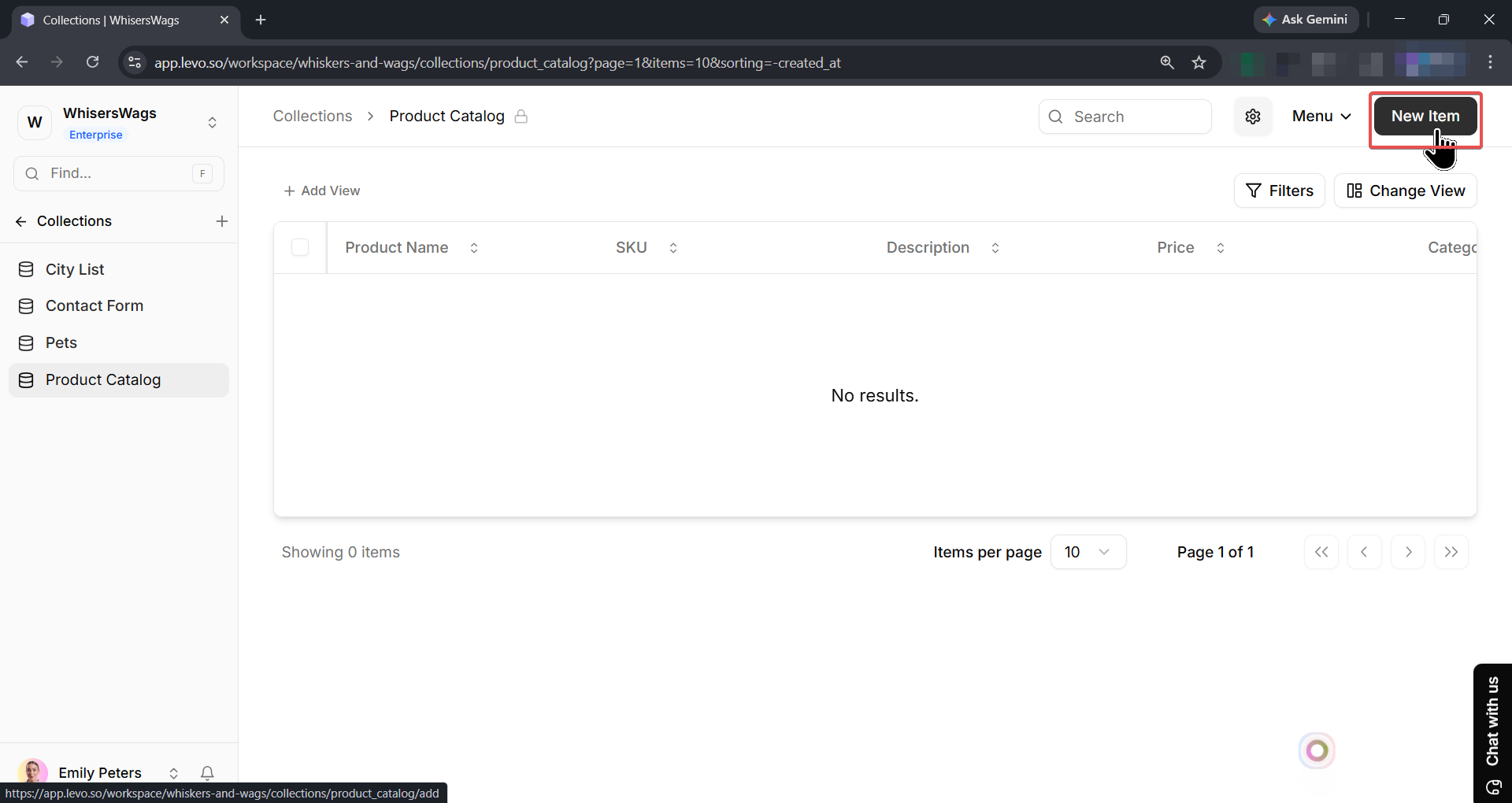
In the top-right corner of the collection page, click New Item button.
A form will open showing all the fields defined for that collection.
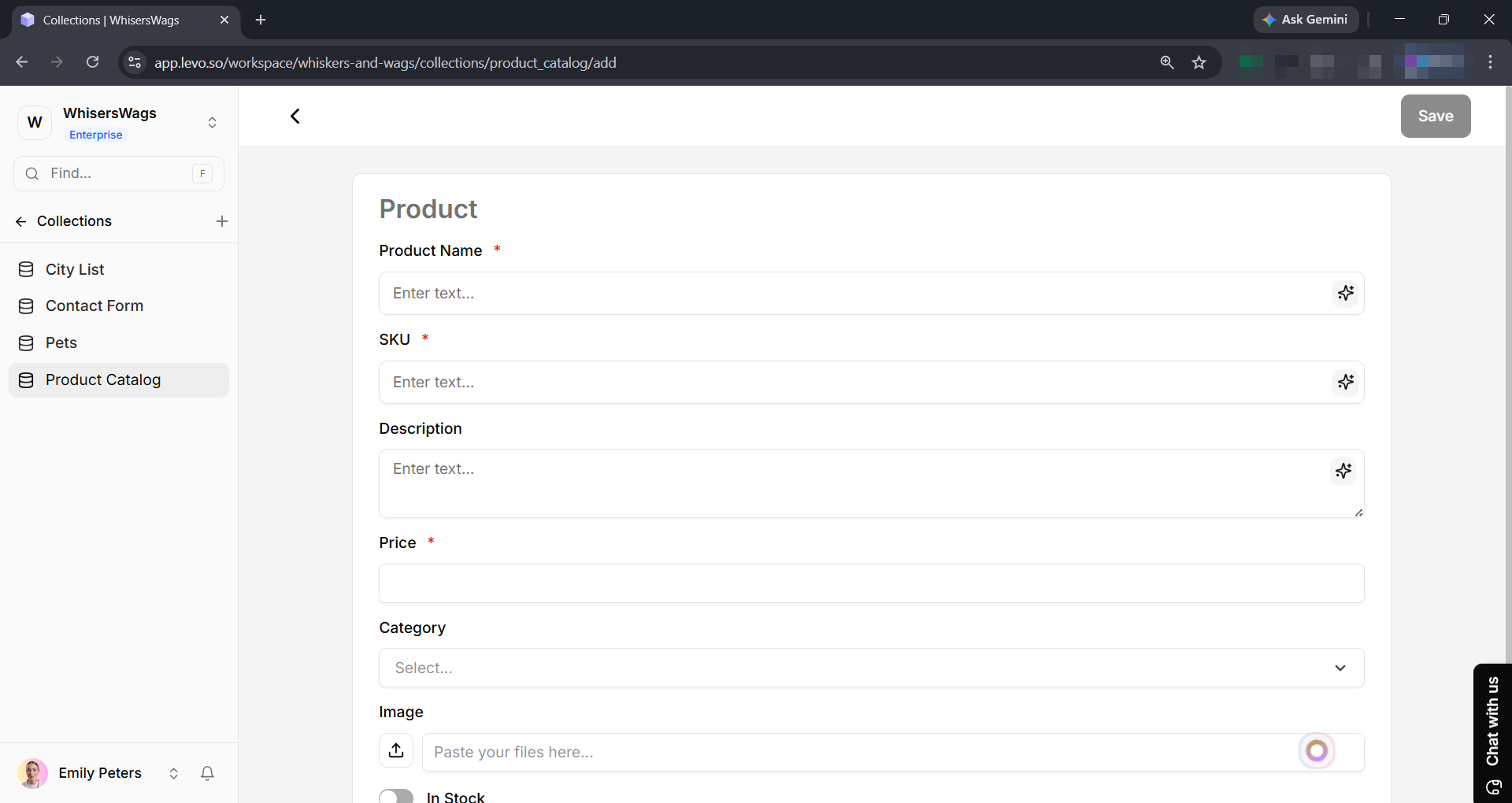
Fill in the required information in each field.
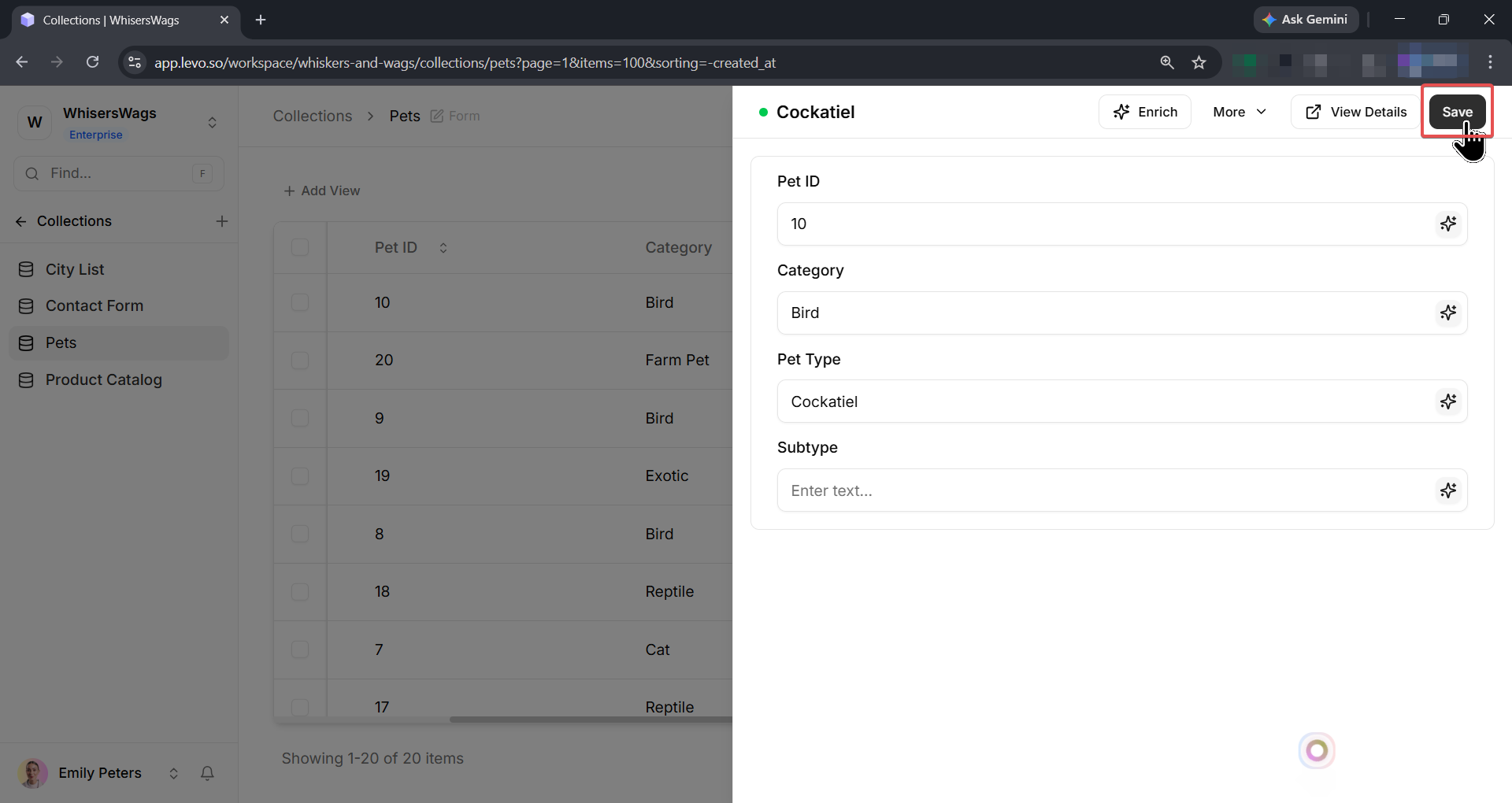
Click Save to create the entry.
Entry Status: Draft vs. Published
When Draft Support is enabled, entries have two statuses:
Draft — Saved but not live. Collection Pages and block sources will not include draft entries.
Published — Live and visible to visitors.
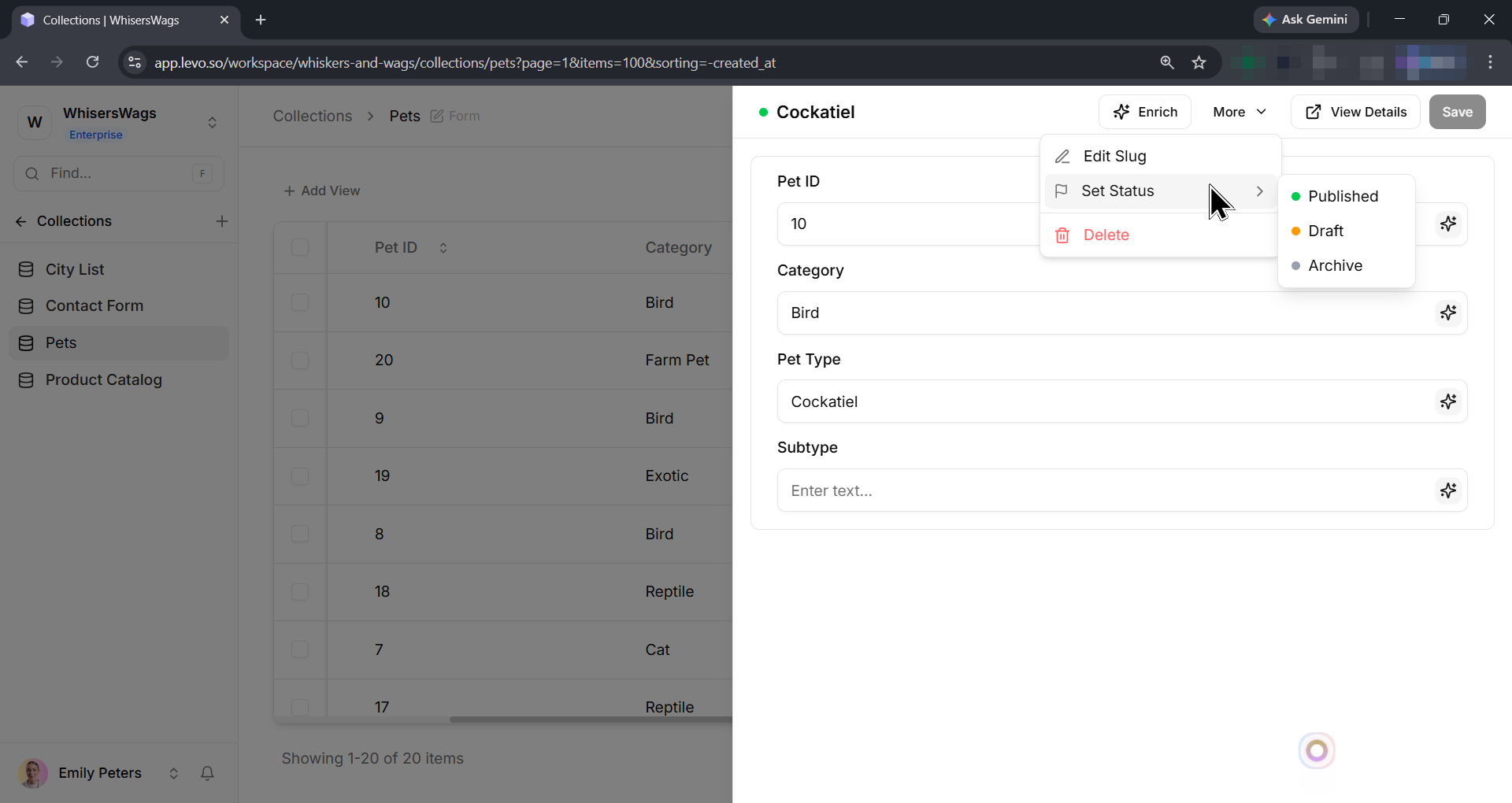
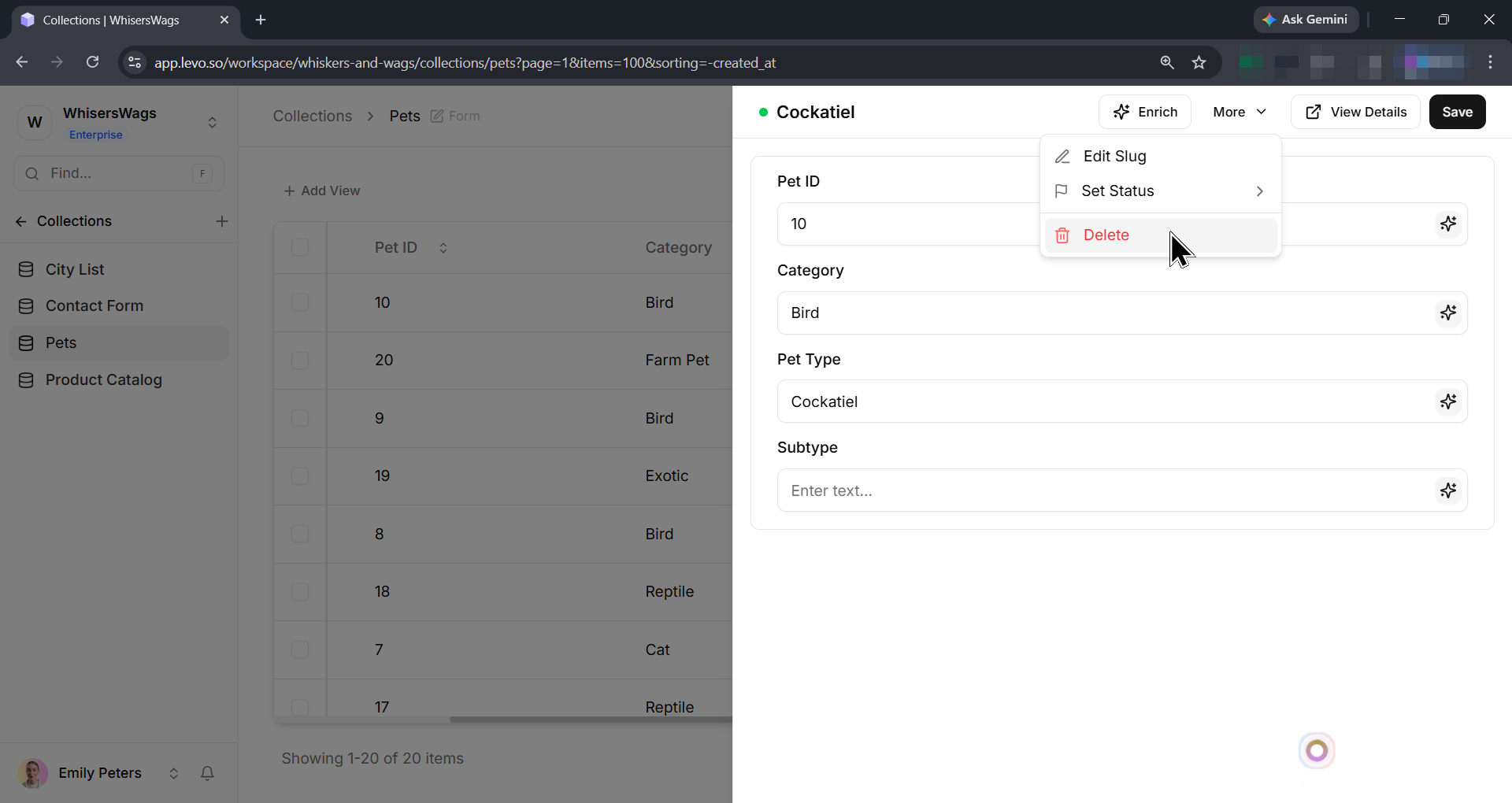
Toggle status via the entry form from More option
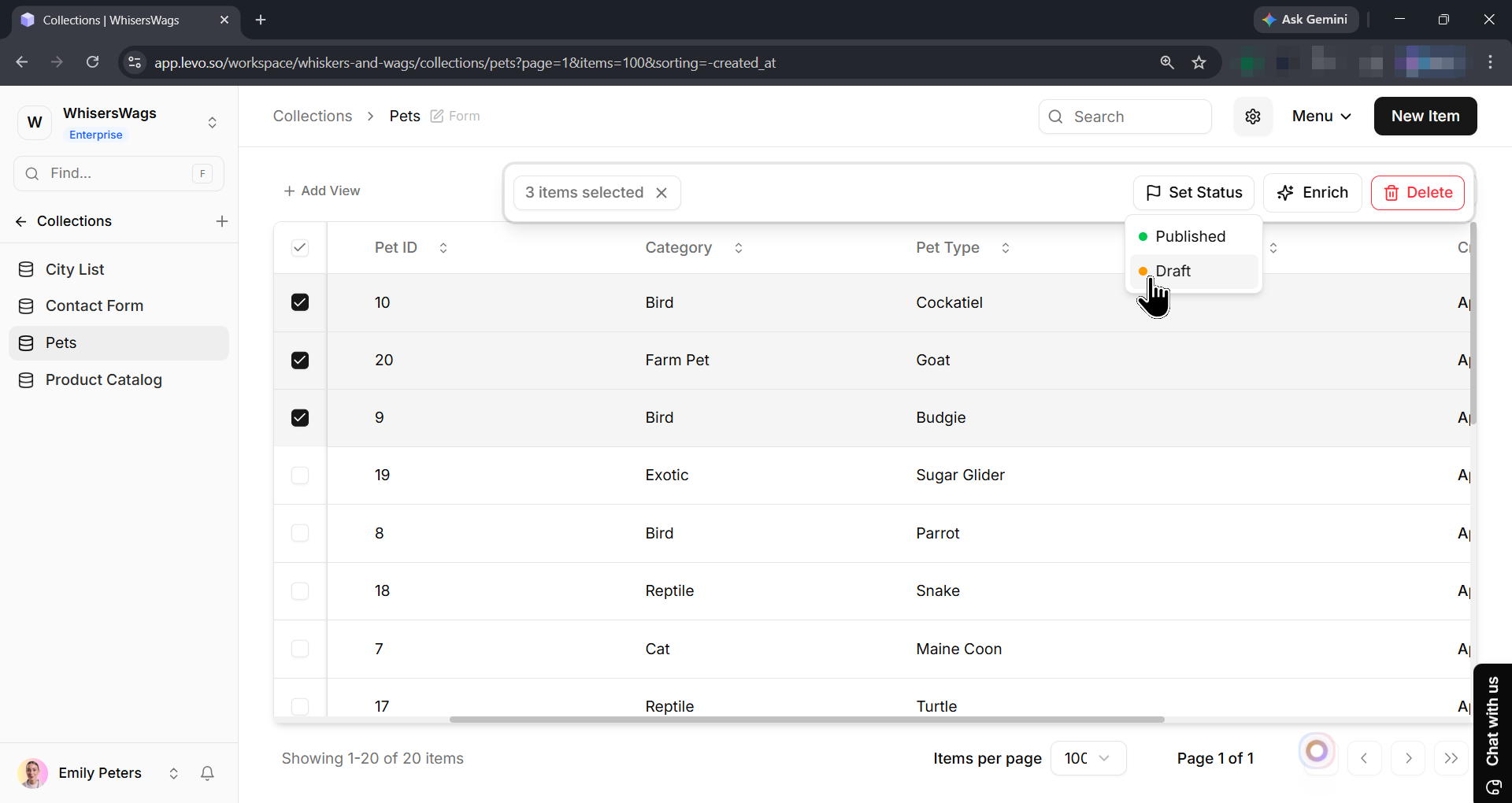
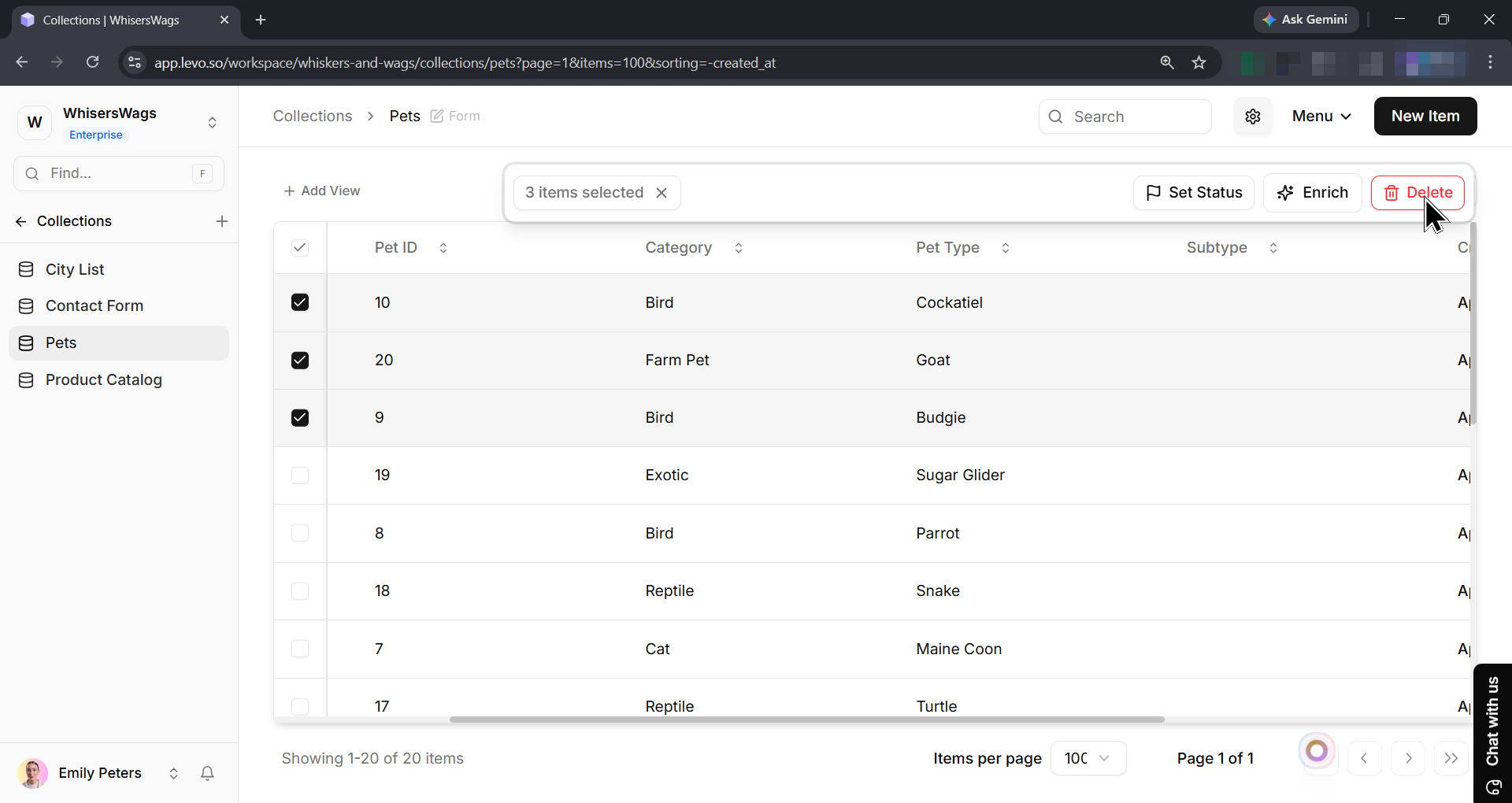
Check multiple items for bulk status change.
Editing an Entry
Quick edit: Click any table row to open an inline editor.
Full edit: Click the row options menu → Open for the full detail page.
Changes save immediately when you click Save.
Deleting Entries
Single: Open the entry and click Delete under More option.
Bulk: Check multiple rows, then use the floating action bar → Delete.
Important: Deleted entries cannot be recovered. If the Collection has relations with Cascade delete behavior, related entries in other Collections may also be deleted.
Entry Slugs
Every entry has a slug - a URL-safe identifier used in Collection Page URLs. Slugs auto-generate from the title field (e.g., "Blue Widget" becomes blue-widget).
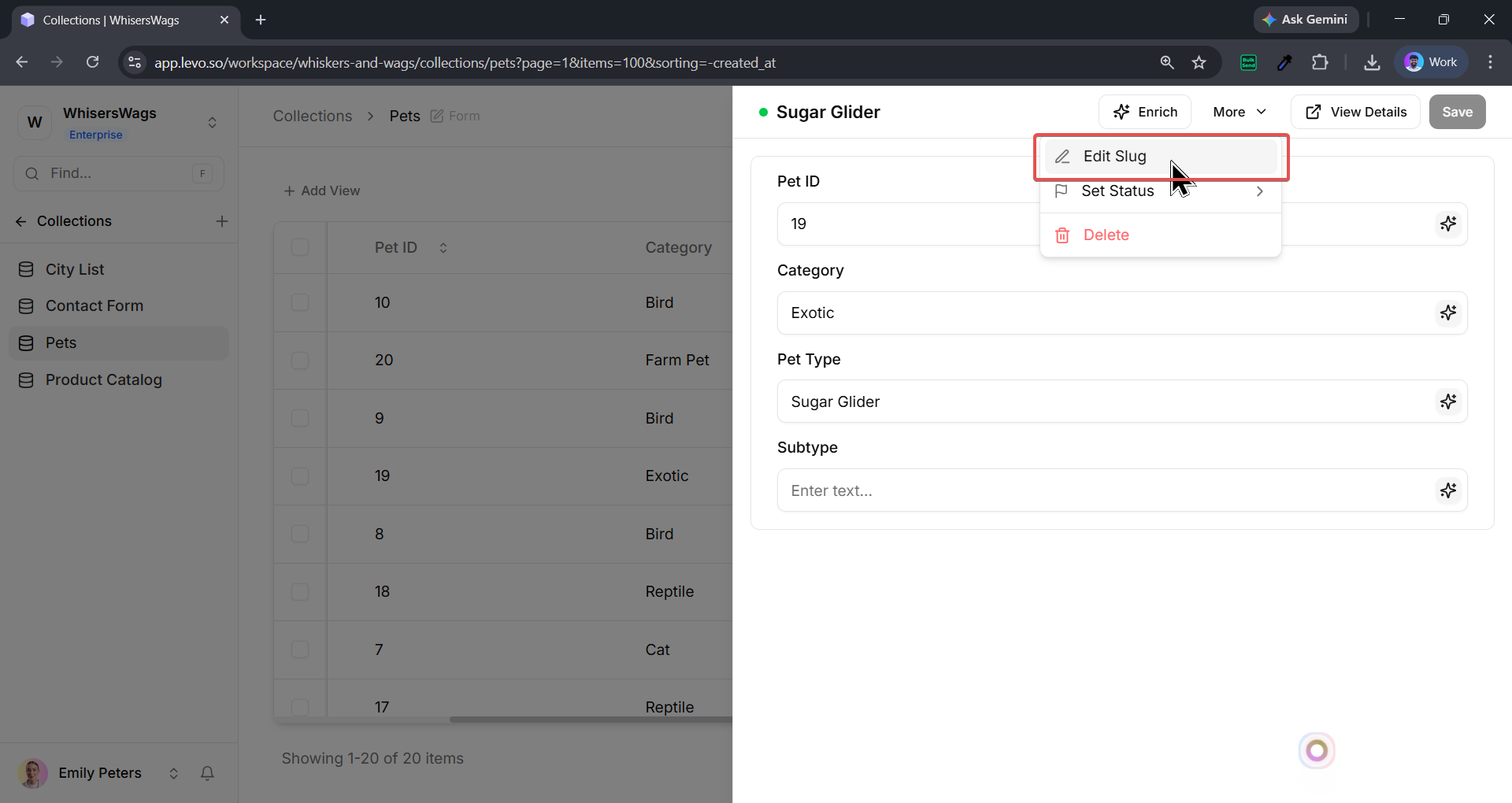
To edit a slug: Open the entry detail page → click the more dropdown → edit slug → Save.
Requirements: Slugs must be unique within a Collection and use only lowercase letters and hyphens.
Warning: Changing a slug after publishing breaks existing Collection Page URLs. Set up redirects if needed.
Entry Metadata
Entries automatically track:
Created at — Timestamp of initial save
Updated at — Most recent change timestamp