
Third-Party Integrations & Analytics Scripts
Table of Contents
Levo makes it effortless to supercharge your site with third-party analytics platforms, marketing pixels, and custom code. You can deploy these scripts universally across your entire environment or isolate them perfectly to individual pages.
1. Site-Wide Implementation (Global)
To ensure a script actively fires on every single page of your site, add it globally:
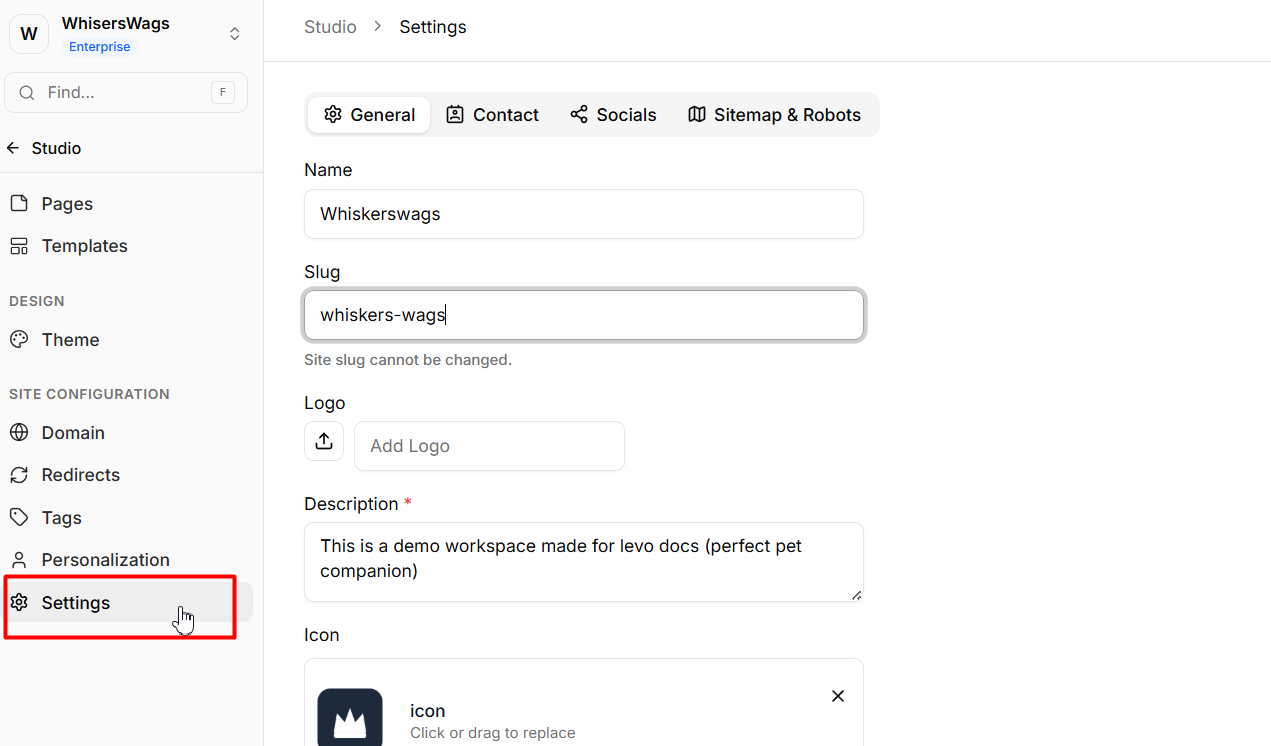
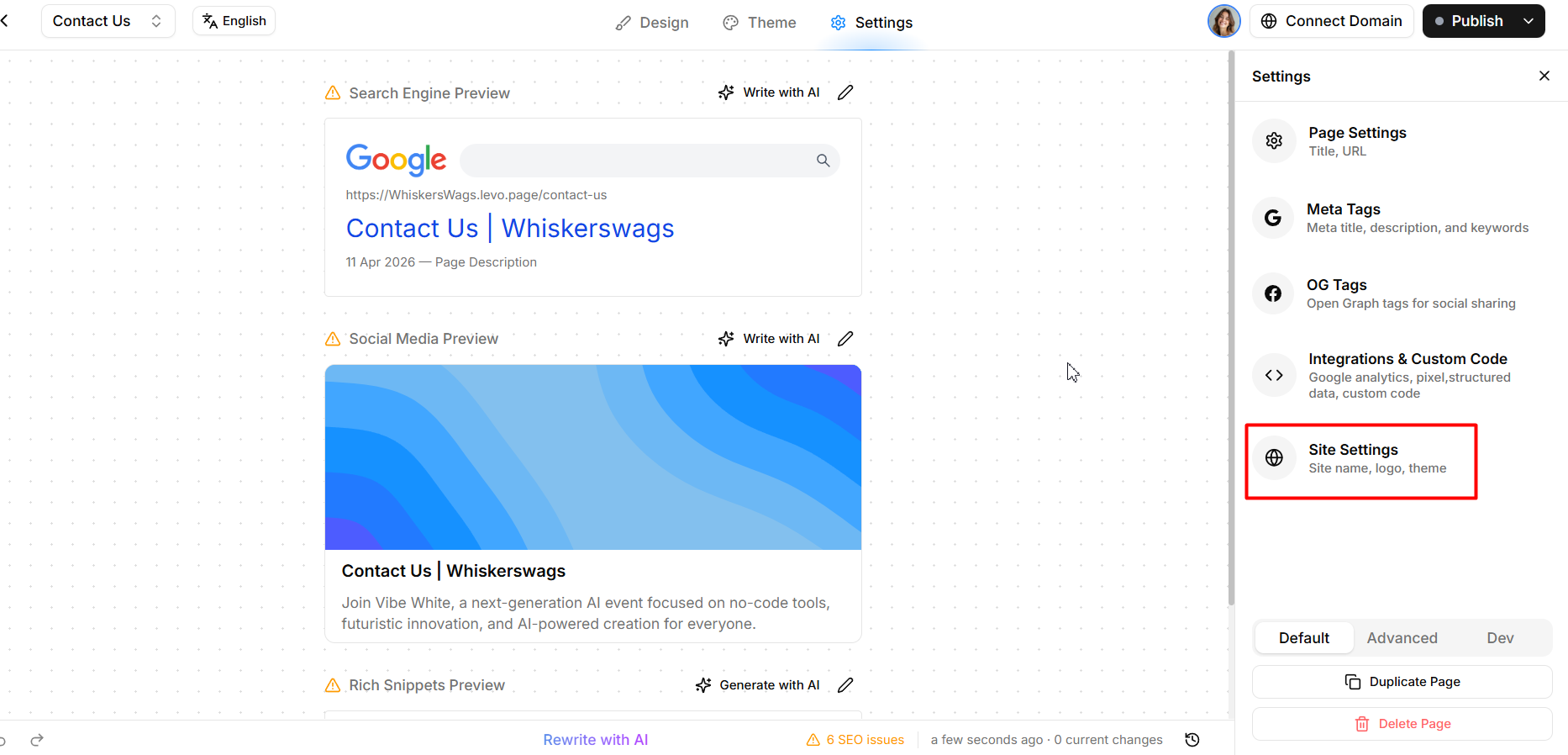
Navigate to Site Settings from the left sidebar and stay on the General tab.
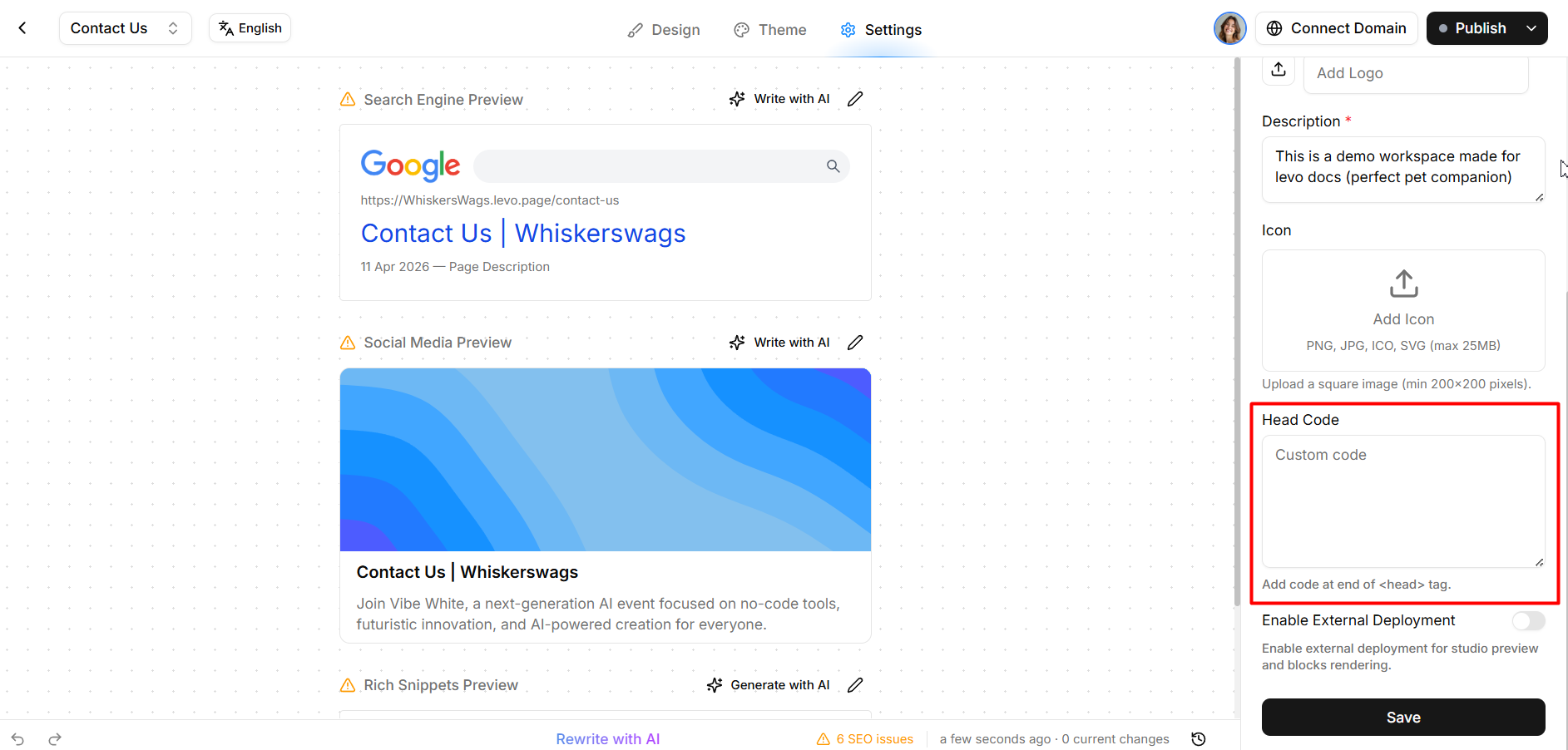
Scroll down to the Head Code text field.
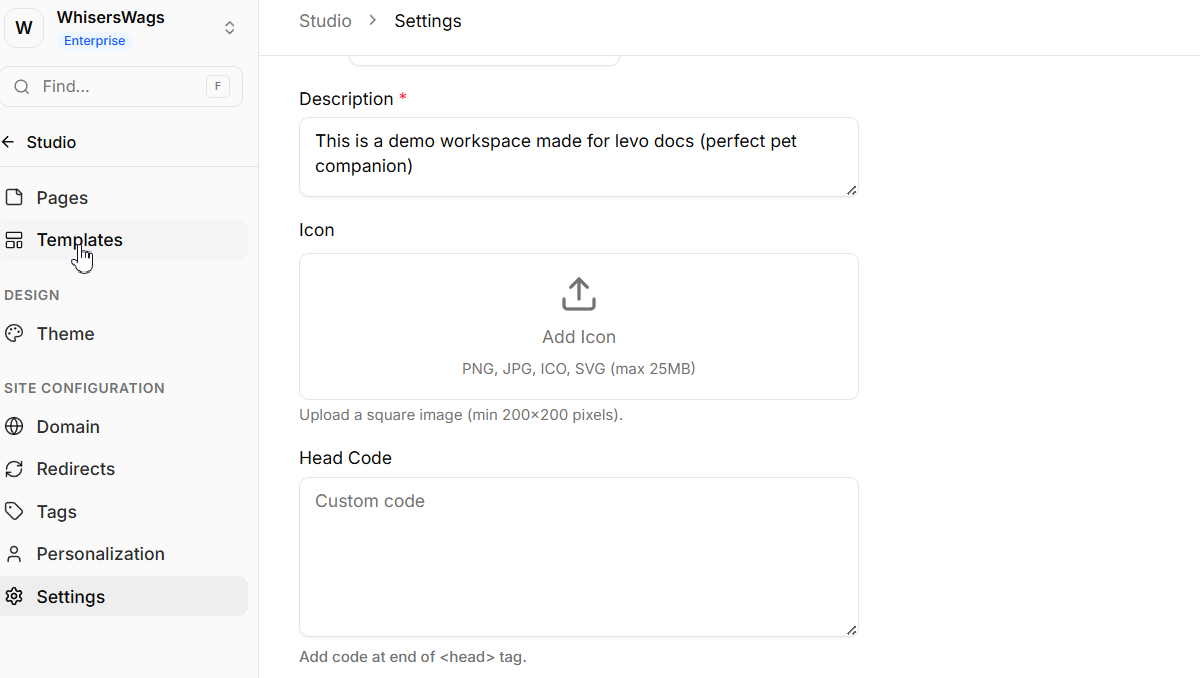
Paste in your script tag and click Save. Levo will automatically inject this into the <head> of every published page.
2. Page-Specific Implementation
To limit tracking to a specific destination (like a conversion "Thank You" page), isolate the code:
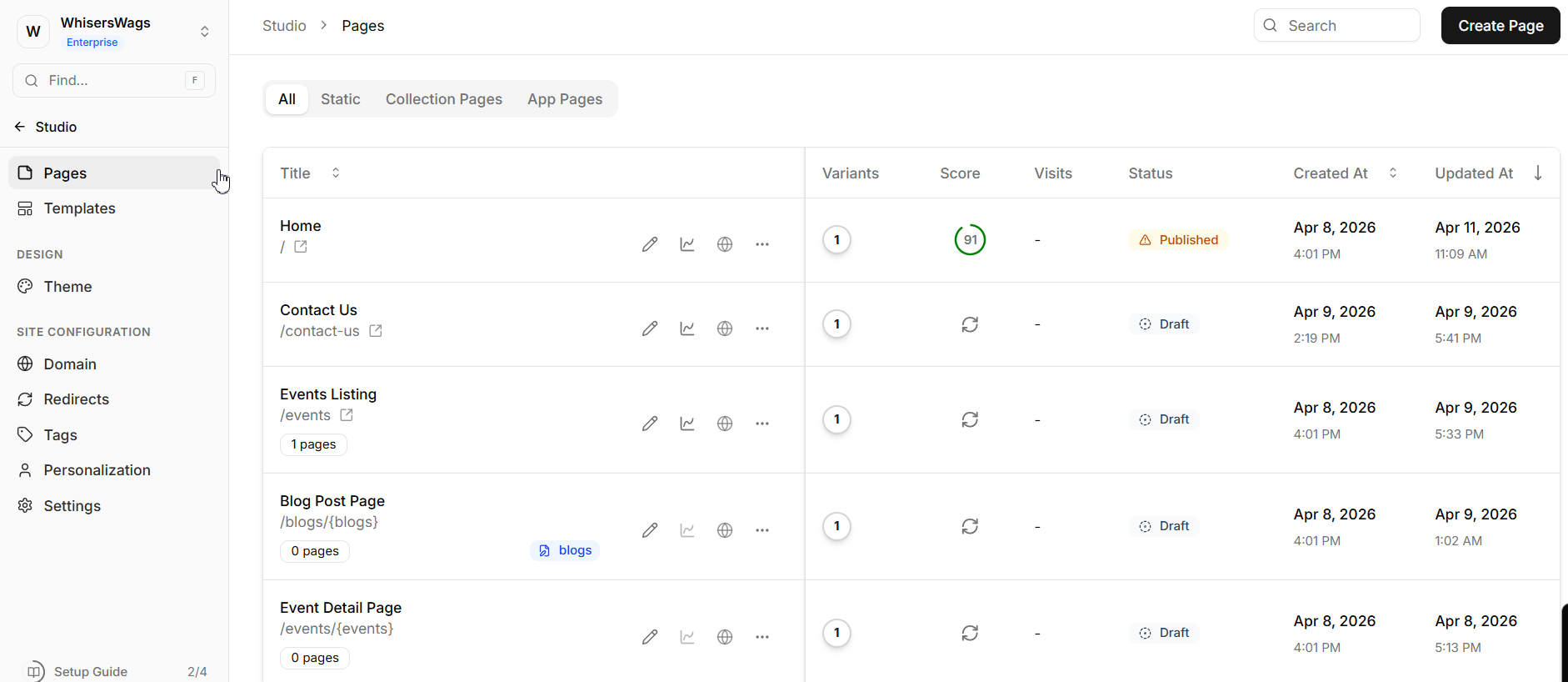
Open the specific page directly inside the Studio Editor.
Navigate to Page Settings, then look for the Custom Code section.
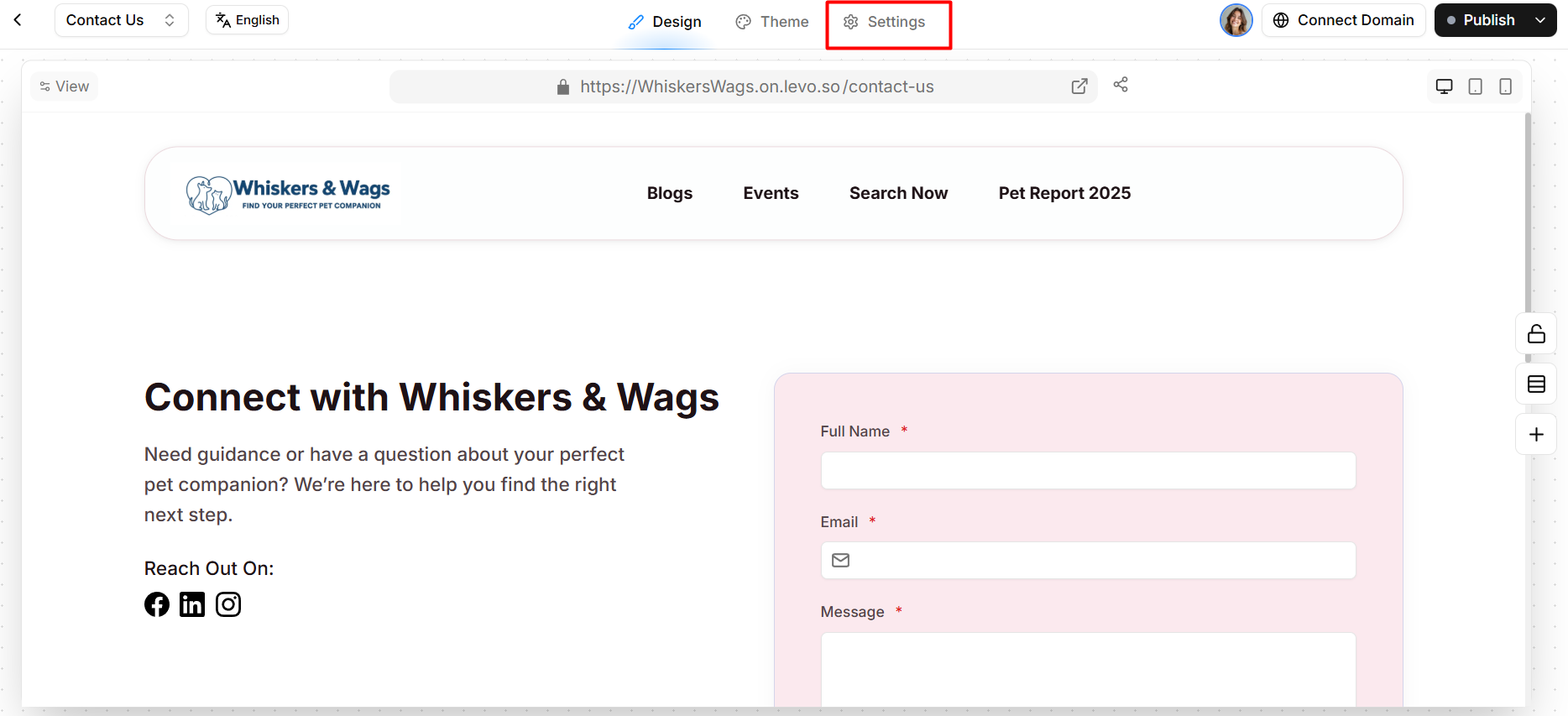
Paste your snippet specifically into this page's Head Code field.
Common Integration Workflows
Here is how you handle the industry's most popular tools:
Google Analytics (GA4): Retrieve your Measurement ID script from your GA Admin dashboard and paste it into the global Site Settings » Head Code.
Google Tag Manager (GTM): Add the primary GTM container snippet once to your global Head Code. From then on, you can deploy and manage all subsequent tracking tags directly inside the GTM dashboard without touching Levo.
Meta (Facebook) Pixel: Copy the base code snippet directly from your Meta Business Events Manager and paste it into the global Head Code.
Structured Data (SEO Schema)
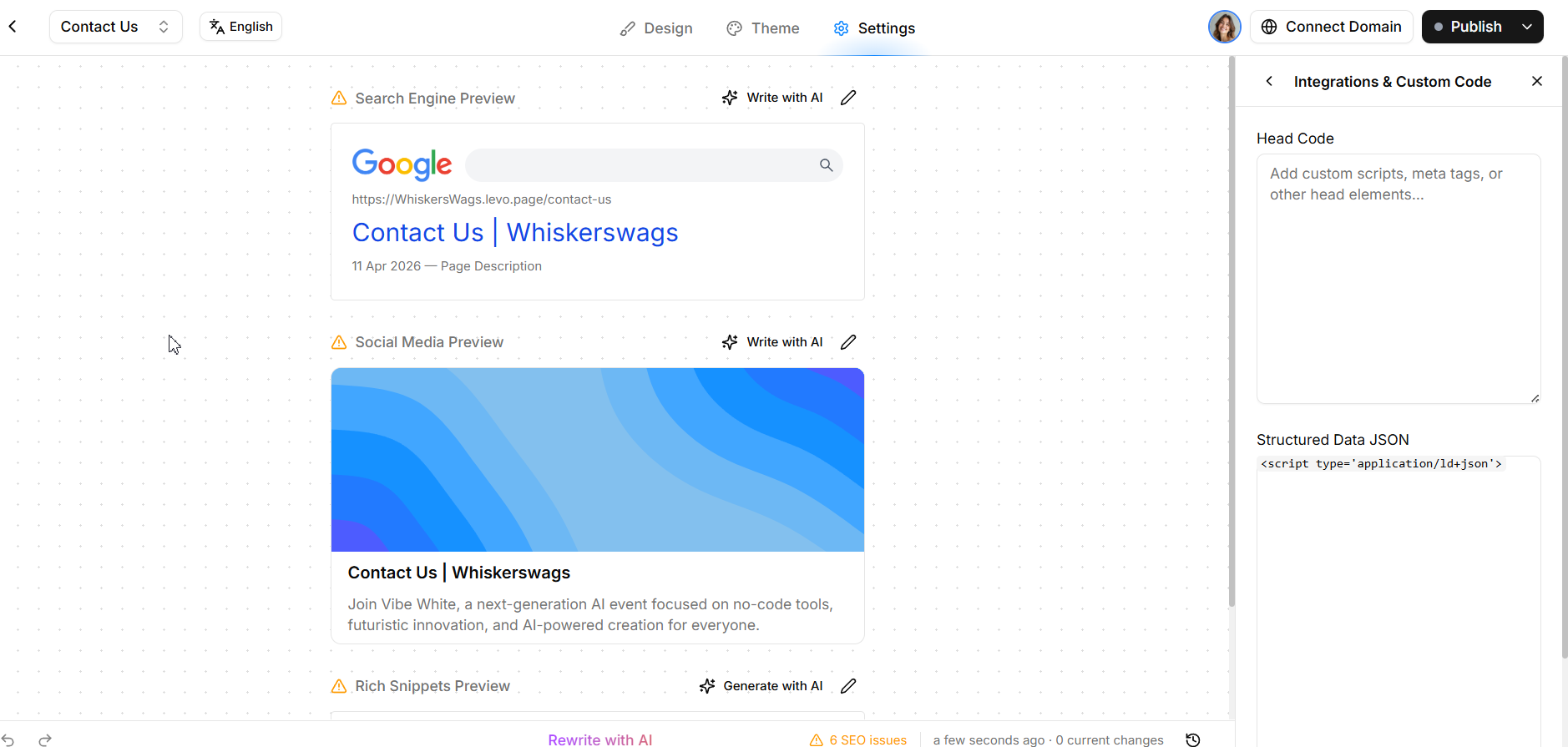
Do not paste SEO Schema markup into standard custom code blocks! To ensure search engines read your markup flawlessly, always paste it into the dedicated Structured Data field located within your Page Settings.
Verifying Your Implementation
Publish your changes. (Important: Custom scripts added to Levo will not fire on the live site until the page is fully published!)
Open your live public website.
Use your browser's Developer Tools (Press F12 » Network tab) to visually confirm the script is loading. Alternatively, check your analytics platform's real-time dashboard to ensure traffic data is successfully flowing.