
Managing Uploaded Files Across Your Workspace
Table of Contents
Assets
Assets functions as the workspace's primary file storage location, making all uploaded files — images, videos, documents, audio files, and spreadsheets — accessible throughout various Levo modules including Studio, Blog, Events, and Collections without requiring re-uploads.
Assets vs. Studio Assets Panel
Feature | Assets | Studio Assets Panel |
|---|---|---|
Access | Standalone module in left sidebar | Within Studio editor only |
Scope | Workspace-wide across all modules | Used when editing Studio pages |
File types | Images, video, audio, documents, spreadsheets, presentations | Images and video only |
Editing capabilities | Rename files and add descriptions | Upload and select functionality only |
Primary use | Organising and managing your file library | Quickly selecting images during page editing |
Both locations share the same underlying storage system, so files uploaded in either location appear in both.
Supported File Types
Images: JPG, PNG, GIF, WebP, SVG, AVIF
Video: MP4, WebM, OGV
Audio: MP3, OGG, Opus
Documents: PDF, TXT, XML
Word processing: DOC, DOCX, ODT
Spreadsheets: XLS, XLSX, ODS, CSV
Presentations: PPT, PPTX, ODP
Uploading
Upload files by clicking Upload or dragging and dropping files onto the Assets interface.
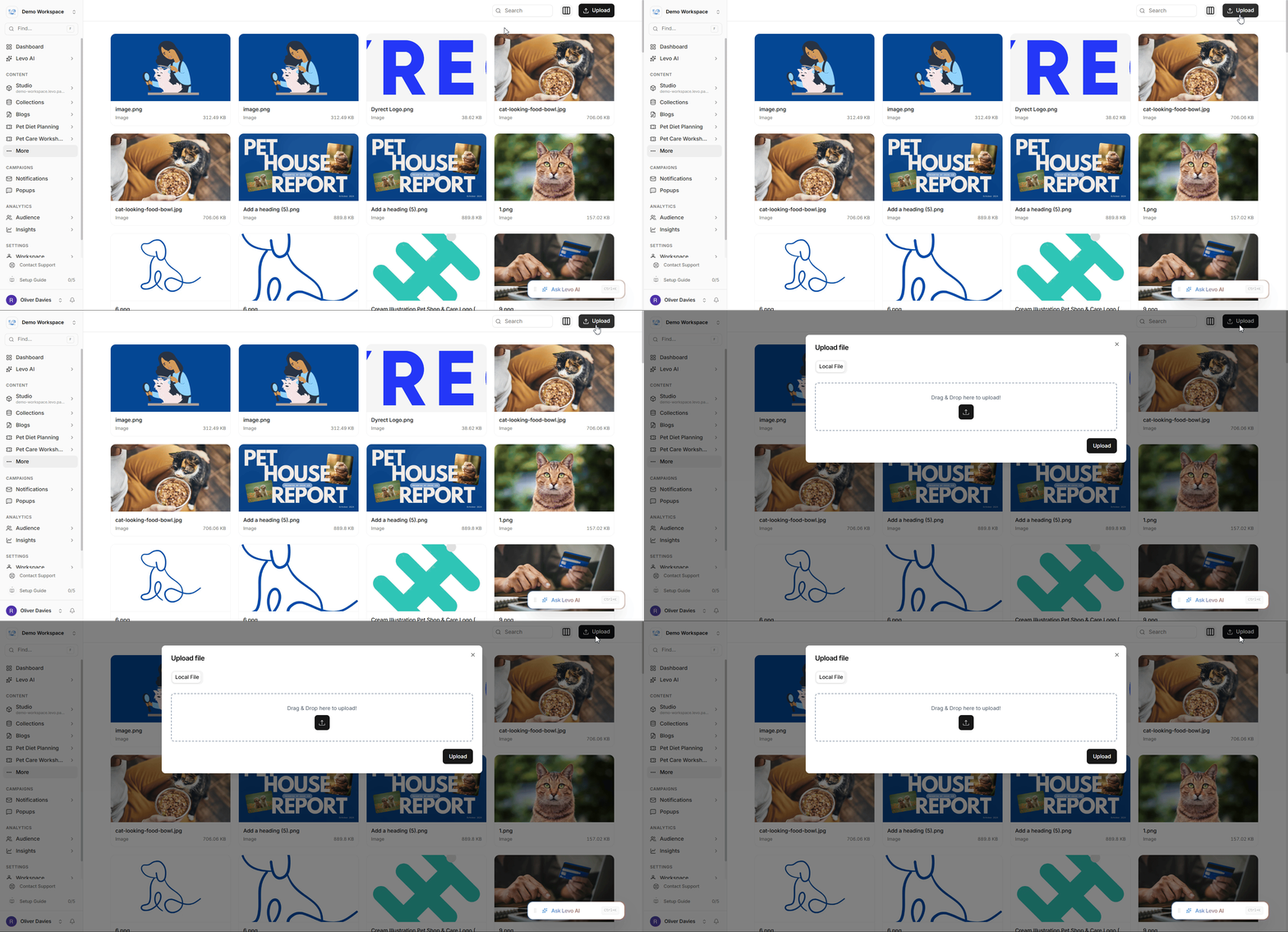
You can upload multiple files at once. Each file is processed and made available immediately after upload.
Navigation Features
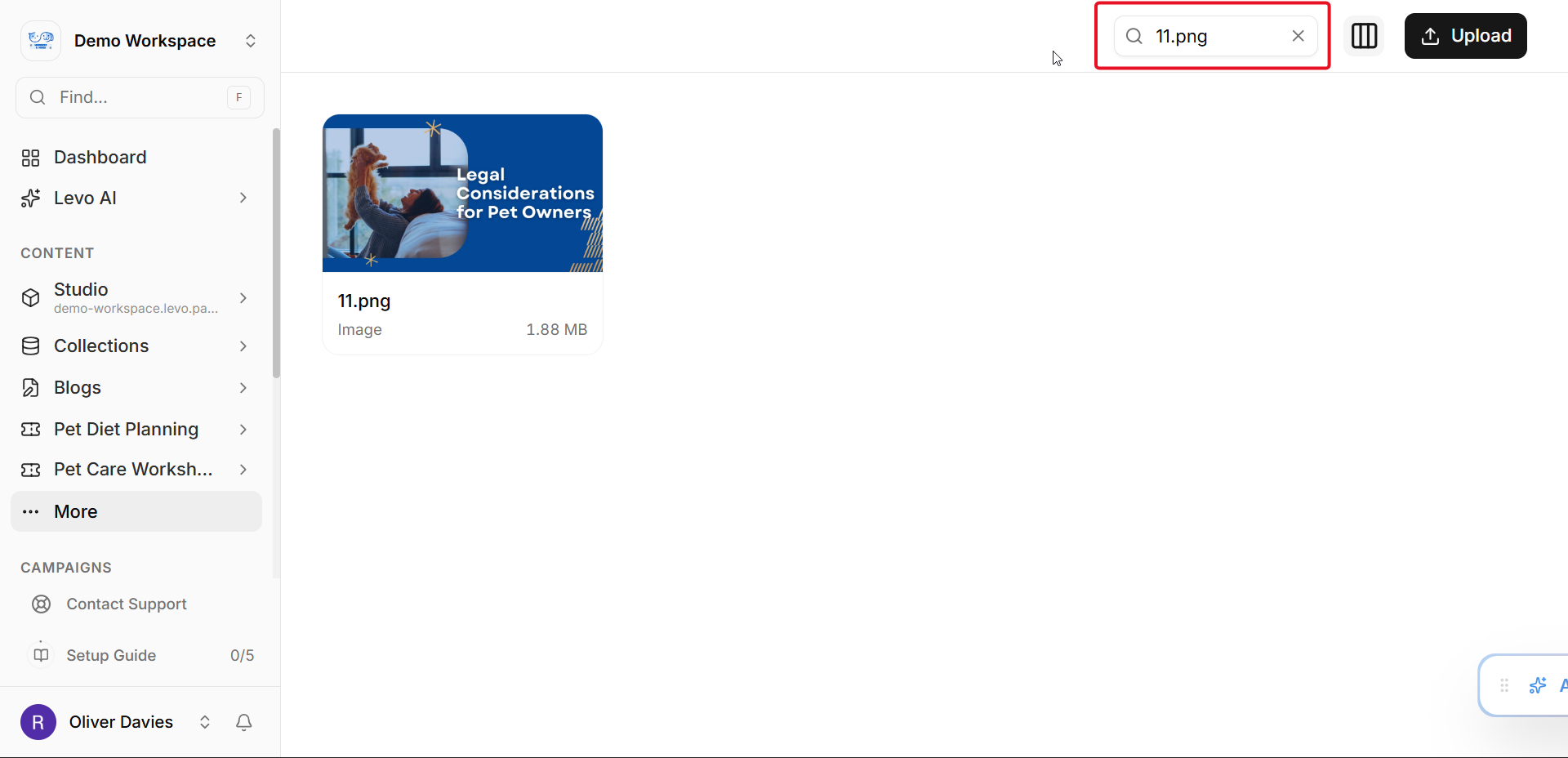
Search: Filter files by name with results refining as text is entered.
Grid display: Three column choices (4, 6, or 8 columns) to adjust thumbnail sizes and file visibility density.
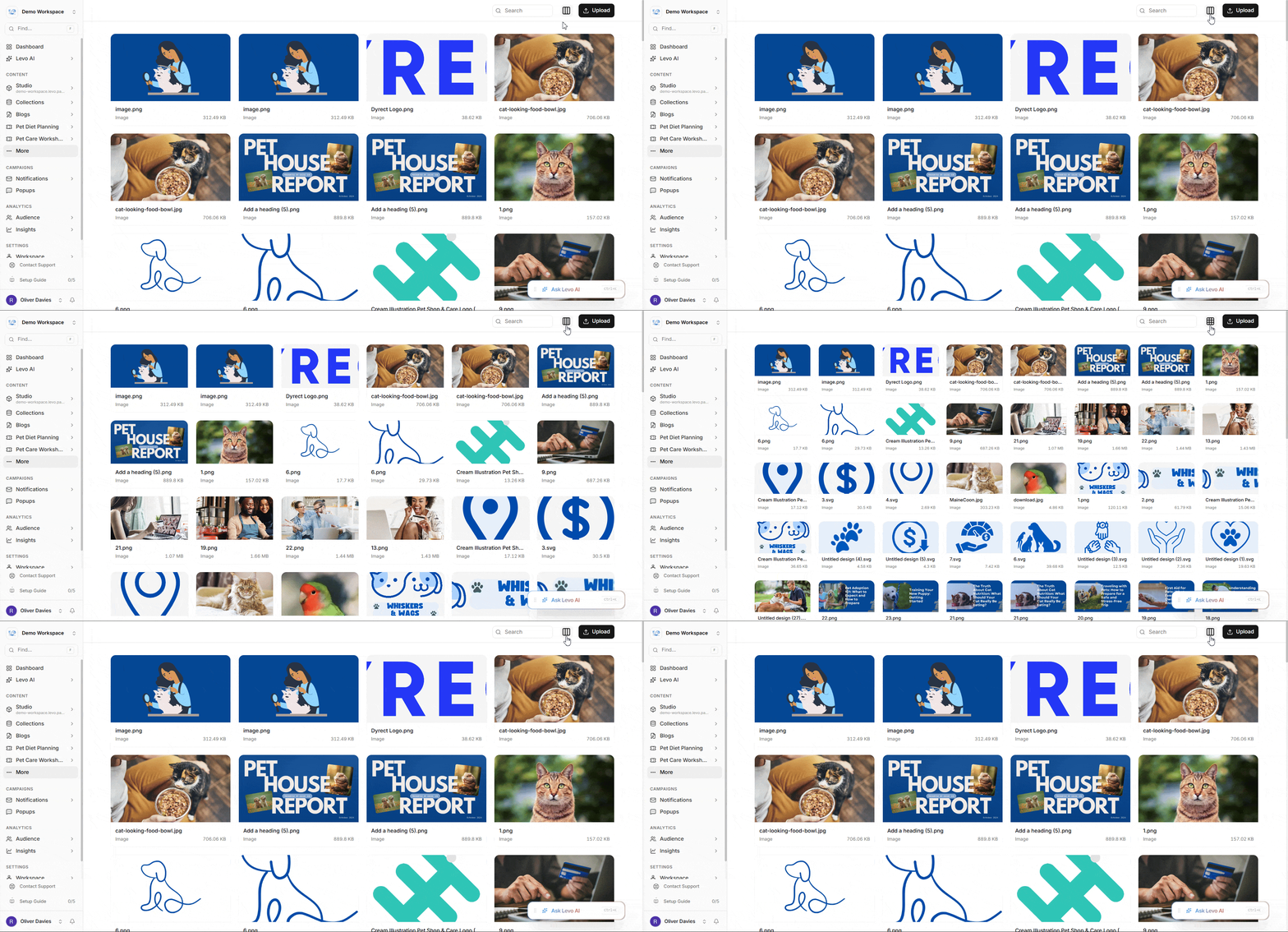
Infinite scroll: Loads 24 files initially with additional files loading as you scroll.
File Selection
Single-click selection
Multi-select using Ctrl/Cmd + click to toggle files
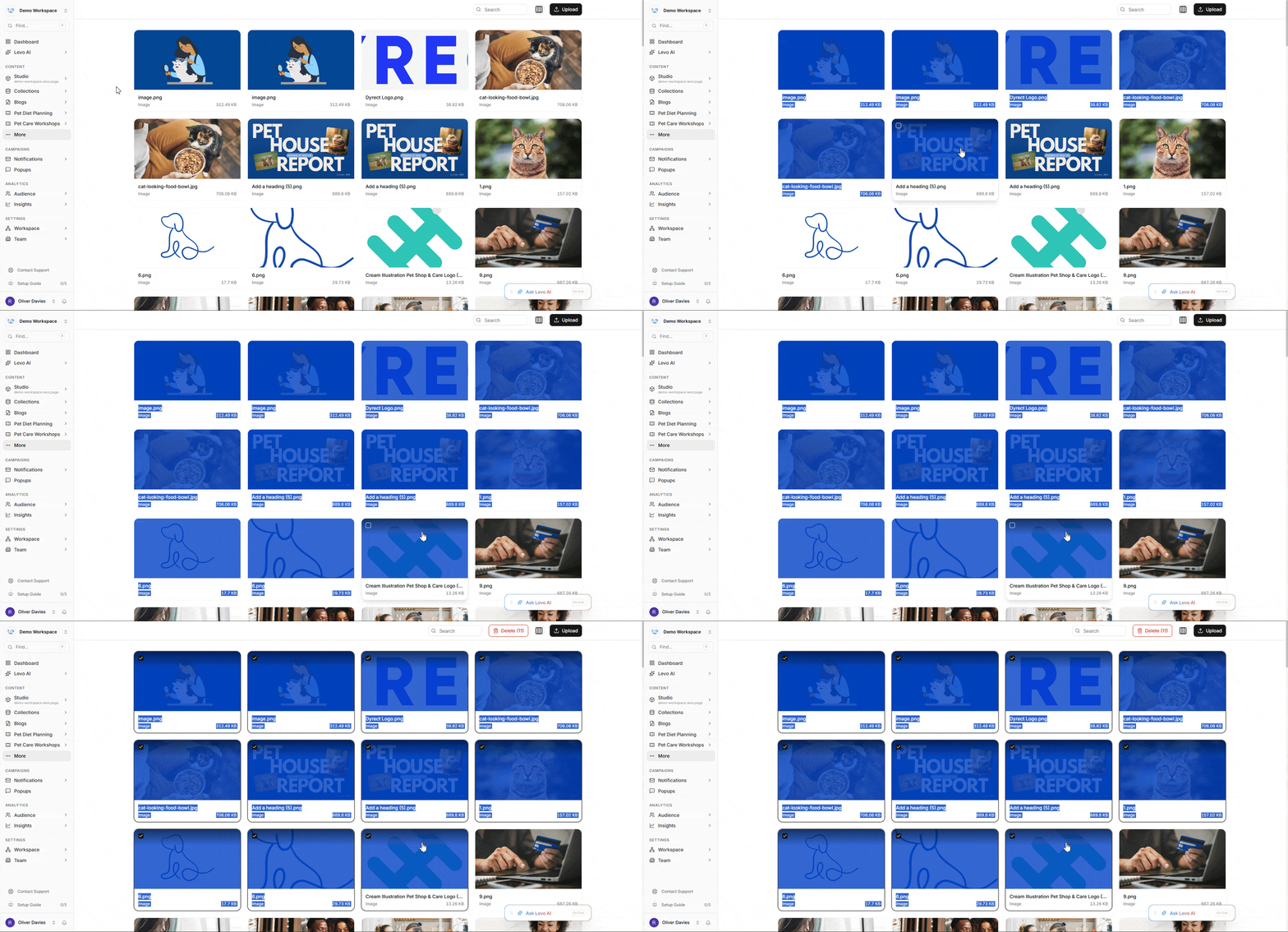
Range selection using Shift + click
Selected files appear highlighted with a count displayed when multiple files are chosen.
URL Copying
Select a file to access the Copy Link option, which copies the direct URL to clipboard for use in meta tags, custom code, external emails, or other locations requiring hosted file URLs.
File Editing
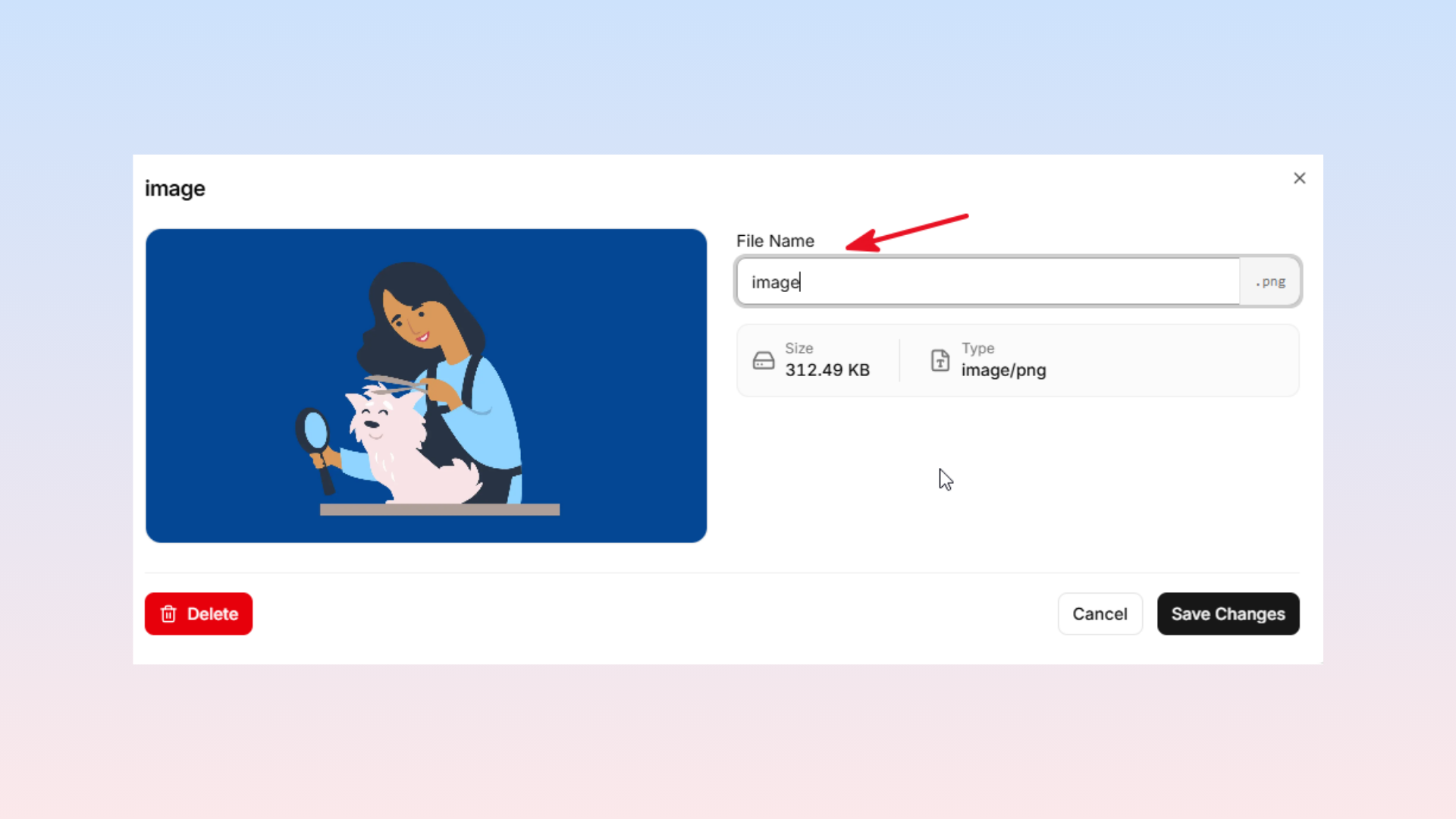
The edit function allows you to modify the filename and add descriptions, useful when you uploaded something with a generic auto-generated name.
Deletion
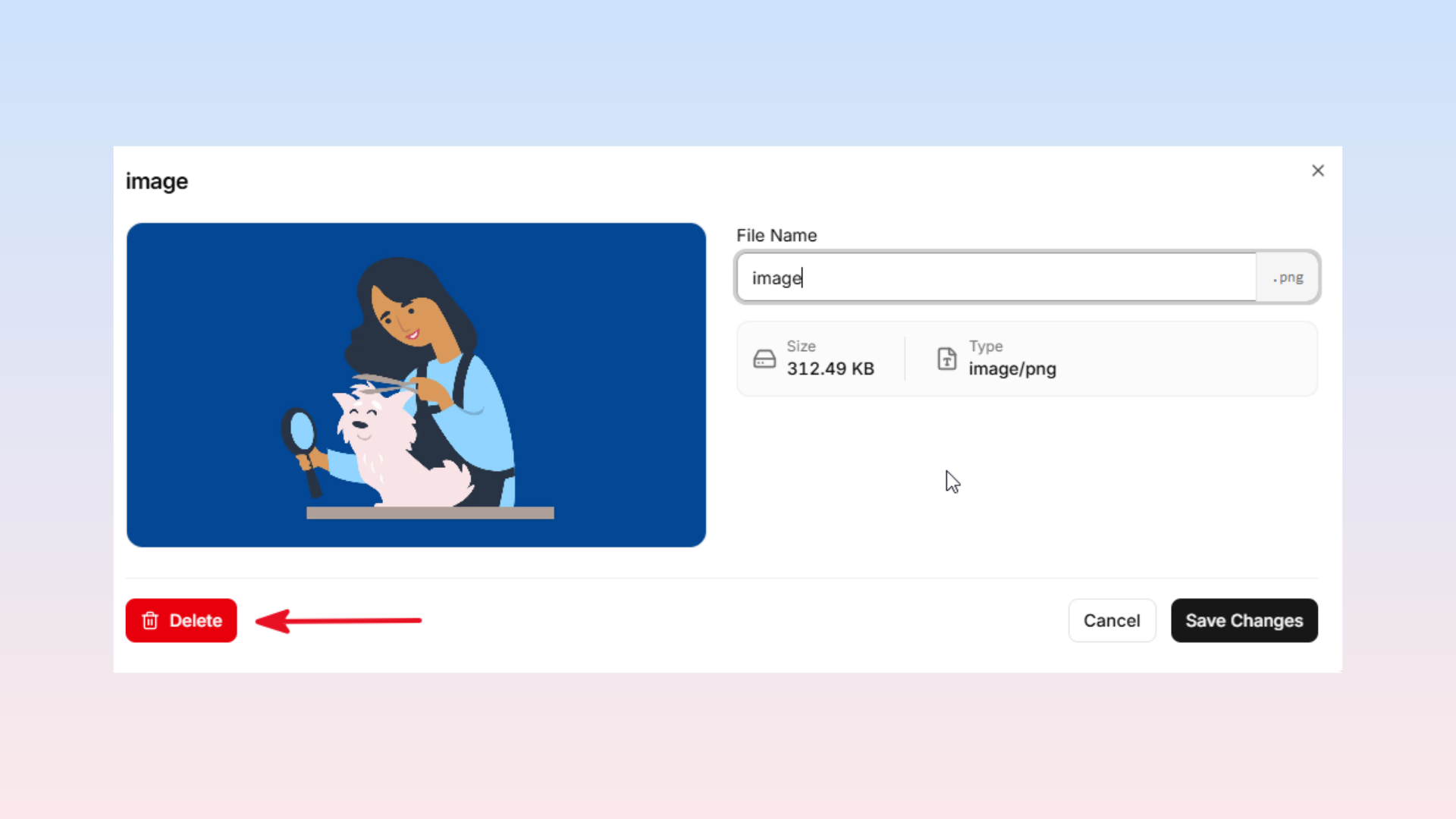
One or more selected files can be deleted via the Delete button. Important: Deleting a file that is in use will break wherever it is referenced across pages, blog posts, event covers, and other content locations.
Image Delivery System
For images, Levo automatically generates multiple responsive sizes (320w, 640w, 750w, 828w, 1080w, 1200w, 1920w). The browser receives the most appropriate size for the device, optimizing load times without manual variant management.