
Page Version History — Undo Any Change
Table of Contents
Levo automatically saves backup copies of your pages as you work. This acts like a time machine—if you ever make a mistake or want to undo a big change, you can easily revisit and restore older versions safely!
How to Find It
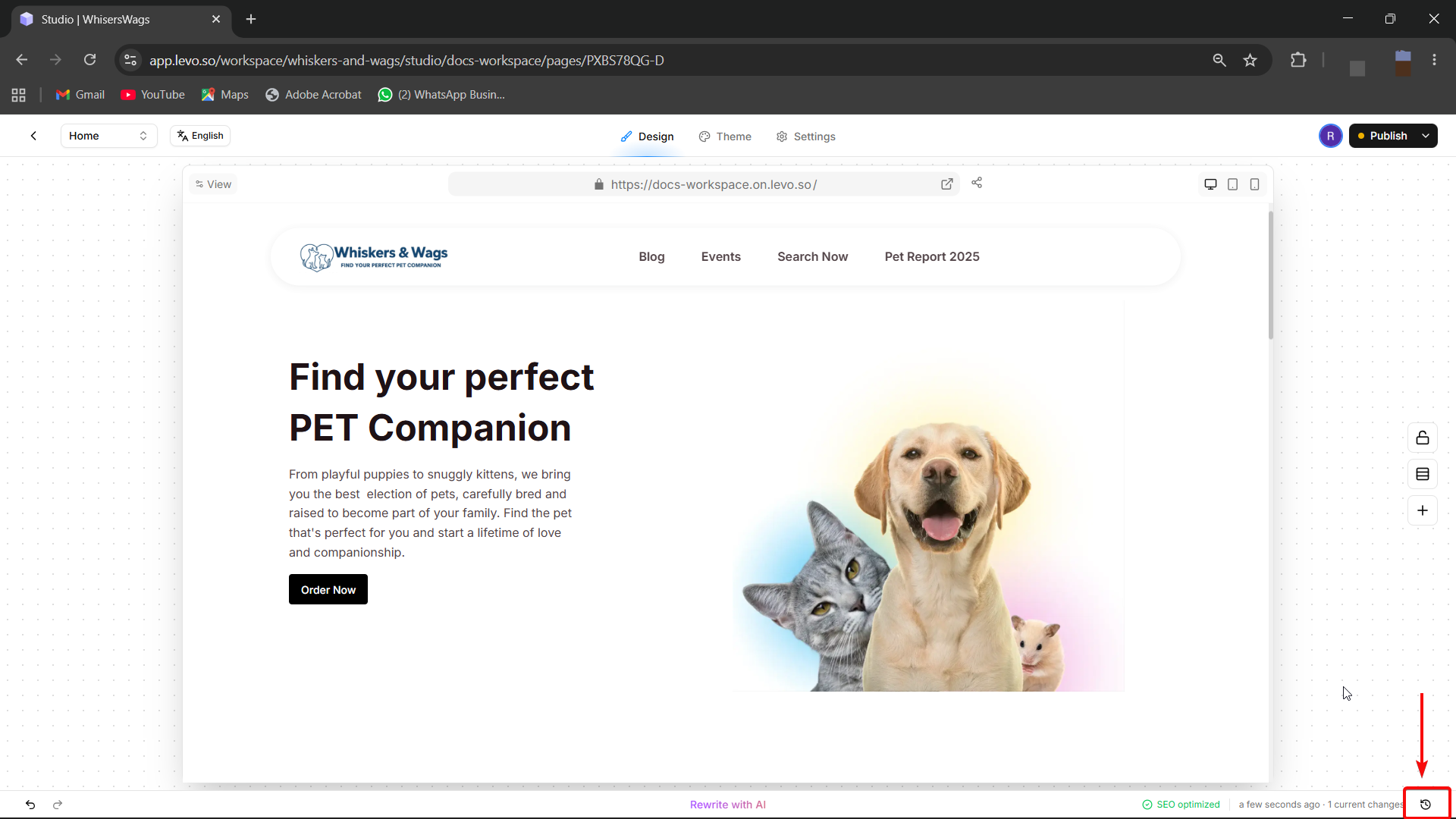
Open any page inside Levo Studio and look for the History icon (it looks like a little clock) in the bottom footer menu.
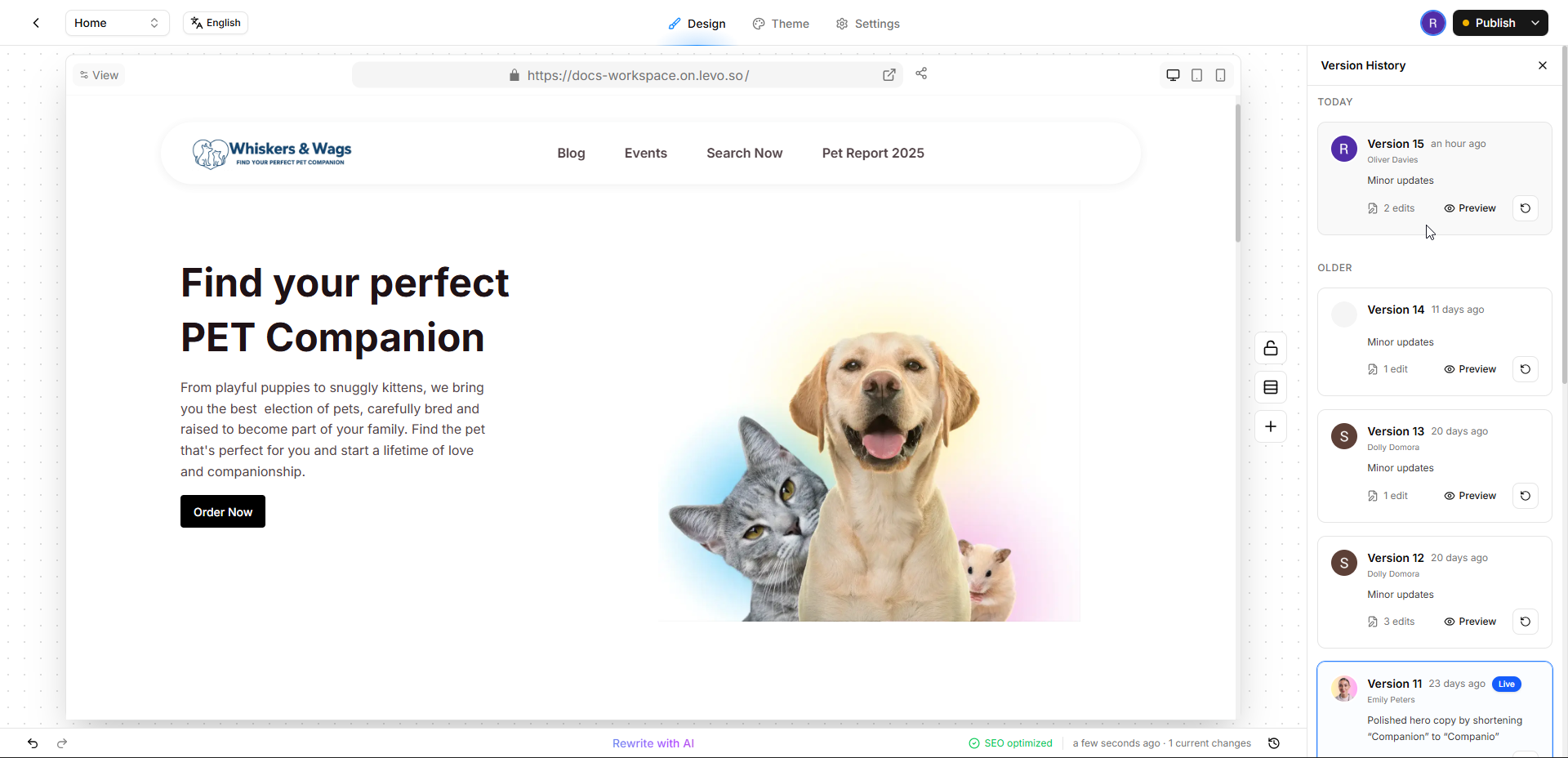
When you click it, a drawer will slide open on the right. Here, you'll see a neatly organized list of all your past saves categorized by time (Today, Yesterday, Last 7 Days, and Older). Each save tells you exactly when the change happened and who on your team made it!
Previewing Past Versions
Want to look back at previous version of your page? Just click on any version in the list!
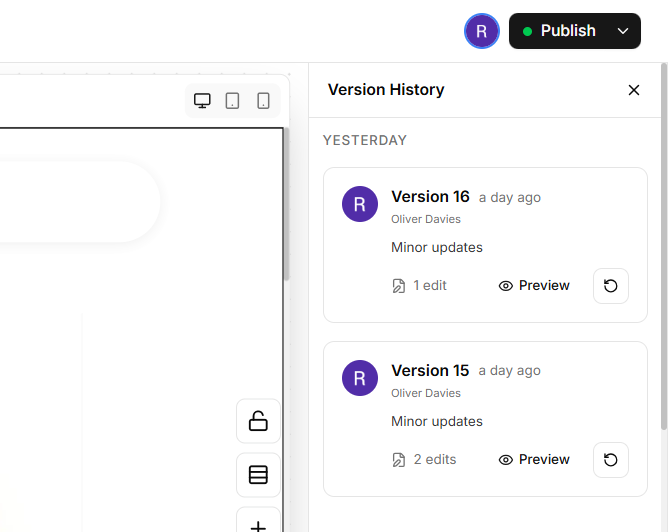
Your main screen will transform to show you exactly how the page looked at that specific moment in time. Don't worry—this is just a preview. You can freely click around and compare different versions without messing up your current work.
Restoring an Old Version
Once you find the past version you want to keep, just click Restore. This will replace your current page draft with the older version you selected.
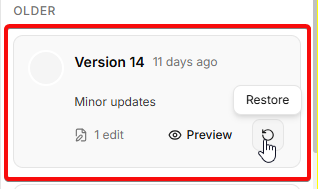
Safety Net: Right before restoring, Levo takes one final snapshot of your current page. This way, if you accidentally hit restore, you can always jump right back!
Important Note: Restoring an old version does not push it live to the internet immediately. It simply puts that older version into your "draft mode." When you are completely happy with it, you still need to manually hit the Publish button.
When Are Versions Saved?
You don't have to remember to click "save" manually! Levo automatically creates these history snapshots in two ways:
When you publish: Every single time you hit publish, a permanent snapshot is created.
When you take a break: If you stop working or step away for a little bit, Levo automatically saves a backup of your progress.
Things to Keep in Mind
One page at a time: The Version History tool only works on individual pages. You cannot use it to rewind your entire website all at once.
Storage limits: Extremely old versions might eventually be deleted depending on which Levo subscription plan you are currently using.