
Adding Custom HTML, CSS & JavaScript
Table of Contents
Think of Custom Code as a way to "teach" your website new tricks that aren't built-in yet. Whether you want to add a chat bubble, or change a specific font, Levo gives you two ways to add your own code safely.
Which one should I use?
Before you start, you need to decide if your code should run on every page or just one specific page.
Type | Best For... | Where it lives |
|---|---|---|
Site-Wide Code | Google Analytics, Facebook Pixels, or fonts that appear on every page. | Site Settings |
Page-Level Code | Special widgets (like a calculator), pop-ups, or search tags for a single page. | Page Settings |
1. Adding Page-Level Code (Local)
If you only need code to run on one specific page (like a "Thank You" page tracker or a custom design for your Home page), use this method.
How to add it:
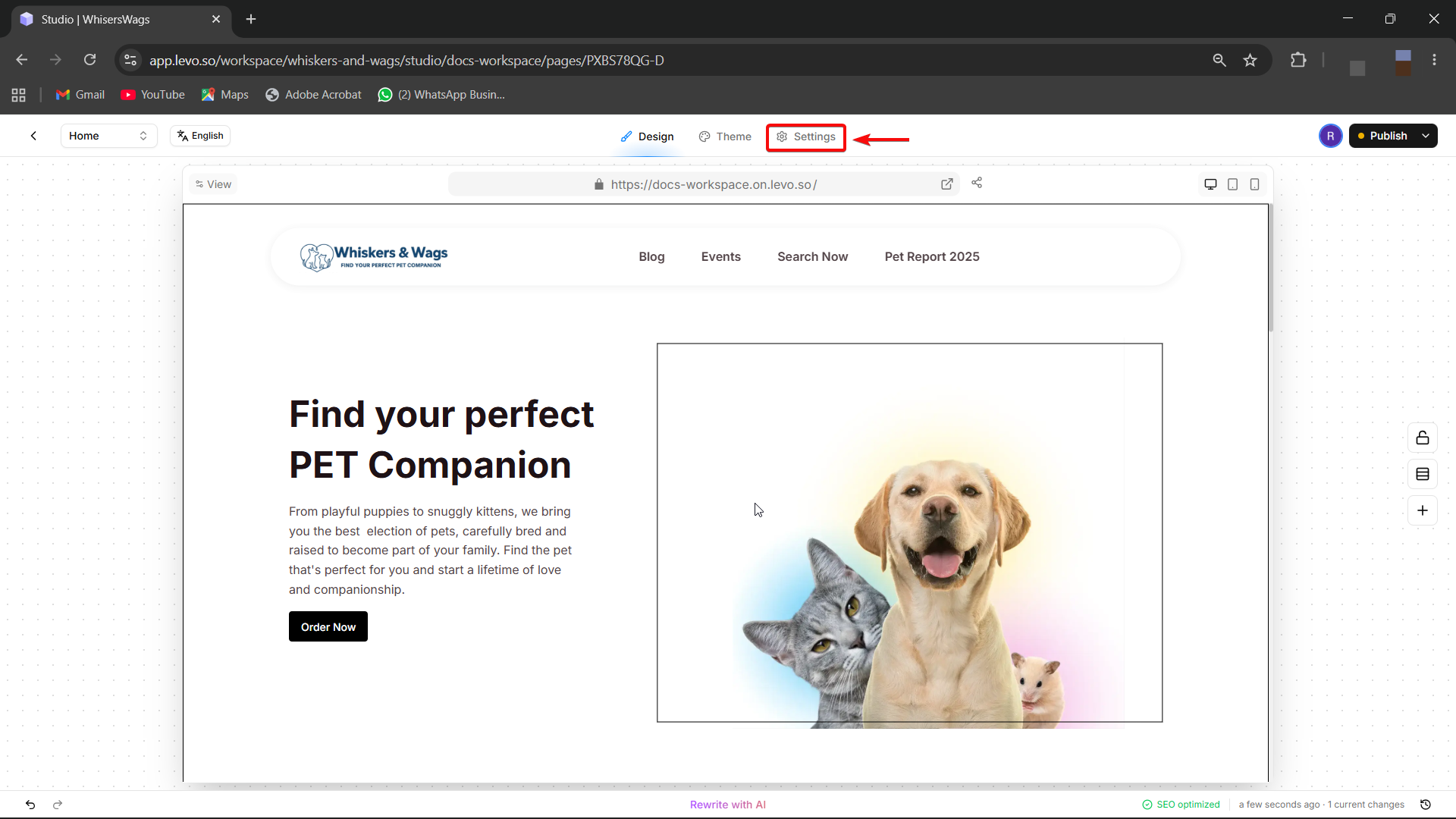
Open the Settings for the page you want to edit inside the Studio.
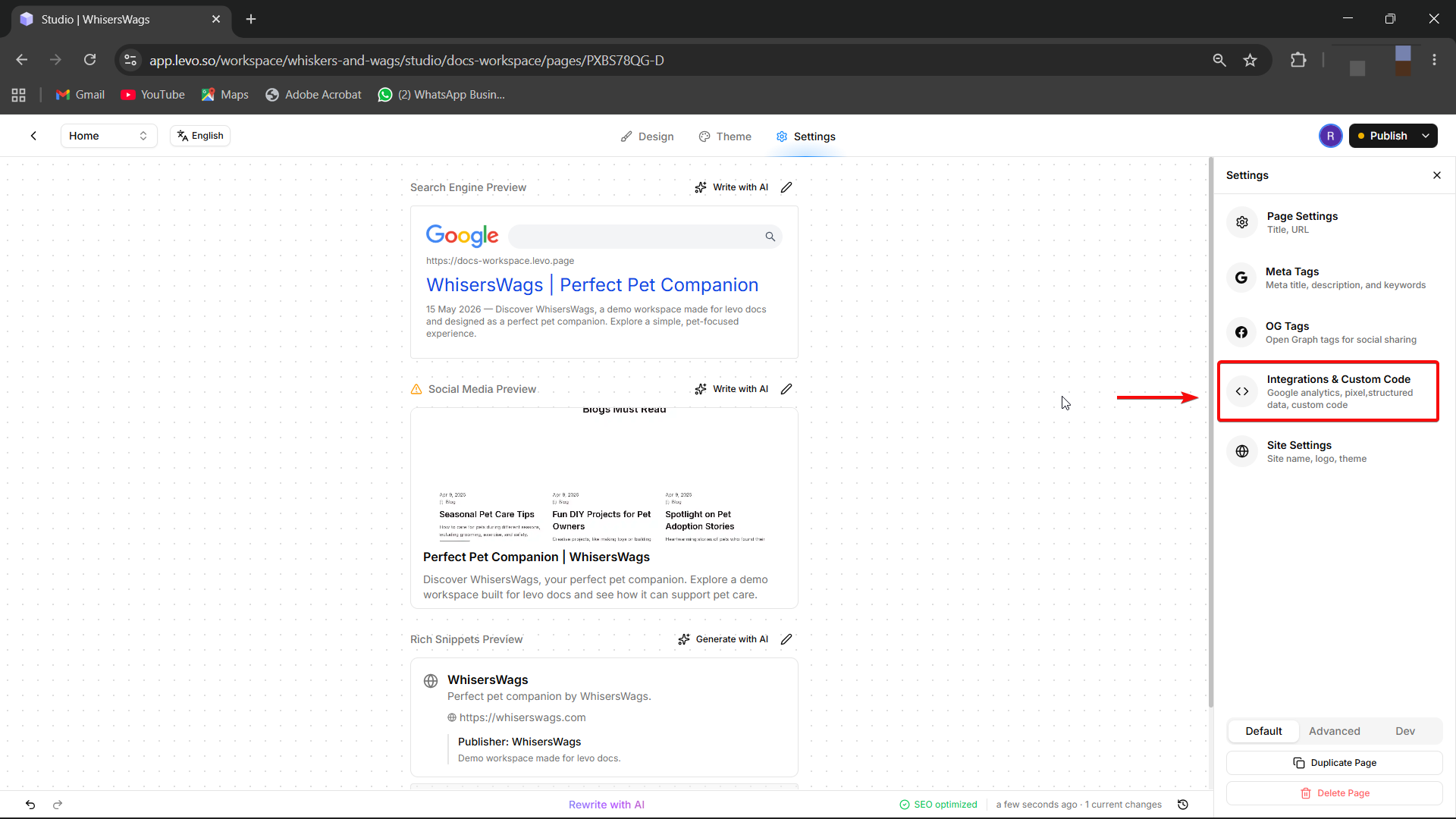
Select the Integrations & Custom Code tab.
You will see a box Head Code.
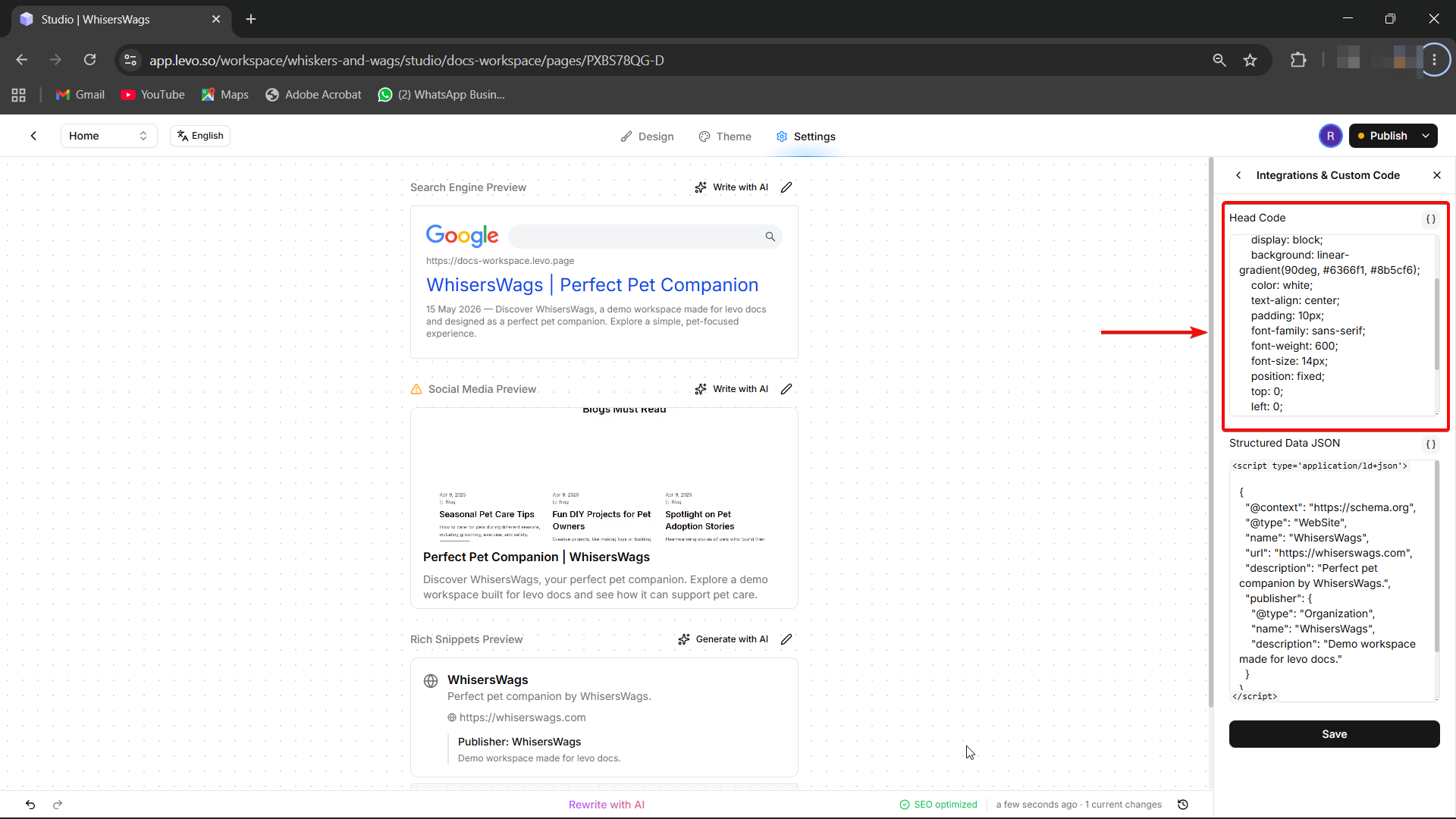
Paste your code and click Save.
Header vs. Footer: What’s the difference?
Not sure which box to use? Here is a simple rule of thumb:
Header Code (Inside <head>)
This code loads first, before your visitors even see the page content.
Use this for: Tracking scripts (Google Analytics), SEO tags, and custom fonts.
Footer Code (Before </body>)
This code loads last, after your page is already visible.
Use this for: Chat widgets, interactive buttons, or anything that doesn't need to load instantly. Using the footer helps your page feel faster for visitors.
Be Careful with Custom Code! Because custom code is "raw," typing it incorrectly can sometimes make your page look strange or stop working. Always copy and paste code exactly as provided by your third-party tool, and remember to test your page after saving!