
Your Site Theme — Colors, Fonts & Design Foundation
Table of Contents
Every website has its own unique personality, shown through its colors, fonts, and overall style. In Levo Studio, you control this personality using the Theme feature!
Think of your Theme as the master blueprint for your entire website. When you add new blocks to your pages, they automatically copy the colors and fonts from your Theme. If you change your main brand color in the Theme settings, every button, heading, and section on your whole website will magically update at the exact same time!
Instead of slowly styling every single button across dozens of pages, you just make your design choices once in the Theme, and let your website do the rest of the work for you.
Top Navigation Tabs
When you open the Theme editor, you will see two main tabs at the very top: Site and Components.
1. The 'Site' Tab
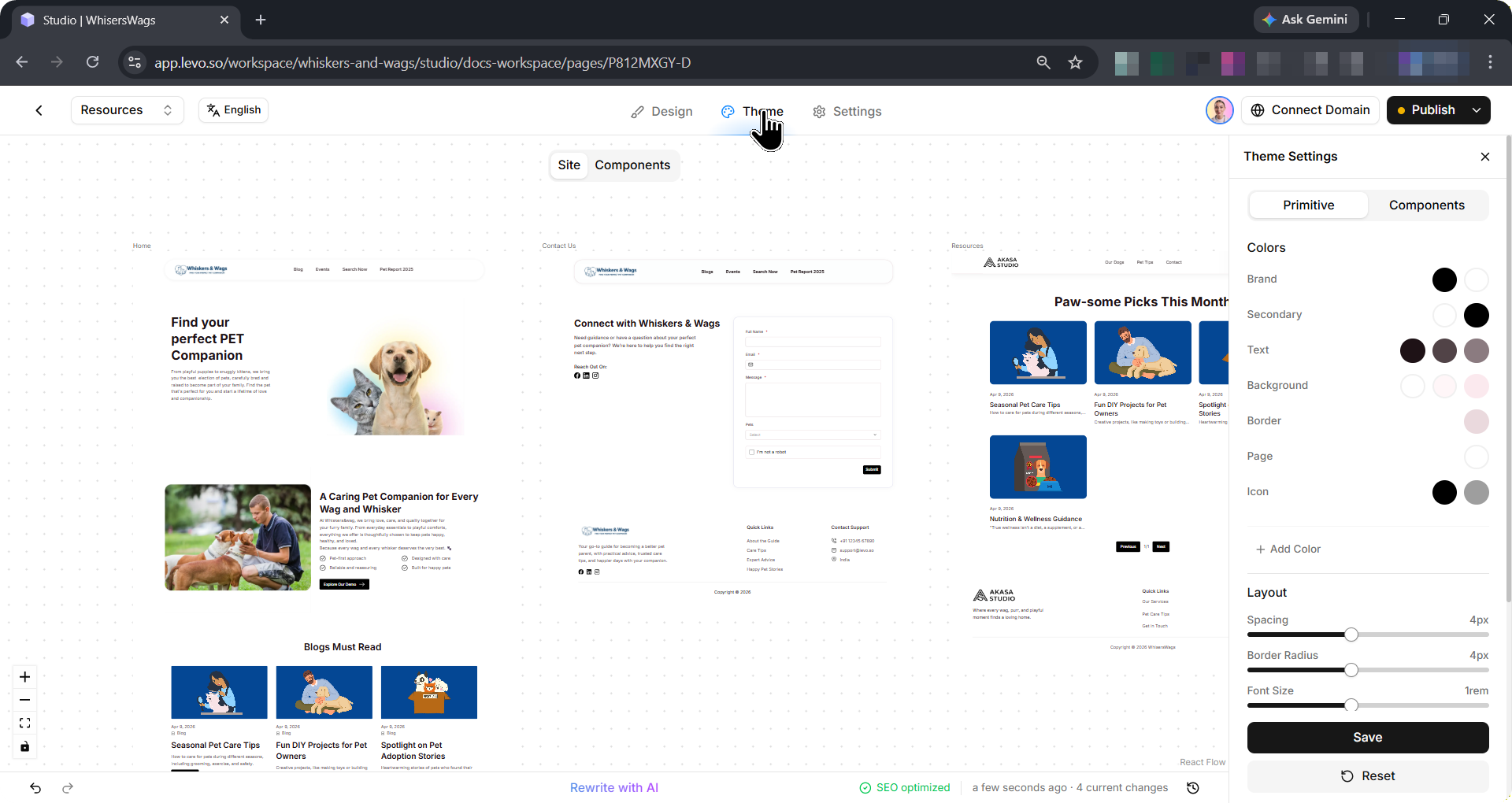
This tab shows a live preview of an actual page from your website. As you play around with different colors or fonts in the editing menu, the preview page automatically updates right in front of your eyes!
This is perfect for seeing how your design looks in the "real world" — for example, making sure your new heading font looks good sitting next to your new brand colors.
2. The 'Components' Tab
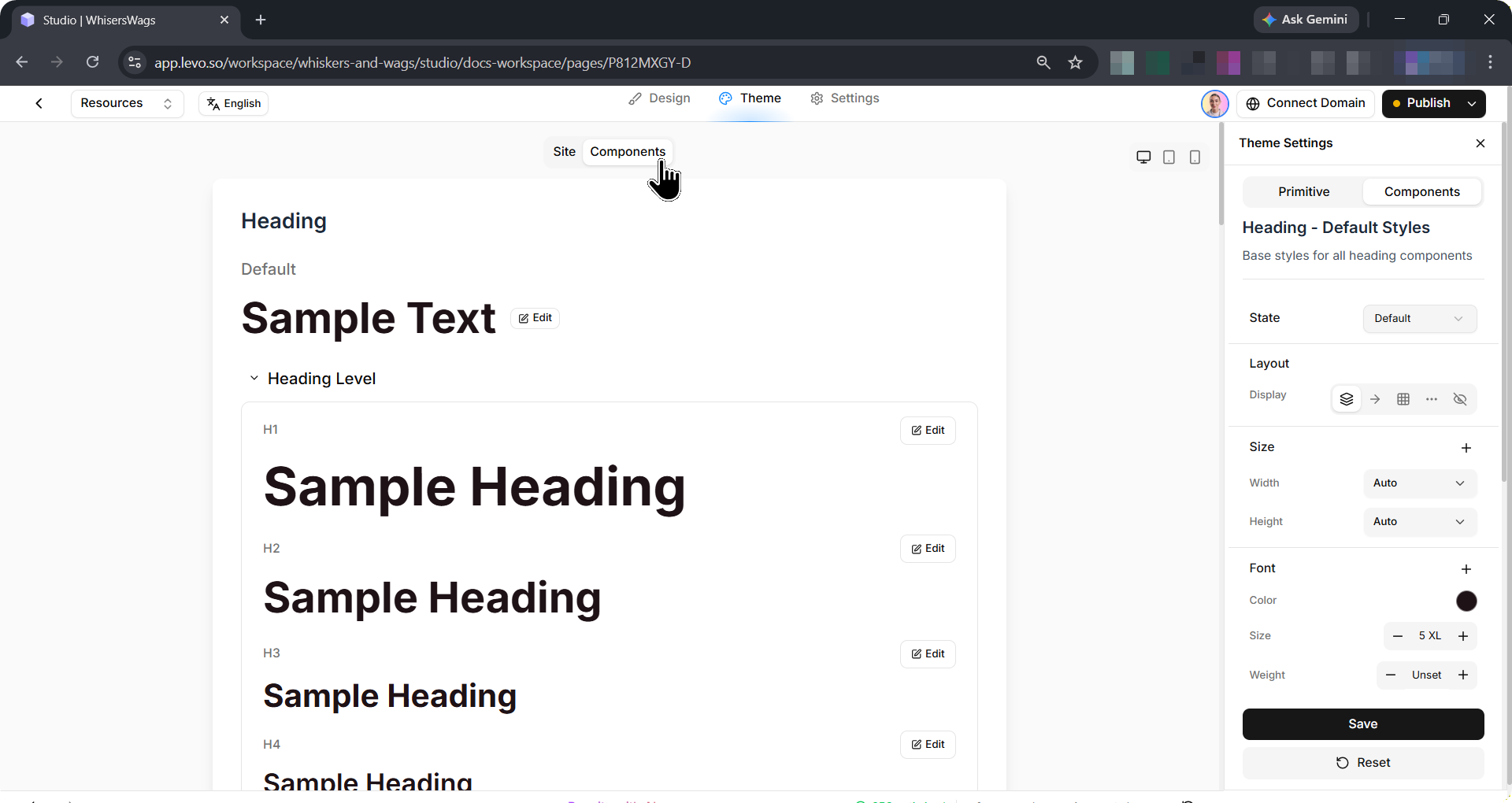
Instead of looking at a full webpage, the Components tab shows you a clean, organized grid of all your individual pieces — like a neat collection of buttons, headings, and text styles.
This tab is incredibly helpful when you want to focus on small details. It is much easier to compare your "Primary" and "Secondary" buttons when they are sitting nicely side-by-side on this grid!
Device Preview
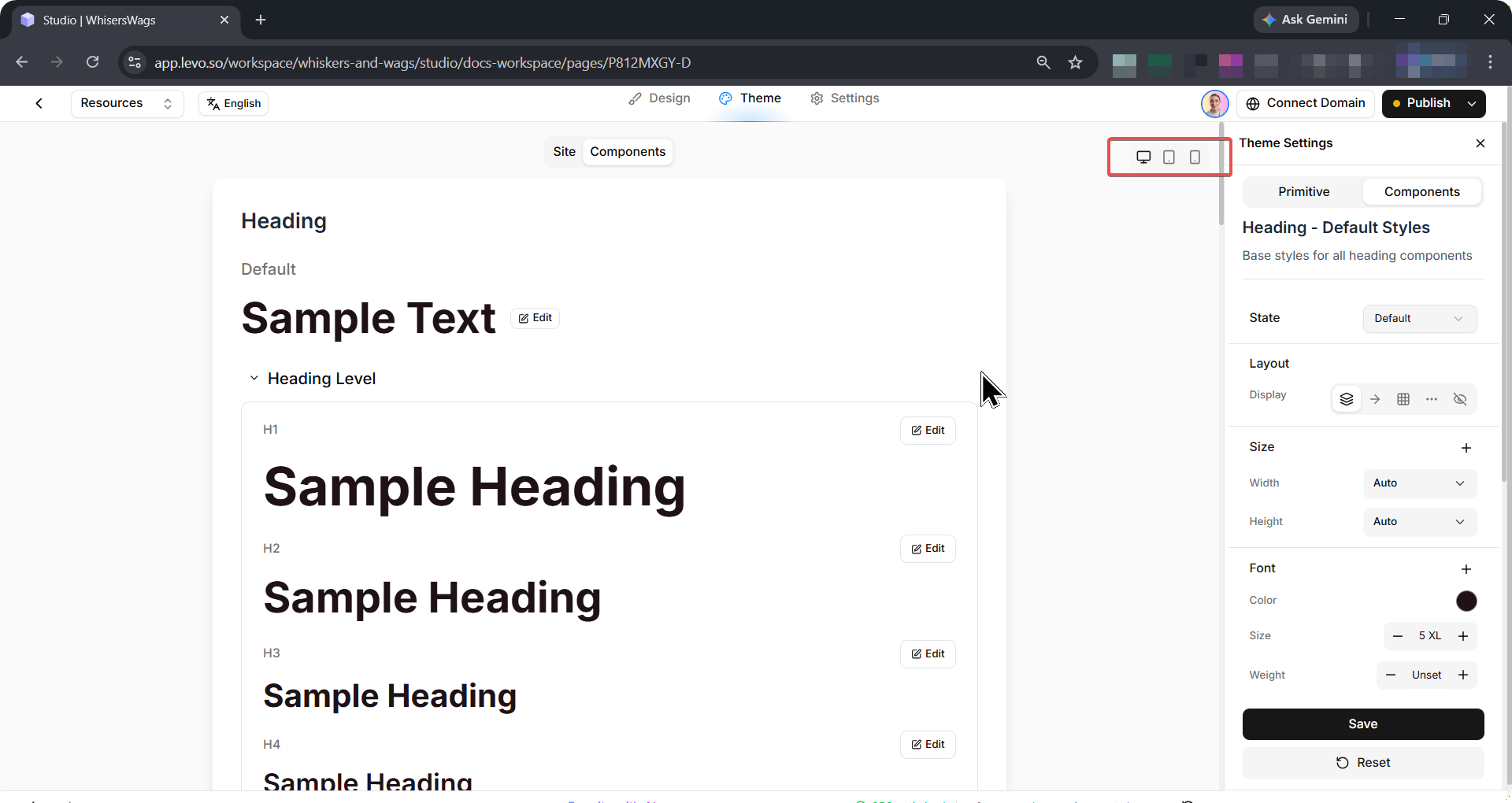
At the top of the preview panel, you will see a device toggle button. This lets you quickly switch your view between a Desktop computer, a Tablet, and a Mobile phone.
Since your designs will often change shapes to fit smaller screens (like huge headings shrinking down to fit on mobile phones), this tool helps you double-check that your site looks beautiful on every device before you save your changes.
The Editing Panel
On the right side, you'll see the main editing panel. This holds two very important tabs: Primitive and Components. We will cover exactly how to use these powerful features on the next page!