
Applying Style Variants to Elements
Table of Contents
Think of Variants as saved style "recipes" from your main Theme. Instead of slowly styling every single button or heading from scratch, you can just apply a Variant to instantly give that item a perfect, pre-made look! You make the recipe once in the Theme editor, and then you can use it anywhere on your site.
The Types of Variants You Can Use
Buttons: Primary, Secondary, Outline, Ghost, Destructive, or Link styles.
Button Sizes: Extra Small, Small, Medium, or Large.
Typography (Text): Body, Lead, Large, Small, Caption, Muted, Quote, or Code formats.
Headings: H1 (biggest title) down to H6 (smallest title).
Container Width: Full Width, Wide, Narrow, or standard Content width.
Section Spacing: Compact, Default, Spacious, or None.
(Bonus: You can even create entirely custom Variant groups inside your Theme editor!)
How to Apply a Variant
Click on any item on your page.
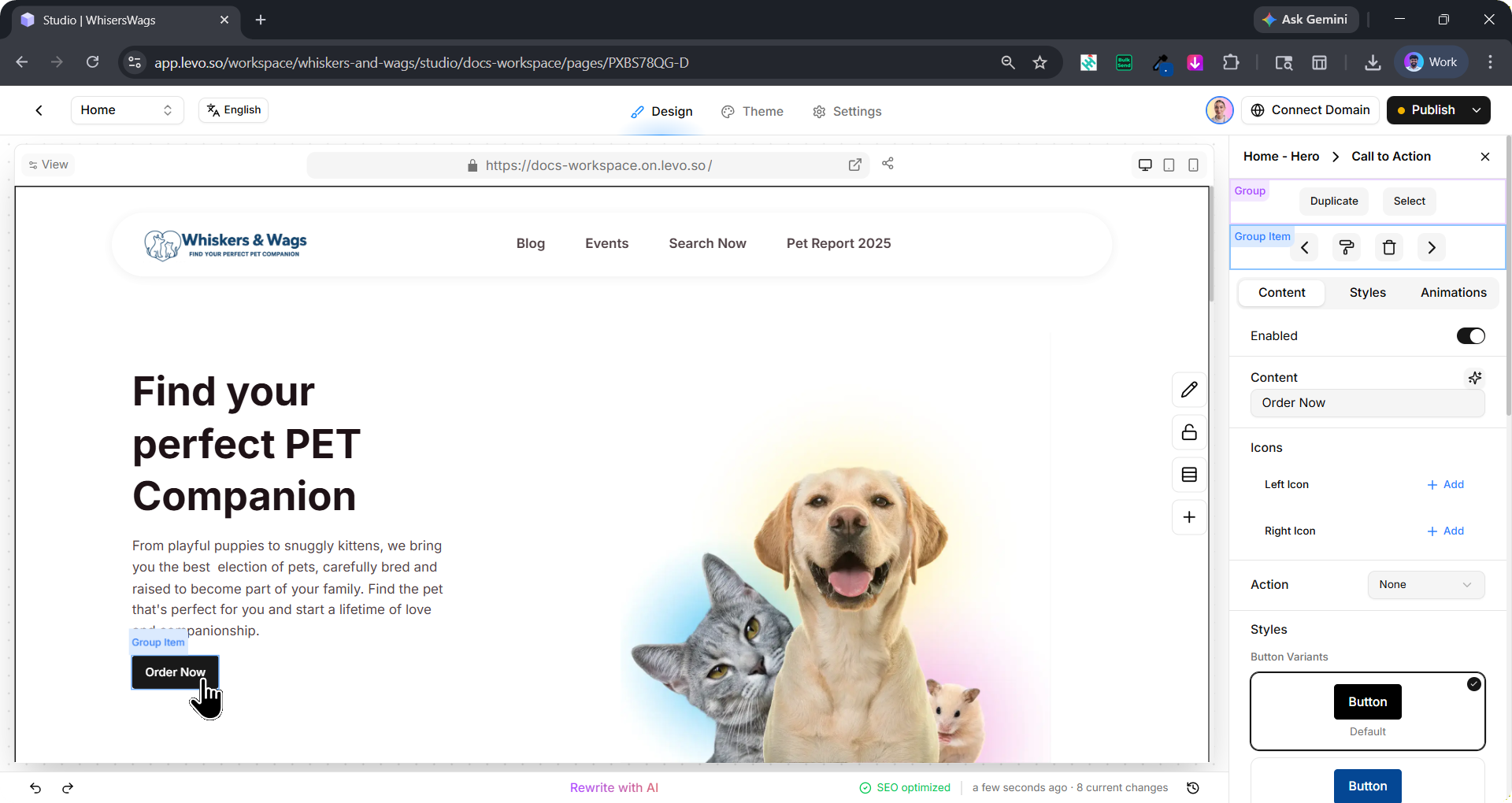
Open the Content tab in the Edit Block Panel on the right side of the screen.
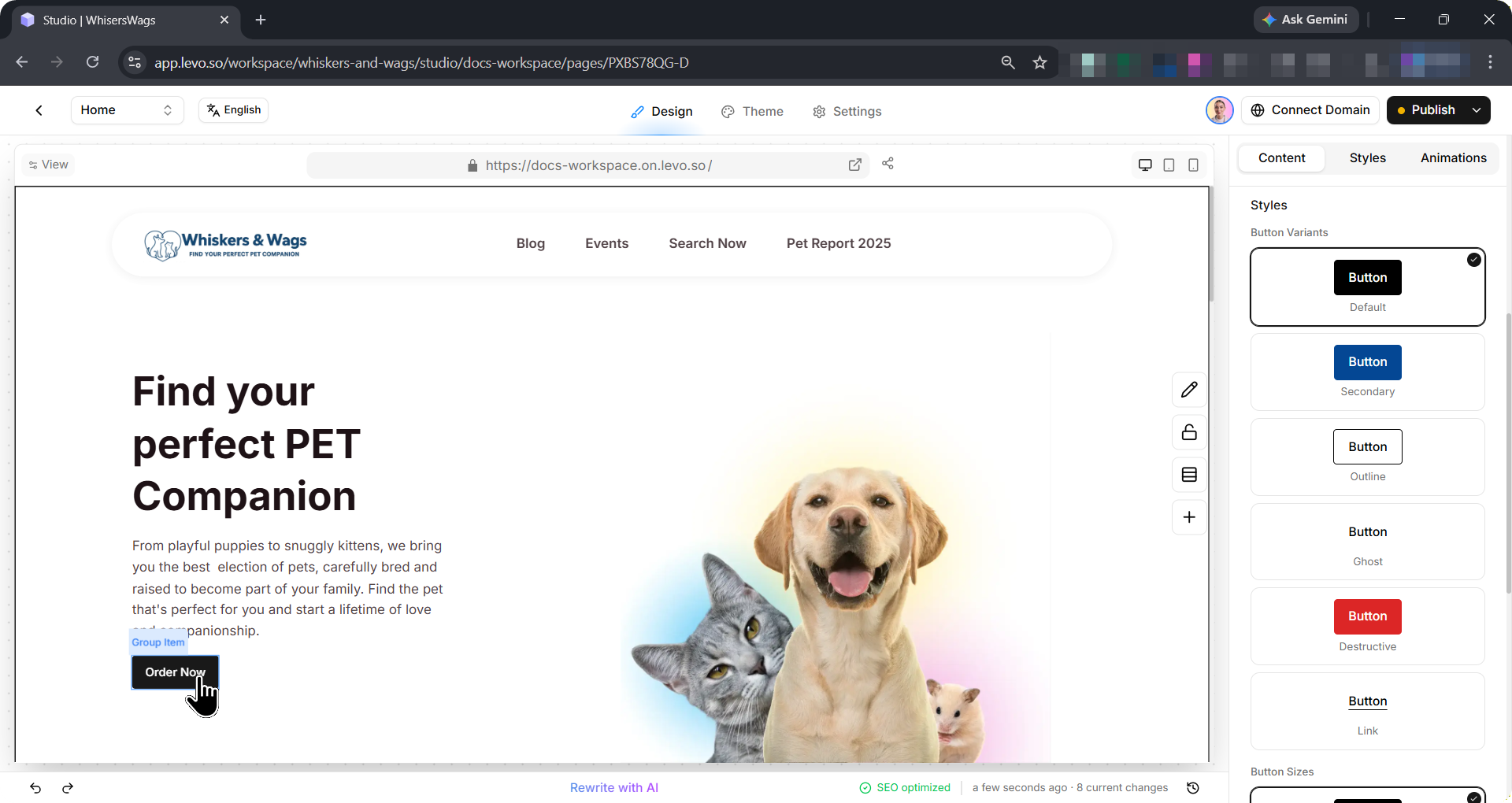
Pick the Variant you want!
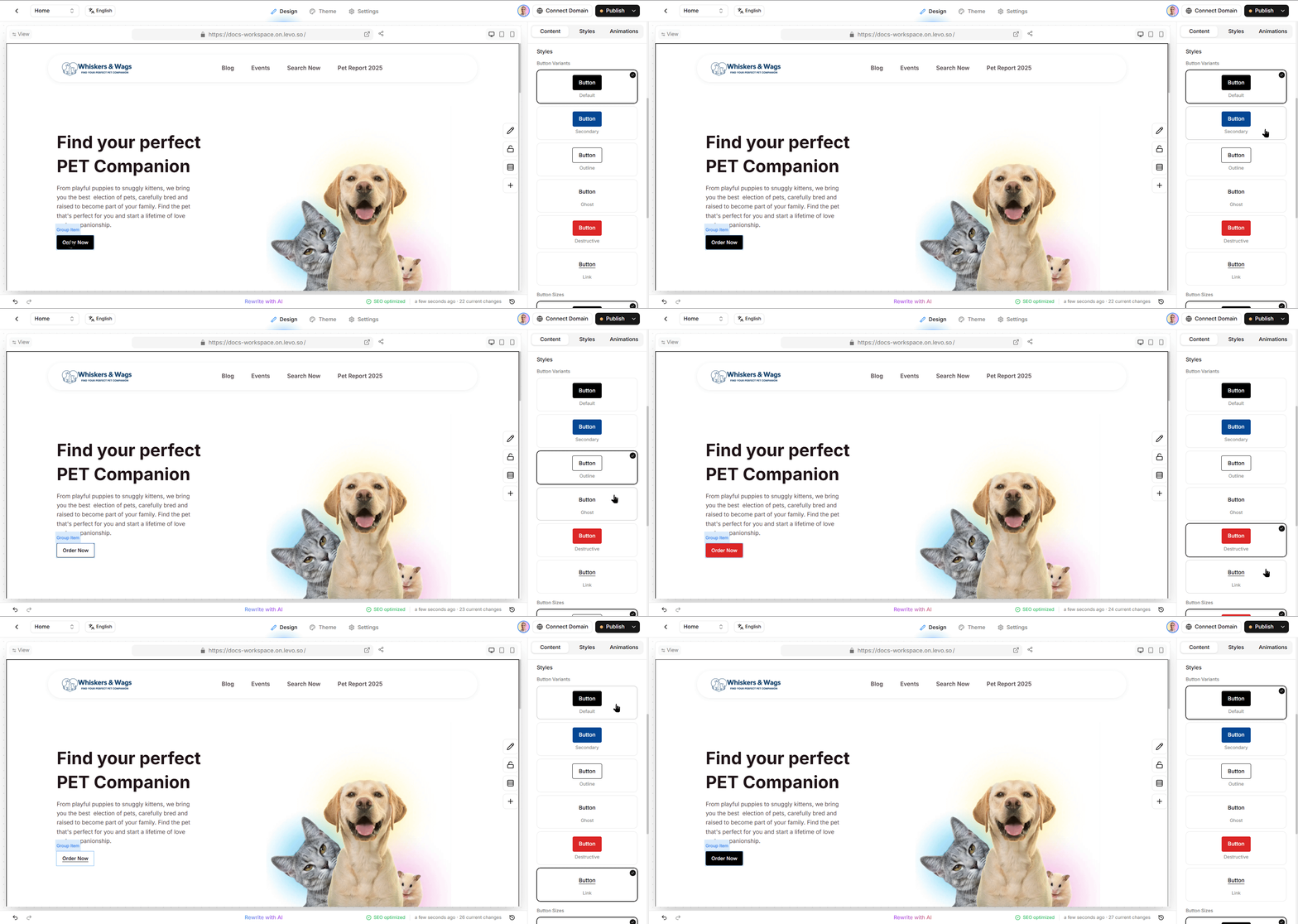
Like magic, the item will instantly change to match all the styling rules saved in that specific Variant.
How Styles Mix Together
When you mix basic Theme settings, Variants, and custom manual edits together, you might wonder who actually "wins". Here is the order of operations:
Theme Defaults: The basic ground rules for everything.
Variants: These styles are layered on top of the theme defaults. These are like custom presets that makes your work easy.
Manual Overrides: Any manual, custom change you make in the Style tab always wins!
 Pro Tip: This means you can apply a Variant to instantly get 90% of the styling done, but still manually tweak one small thing (like editing the text color) without ruining the rest of the recipe!
Managing Your Variants
Changing a Variant: Just pick a different option from the Variant menu!
Removing a Variant: Pick the "Blank" or "None" option from the menu to wipe the Variant away and return to your basic Theme defaults.
Editing a Variant: If you want to permanently change what a Variant looks like, you must do that in the main Theme editor, not the Style tab! If you change it in the Theme editor, every item across your entire website using that Variant will automatically update for you.
 The Golden Rule to Remember: Use the main Theme Editor when you want to change designs across your entire website. Use the Style Tab when you want to make a special exception for one specific item.