
Backgrounds — Colors, Images & Video
Table of Contents
Background
The Background settings control what appears behind your content. This can be a simple color, a striking photo, a moving video, or a cool layered effect.
Background Color
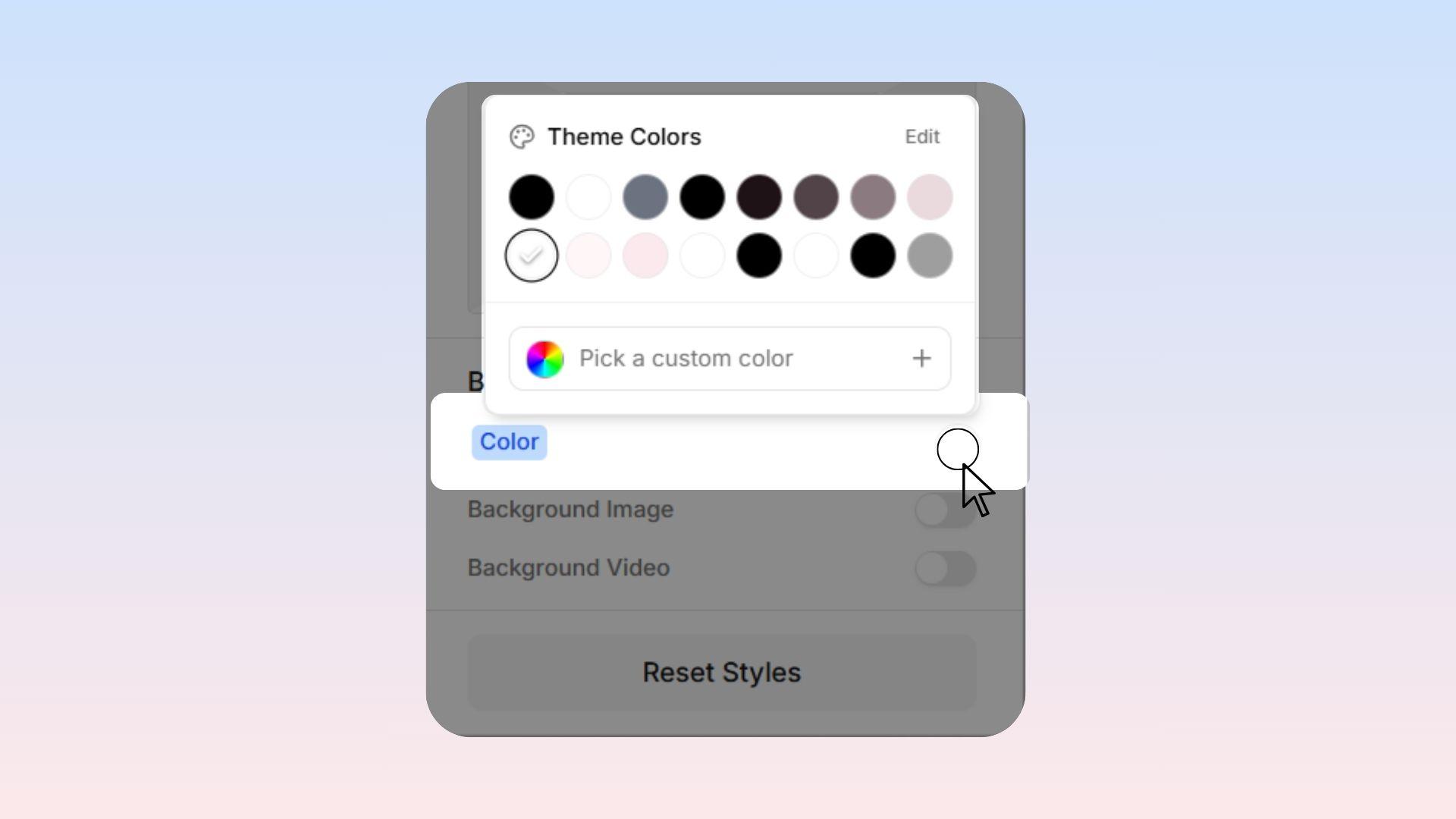
Adds a solid color behind your item. Click to open the color picker tool, where you can choose a color by eye or paste in a specific color code (like a hex code).
Background Image
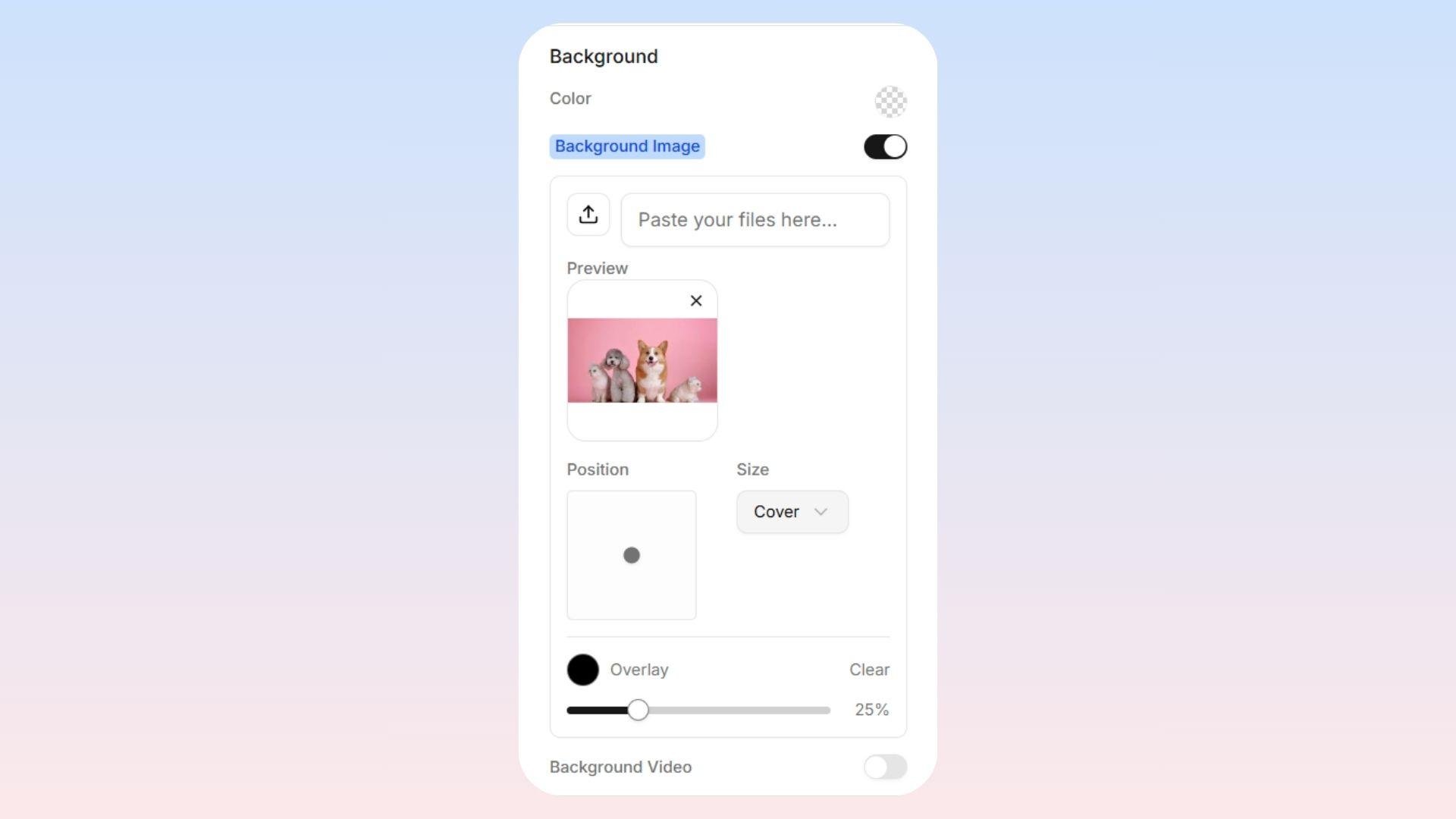
Upload a photo to sit behind your section or item. When you add an image, you get two extra controls to make sure it looks perfect:
Position: Let's you anchor the image using a simple 3x3 grid (like placing the focus exactly in the top-left or bottom-right corner).
Size (Cover): Stretches the image to completely fill the space, cropping the edges if needed. This is highly recommended for large section backgrounds!
Size (Contain): Shrinks the entire image so it fits completely inside without chopping anything off. However, this might leave some empty space on the sides.
 Pro Tip: If you put text over a busy background photo, it can sometimes be hard to read. Add a slightly see-through background color (an overlay) on top of the image to make your text pop!
Background Video
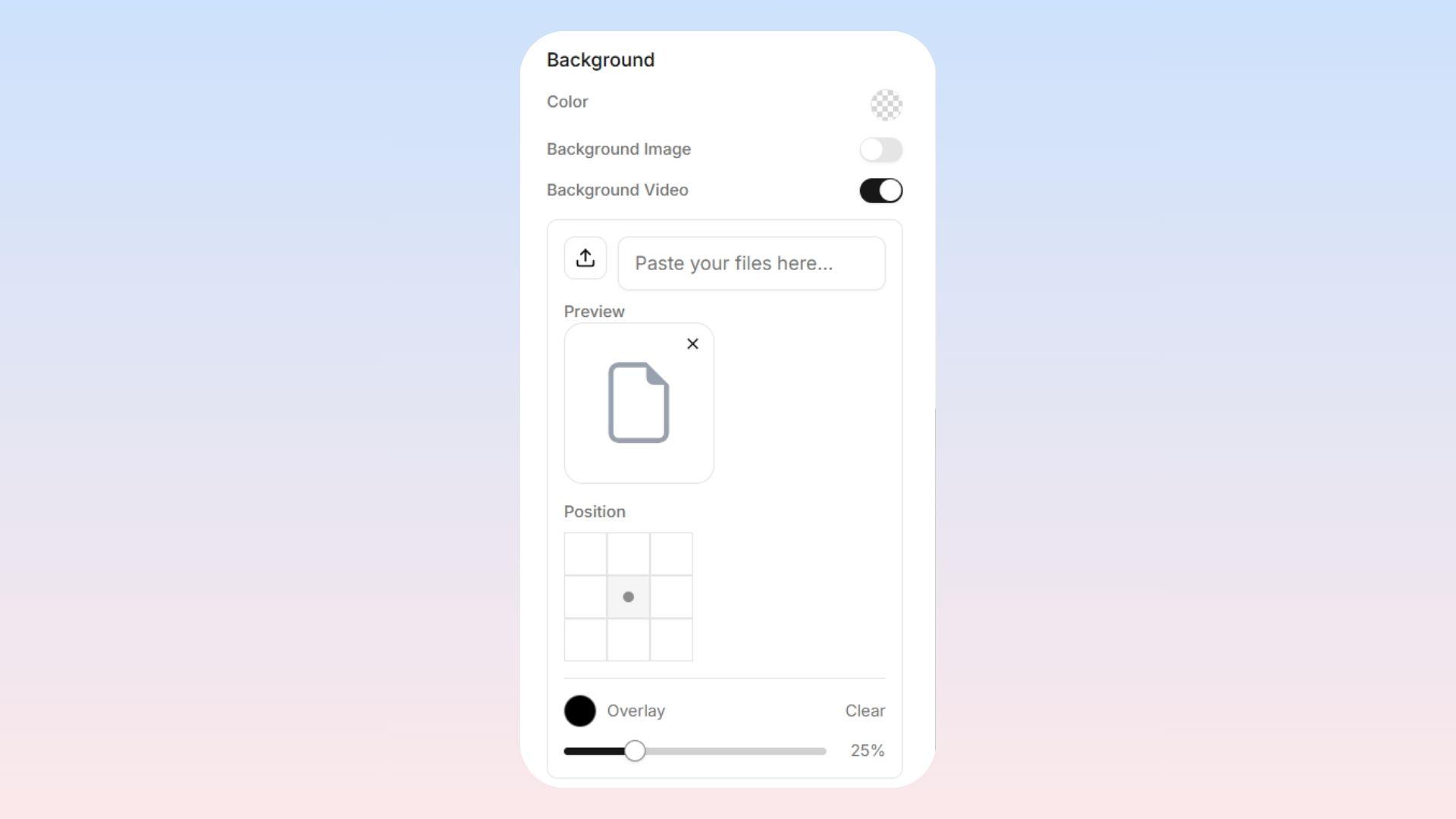
(Available for sections and big layout containers)
Paste a video to create an awesome, moving background!
Overlay Color: Just like with images, you can add a see-through color on top of the video to ensure people can still read your text comfortably.
Important Note for Mobile Phones: Background videos play automatically on a silent loop on computers. However, phone browsers usually block background videos to save battery and data. Always make sure your section still looks good on phones with just your overlay color showing, because that is what phone users will see instead of the video!
Background Effects
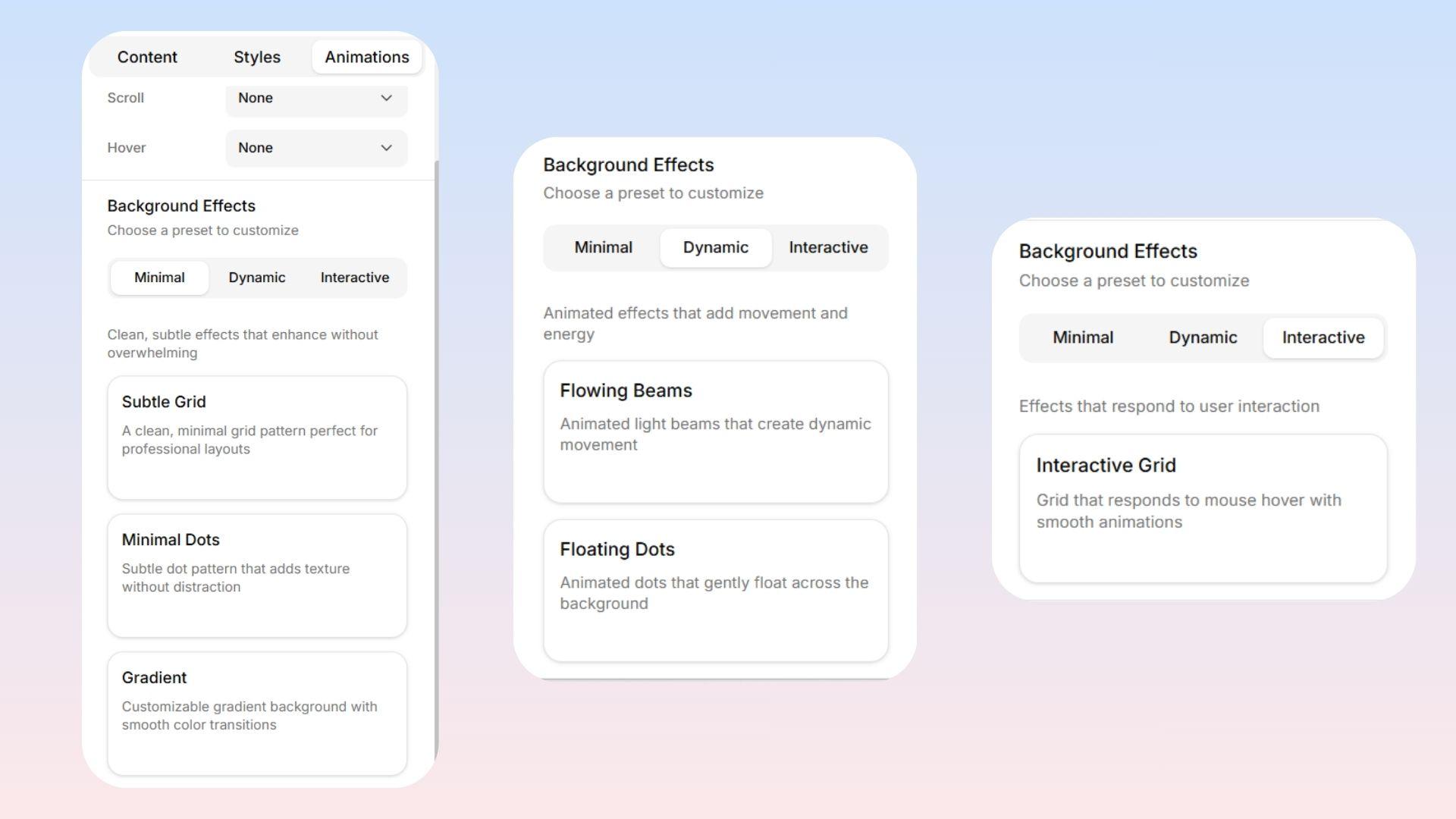
(Available for sections and big layout containers)
Want your background to look even better without needing a professional graphic designer? Use these built-in effects! You can easily apply beautiful color gradients, dark tints, or fun decorative patterns over your background to add a polished, professional touch in seconds.