
Setting Up URL Redirects to Avoid Broken Links
Table of Contents
When you update your website such as renaming pages, moving folders, or switching platforms some old links may stop working. When someone opens these links, they see a 404 Error (Page Not Found). This can confuse users and reduce your website’s performance on search engines.
URL Redirections fix this problem by automatically sending users from an old link to the correct, updated page. This helps maintain a smooth experience and keeps your site properly indexed.
Is Permanent and not
Advanced Routing Rules
Levo provides simple ways to manage redirects, even for many pages.
Wildcard Redirect (*)
A wildcard is used to redirect multiple similar URLs at once.
Example:/blogs/* → /resources/*
All pages inside /blogs/ are redirected to /resources/.
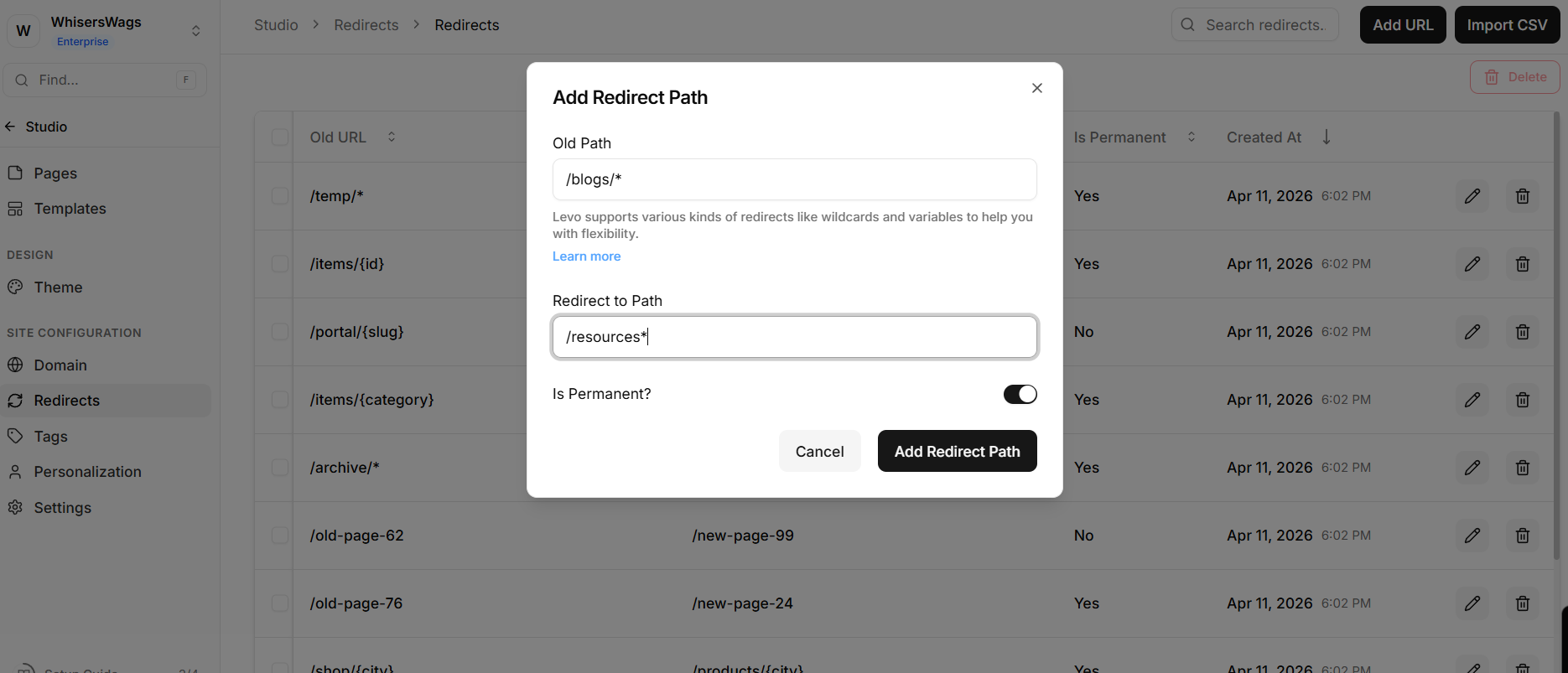
Because the URL contains *, Levo automatically treats it as a Wildcard Redirect. There is no manual type selector.
Variable Redirect ({placeholder})
Variables capture part of a URL and reuse it in the new URL.
Example:/contact-in-{city} → /contact-us/{city}
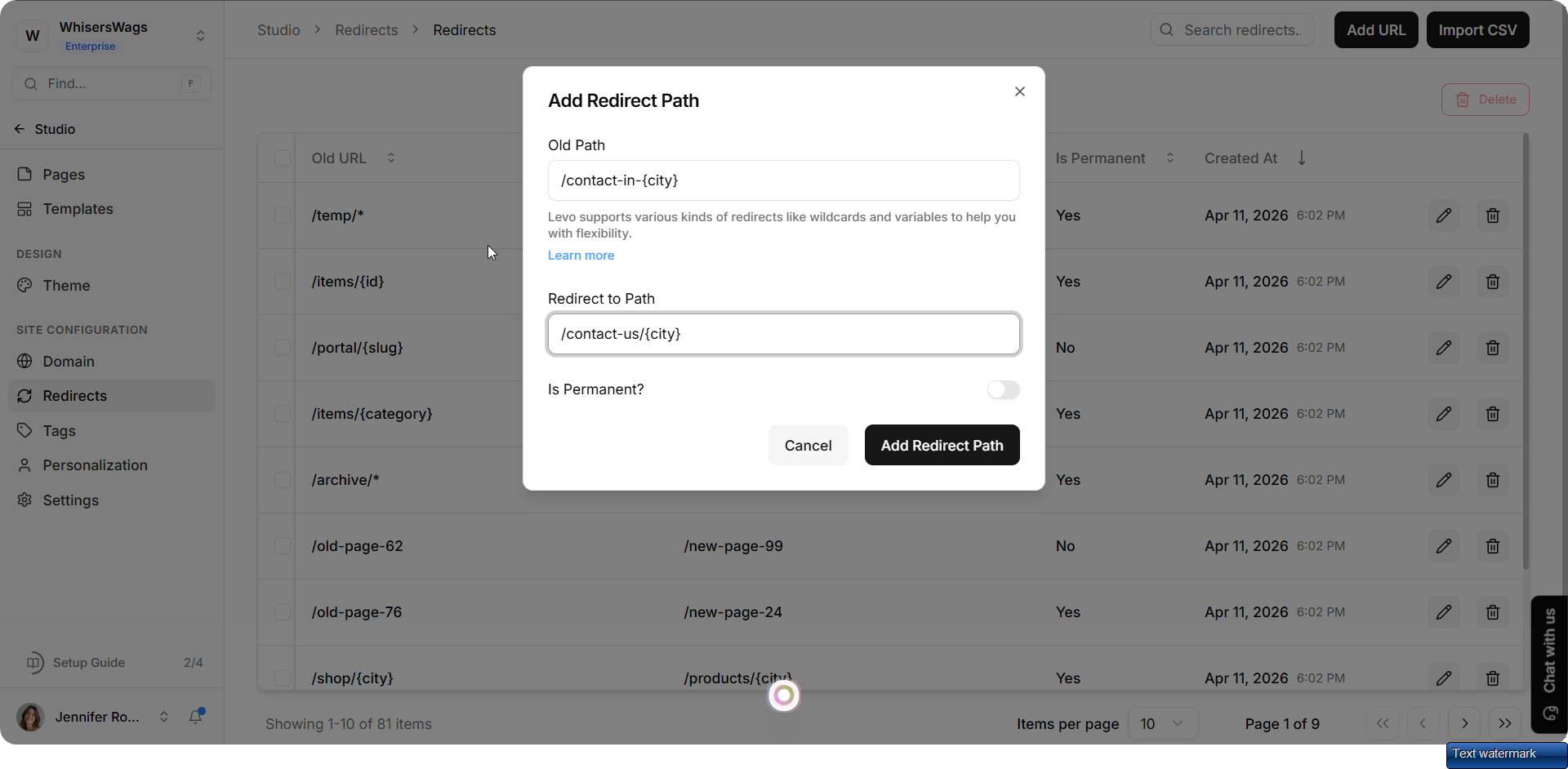
A page like /contact-in-delhi becomes /contact-us/delhi.
Combined Logic
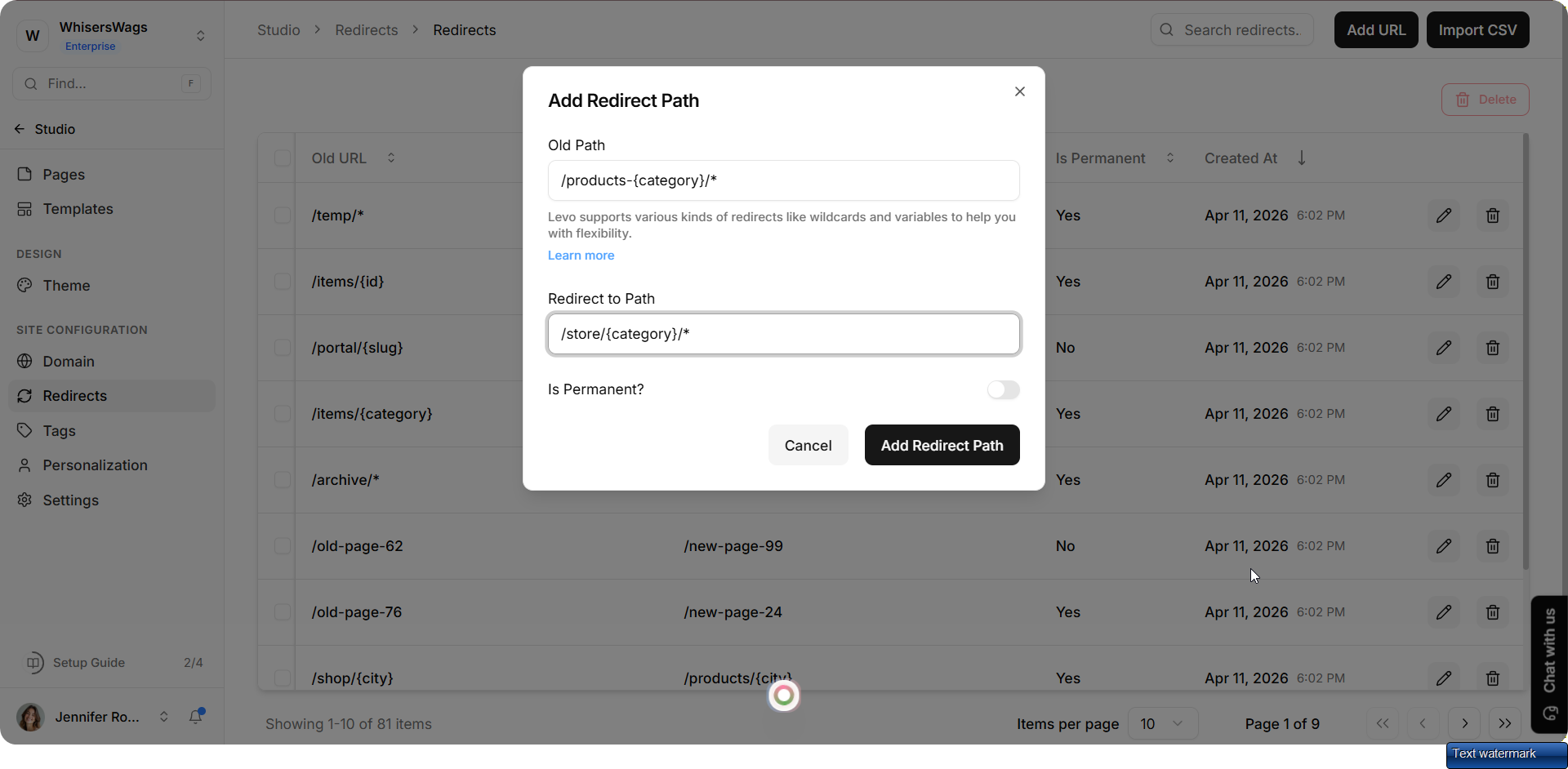
You can use wildcards and variables together for more complex redirects.
Example:/products-{category}/* → /store/{category}/*
Bulk Operations
To manage many redirects easily:
Importing Redirects via CSV
When you need to add many redirects at once, the CSV import workflow saves significant time.
Step 1: Open the Import Drawer
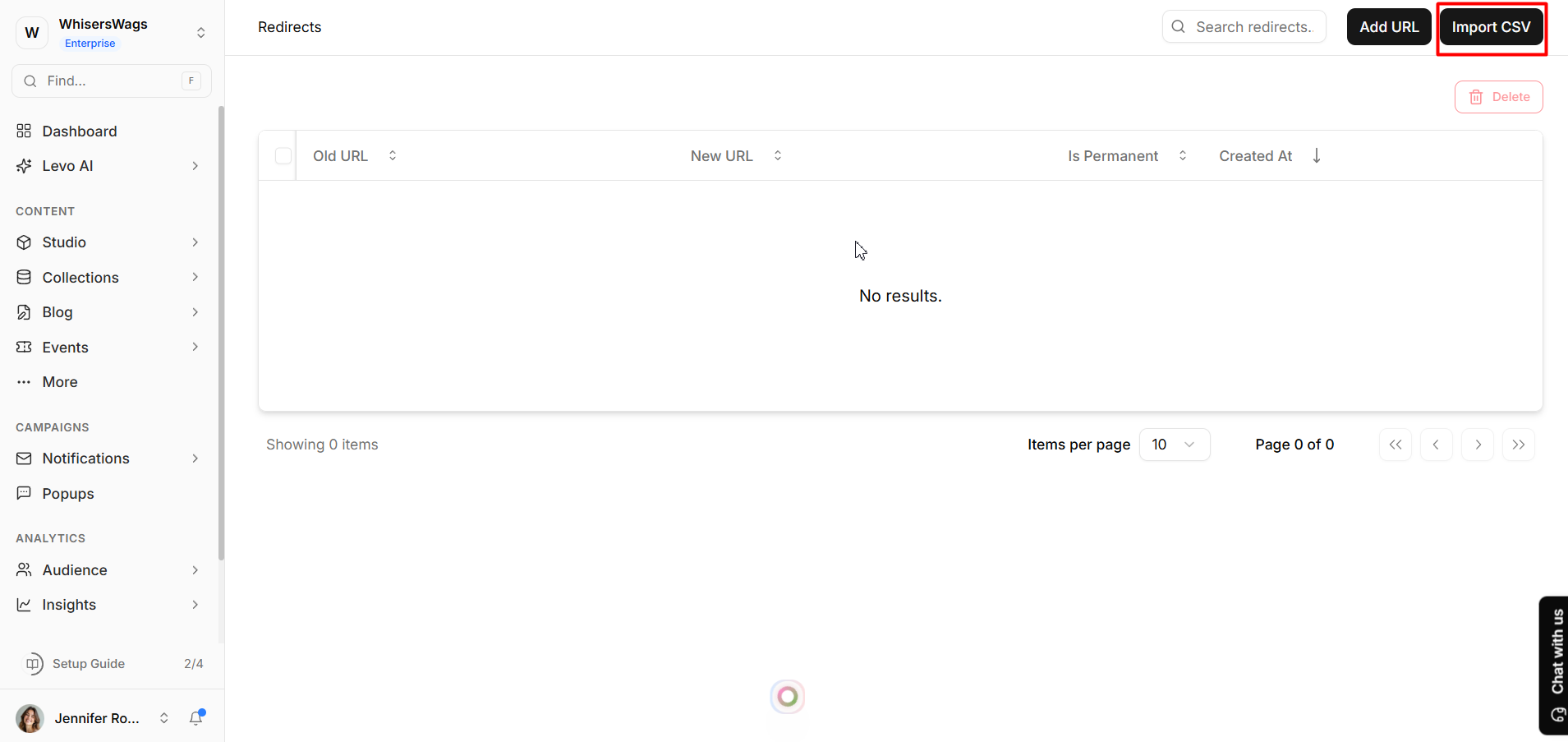
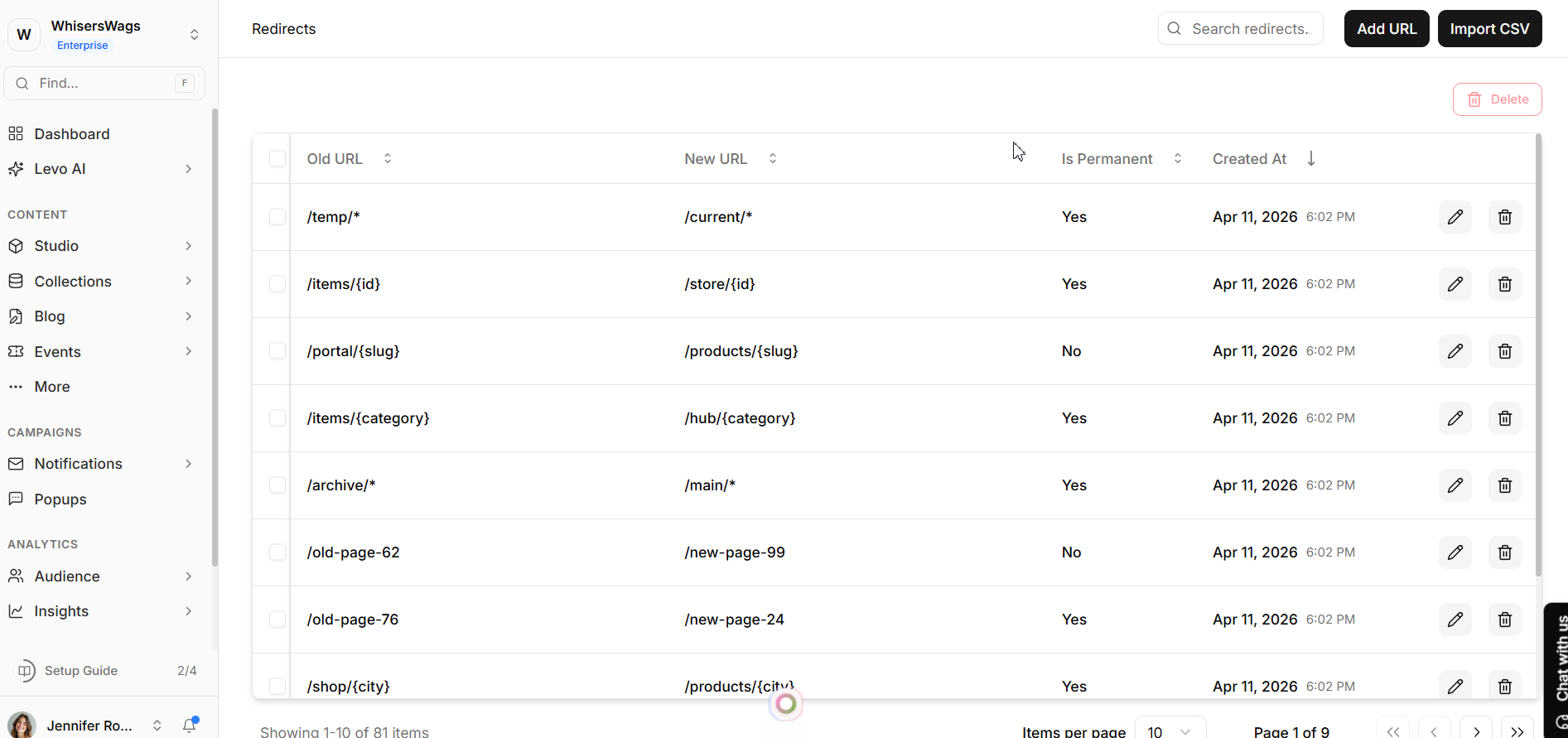
1. On the Redirects page, locate the Import CSV button in the top-right action bar (next to the Add URL button).
2. Click Import CSV. A side drawer titled Import Redirects will slide open from the right.
Step 2: Download the CSV Template
1. Inside the Import Redirects drawer, you will see a description reading: "You can import redirects in bulk using a CSV file with the template format."
2. Click the Download Template link to download Levo's official CSV template file.
3. Open the downloaded template and populate it with your redirect data. The required columns are:
-
from— The old URL path (e.g.,/temp/*)-
to— The new URL path (e.g.,/current/*)-
is_permanent— Set totruefor a permanent (301) redirect orfalsefor a temporary (302) redirect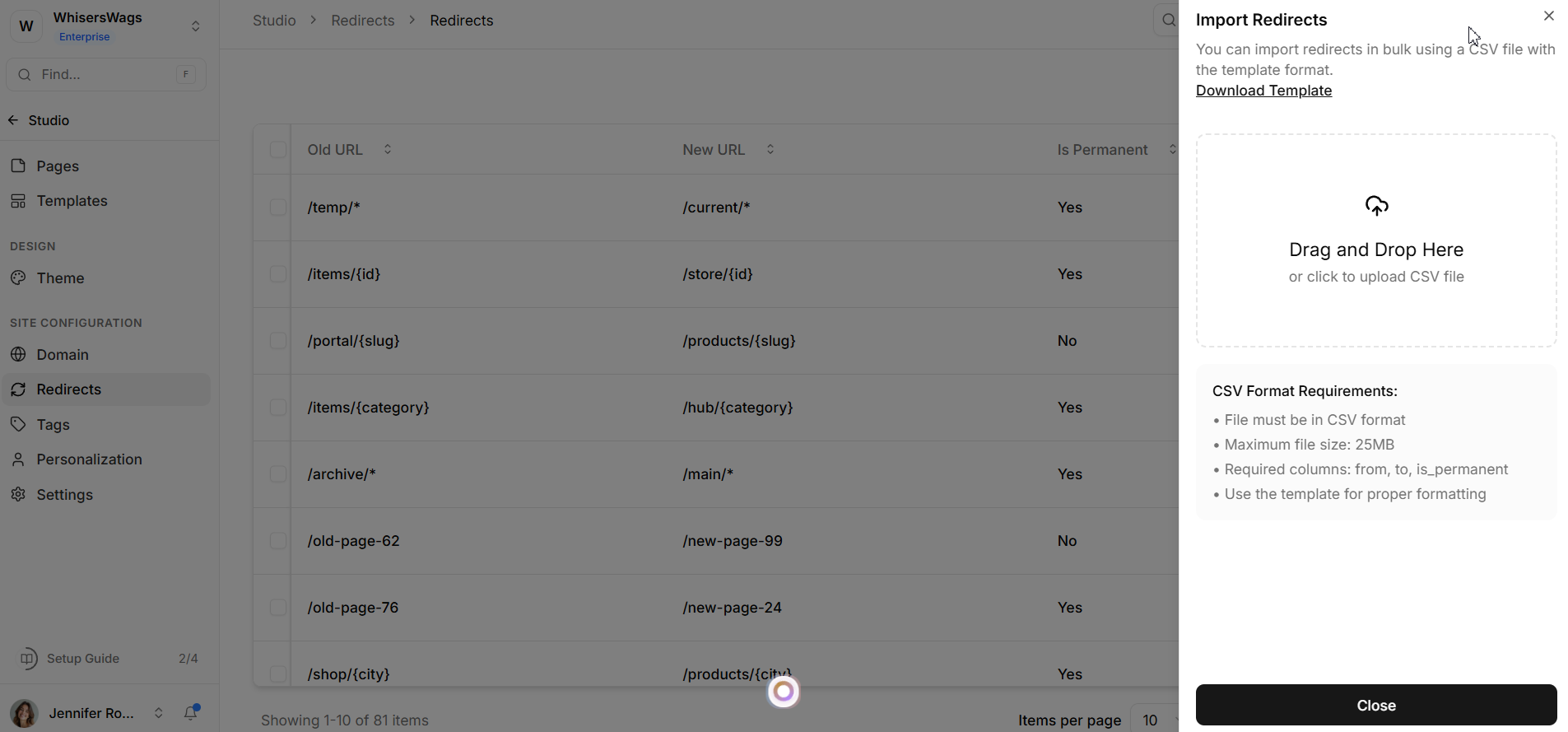
CSV Format Requirements:
> - File must be in
.csvformat.> - Maximum file size: 25MB.
> - Required columns:
from,to,is_permanent.> - Use the provided template to ensure proper formatting.
Step 3: Upload the CSV File
1. Once your CSV is prepared, either drag and drop the file into the dashed upload area in the drawer, or click the upload area to open your file browser and select the file.
2. The drawer will display a "Processing..." spinner followed by an "Importing..." state as your redirects are being created.
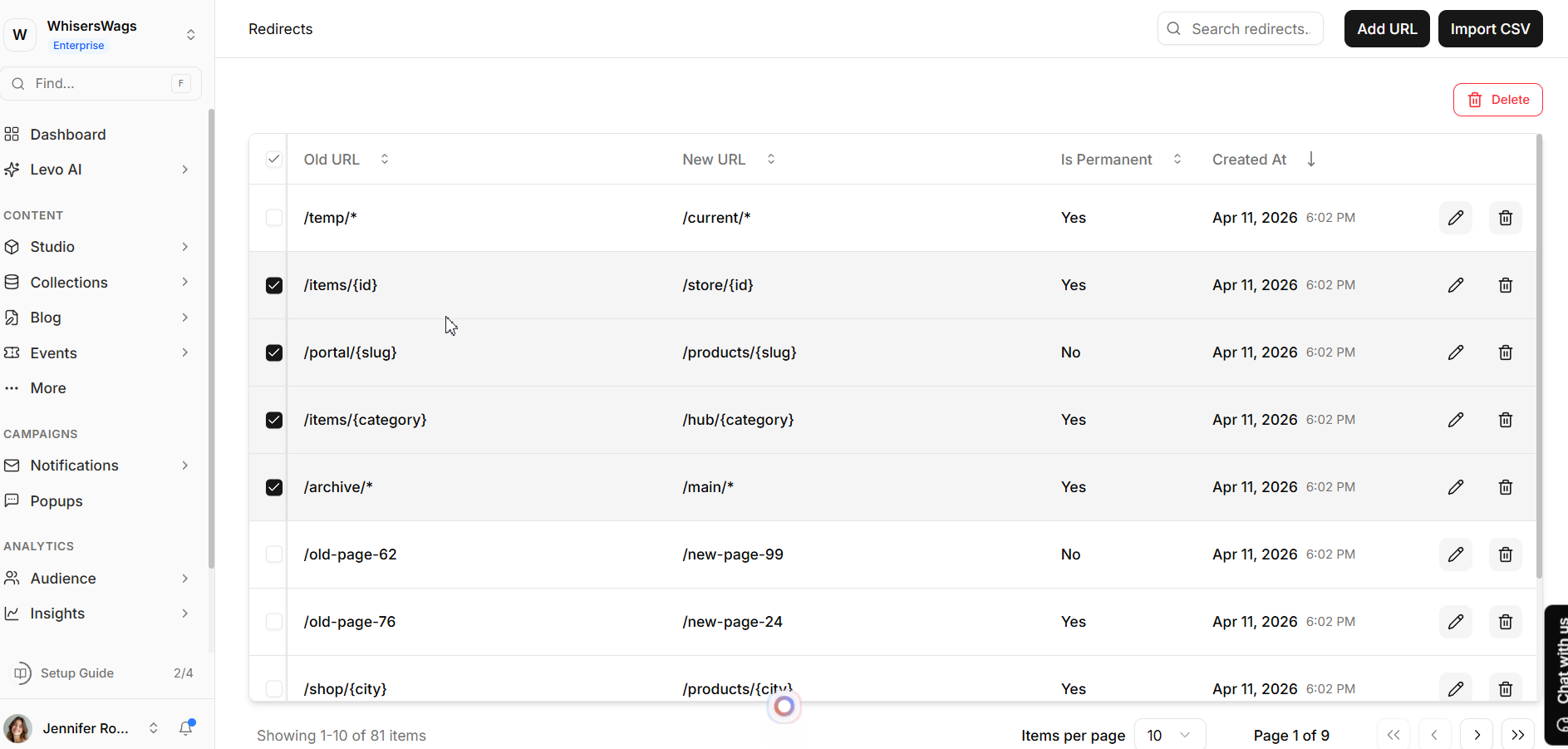
Bulk Delete: Remove multiple redirects at once
SEO Note
Levo uses 301 Permanent Redirects, which tell search engines that a page has moved permanently. This helps keep your website’s ranking and SEO value.