
Creating Page Variants for Different Audiences
Table of Contents
Page Variants in Studio
Page variants are how personalization comes to life on individual pages. You can create separate versions for specific countries or languages while maintaining the same URL. Levo automatically detects visitor location and language to serve the appropriate version.
Page Type Classification
Three primary page types exist:
Global pages: Visible to all visitors without country or language restrictions
Country variants: Displayed to visitors from specific countries
Language variants: Shown to visitors whose browser language matches
The global version serves as a fallback for unmatched visitors.
Two Management Locations
You can manage variants from the Pages list or directly within Studio.
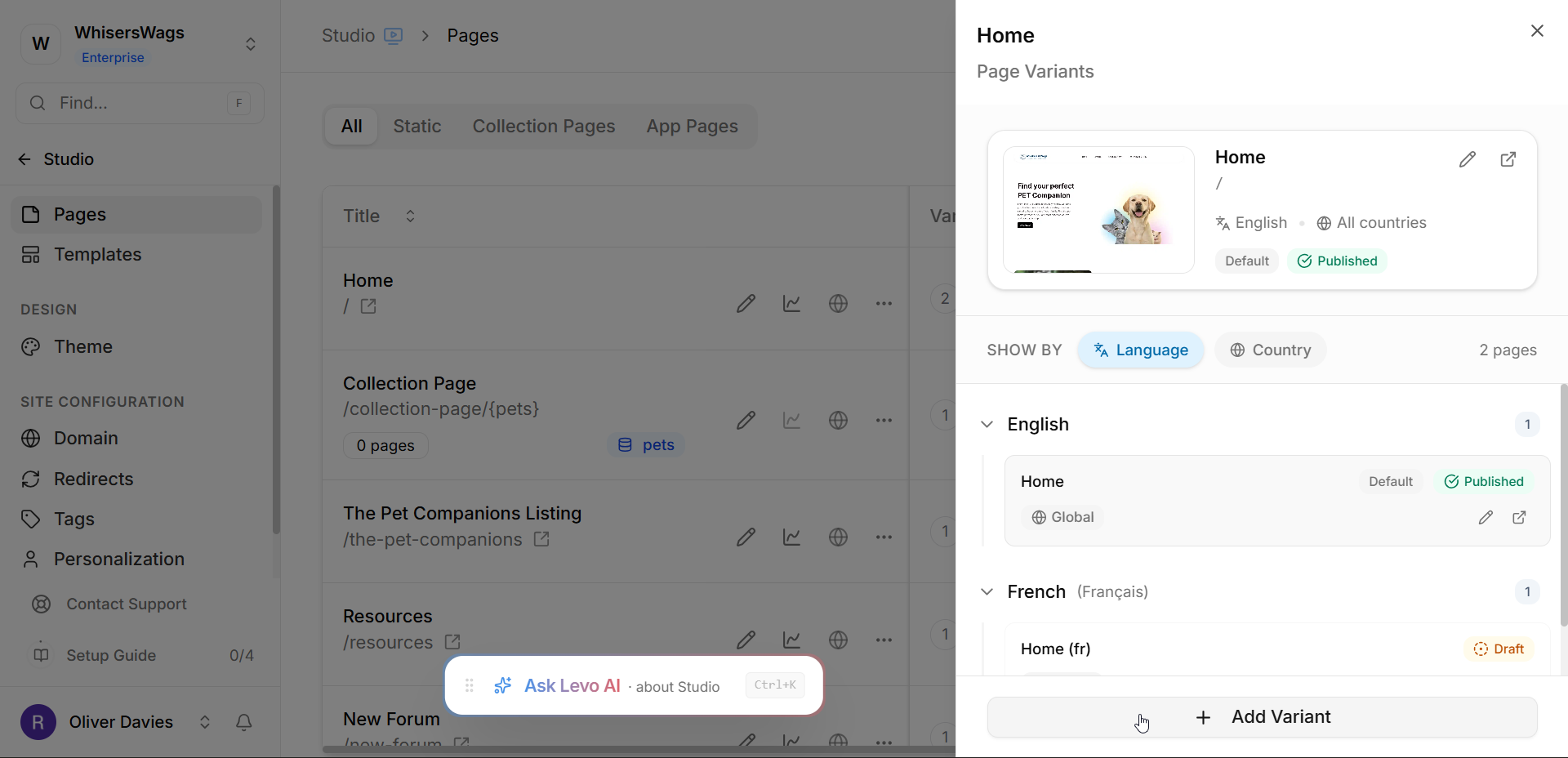
The Pages list displays a Variations chip (a stacked icon with variant count) for pages with multiple versions. Clicking this chip opens the Variations panel showing the global page and all language/country variants organized by type.
Creating Variants
1. From the Pages List
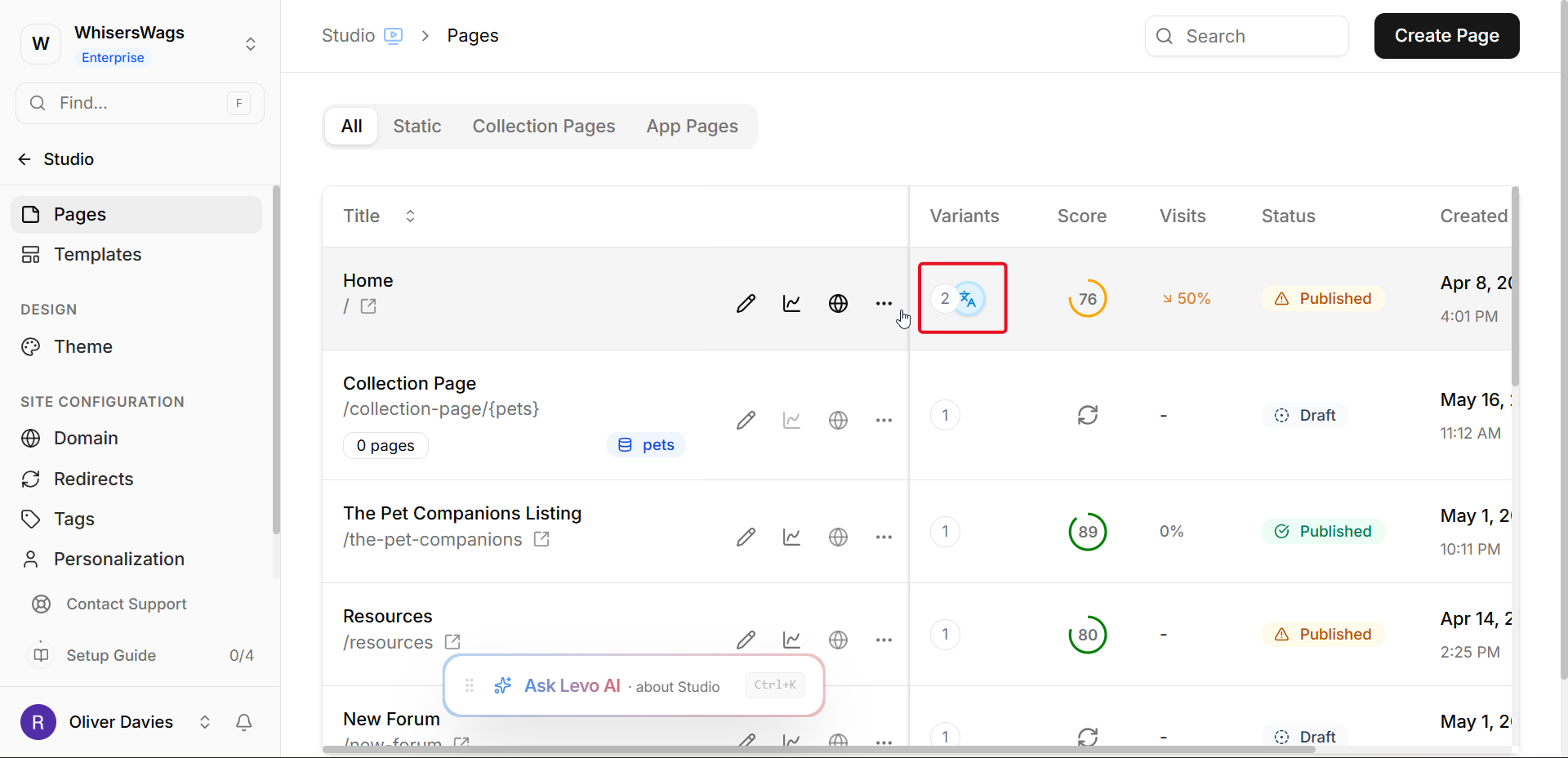
Click Add Variant and select Country or Language
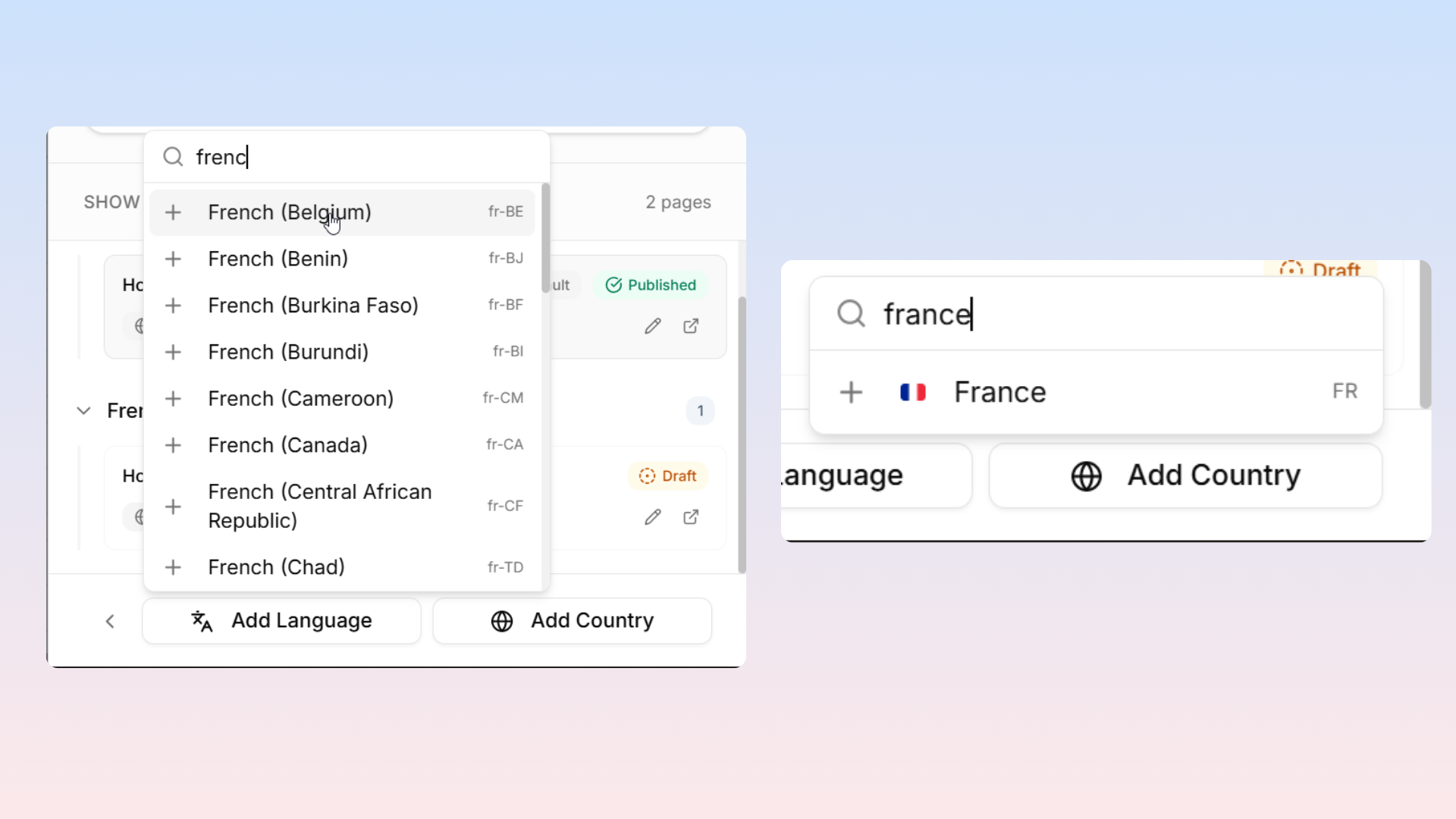
Choose from available options
The system creates a copy of the global page with specified targeting
2. From Studio
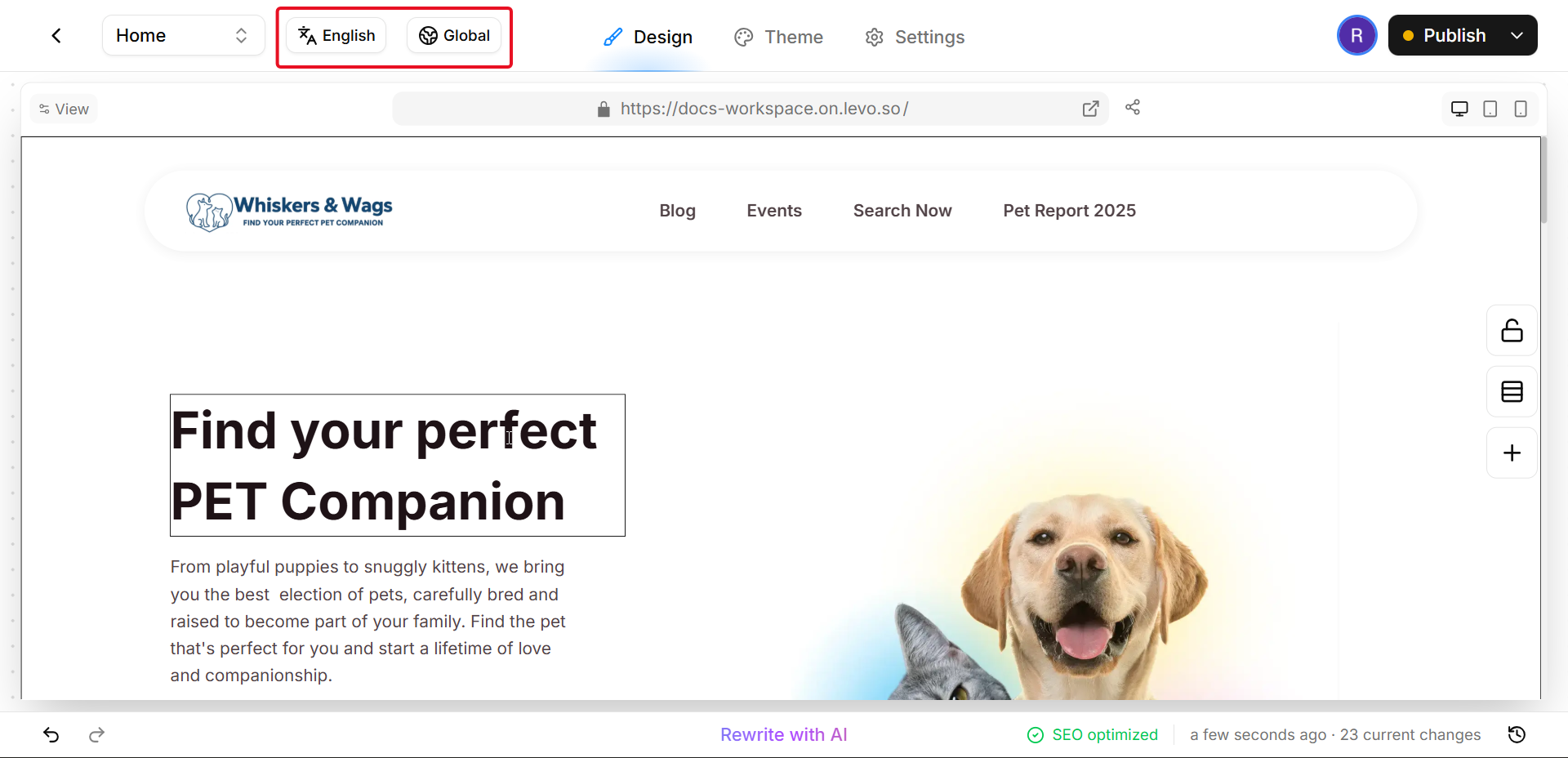
Use the Language and Country selectors in the top navigation bar
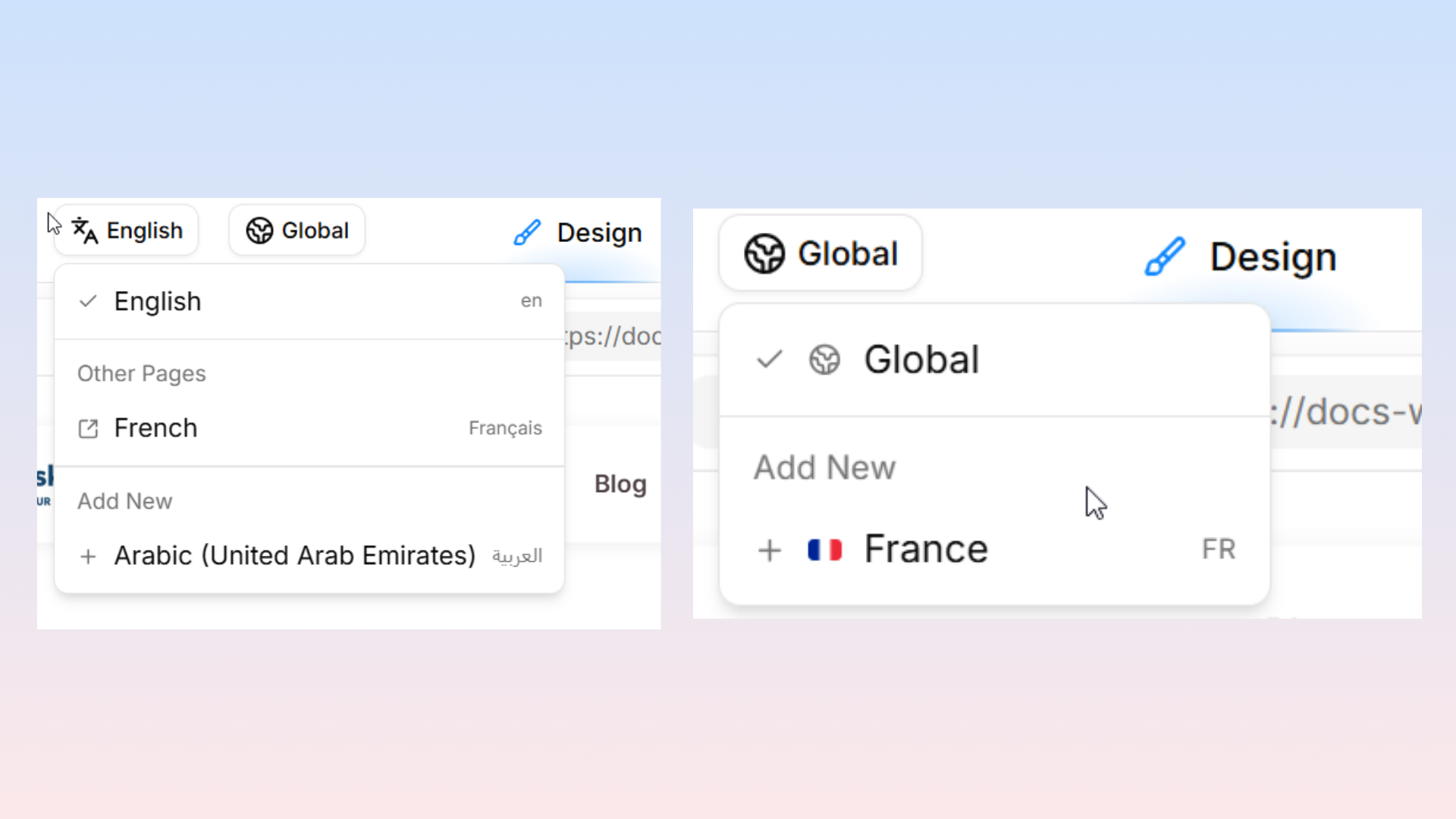
The Language selector shows the current language with options to add new variants
The Country selector displays global status or assigned countries
Country Variant Dialog
When creating country variants from Studio, a dialog offers two options:
Use Same: Associates the country without creating a new page copy
Yes, Create New: Duplicates current page content and opens in a new tab for independent editing
Note: Global pages can only use "Yes, Create New."
Navbar Display by Page Type
Page Type | Language Display | Country Display |
|---|---|---|
Global page | Default (e.g., "English") | "Global" |
Language variant | Variant language | "Global" (unless also country-targeted) |
Country variant (single) | — | Flag and name |
Country variant (multiple/group) | — | Group name or "N countries" |
Variant Priority Logic
When a visitor arrives, Levo follows this sequence:
Detects country (via IP) and browser language
Country variant match → serve that variant
Language variant match → serve that variant
Both match → country variant takes priority
No match → serve global page
Management Operations
Deletion: Access the Variations panel to remove variants. The global page cannot be deleted.
Country targeting changes: Use the Country selector to remove the current country and add a new one.
Language targeting changes: Delete the existing variant and create a new one with the correct language.
Best Practices
Build the global page first, then create variants for content-specific changes
Utilize country groups to reduce individual variant creation
Changes to the global page do not automatically apply to existing variants — manual synchronization is required
Open variants in separate tabs for side-by-side comparison and content copying