
Scroll Animations — Motion Driven by Scrolling
Table of Contents
A great website doesn’t just load — it moves with you.
That’s the power of scroll animations.
As users scroll, elements don’t just appear — they respond, creating a smooth, dynamic experience that feels modern and immersive.
With Levo, you can easily add scroll-based motion that reacts to user behavior — without any code.
What Are Scroll Animations?
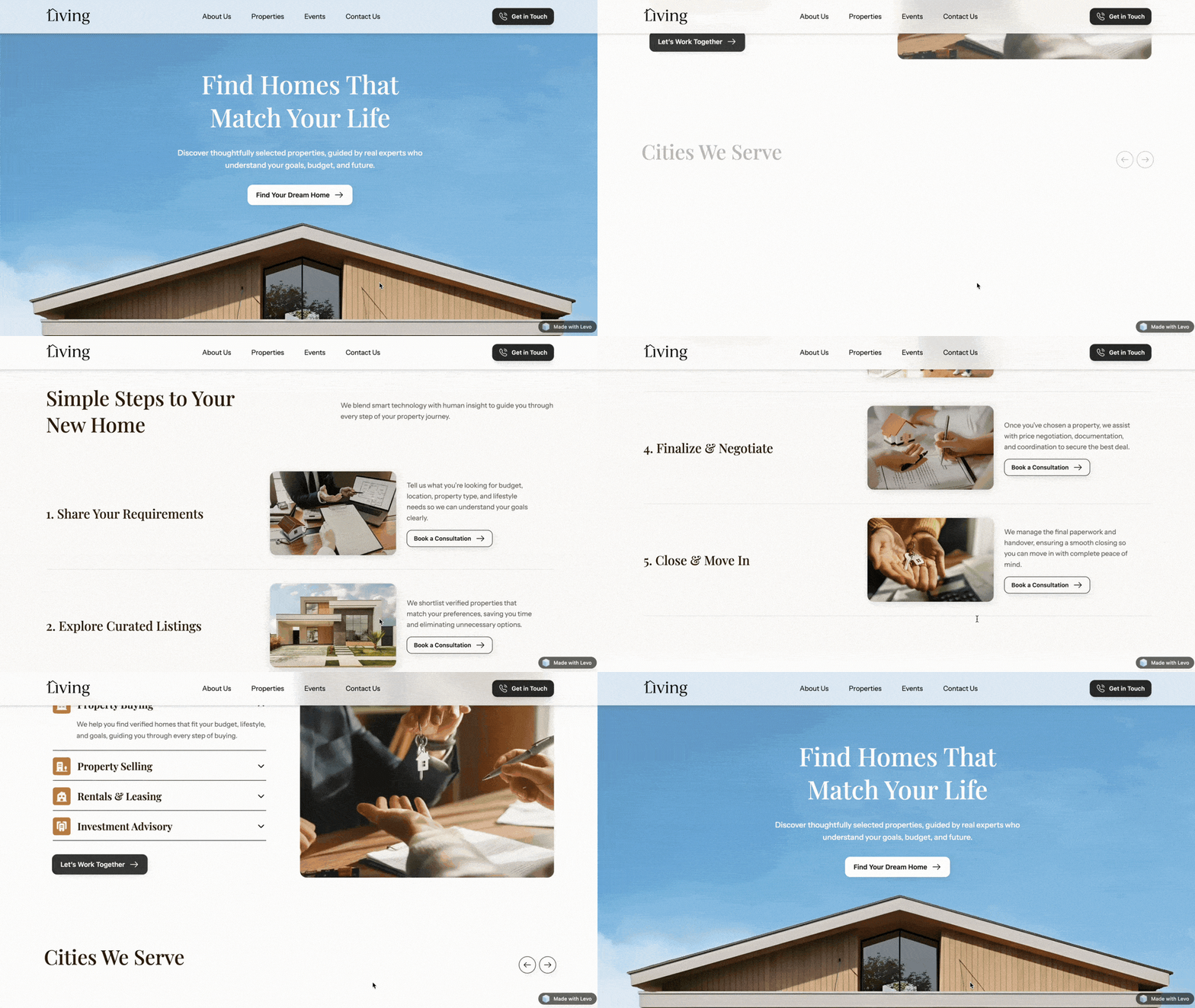
Scroll animations are directly tied to how users scroll through your page.
Unlike entry animations that play once, scroll animations:
move forward as users scroll down
move backward as users scroll up
This creates a continuous, interactive experience — almost like controlling the animation with your scroll.
How to Add a Scroll Animation?
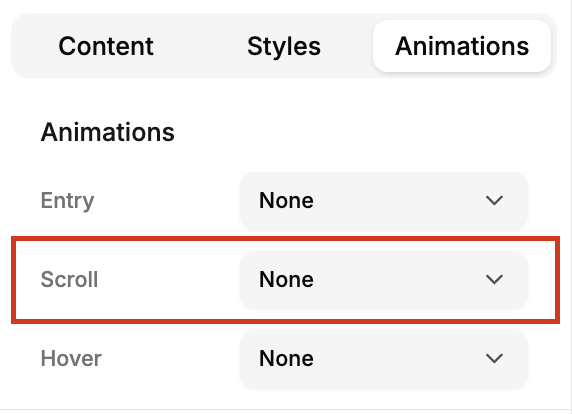
Adding a scroll animation in Levo is simple:
Select the element you want to animate
Open the Animation tab
Go to the Scroll section
Choose a preset or customize your animation
Your element will now respond dynamically to scrolling.
Scroll Animation Presets
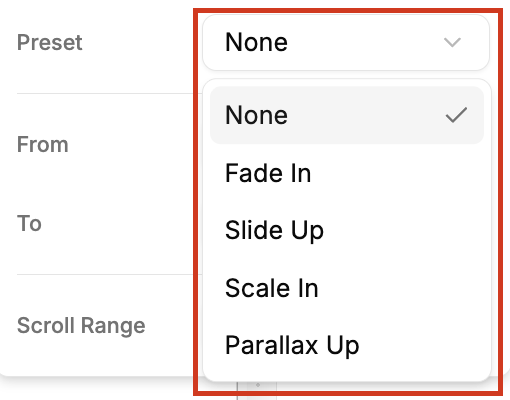
Levo provides a few powerful presets to get started:
1. Fade In:
Gradually reveals the element as you scroll.
Best for: text, sections, subtle transitions
2. Slide Up:
Moves the element upward into view.
Best for: content blocks, storytelling layouts
3. Slide Up:
Moves the element upward into view.
Best for: content blocks, storytelling layouts
4. Parallax Up:
Creates a depth effect by moving the element at a different speed than the page.
Best for: backgrounds, hero sections, immersive designs
Tip:
Parallax is one of the most impactful effects — it creates a subtle 3D feel by making elements scroll slower or faster than the rest of the page.
Controlling Animation Timing
One of the most powerful parts of scroll animations is timing.
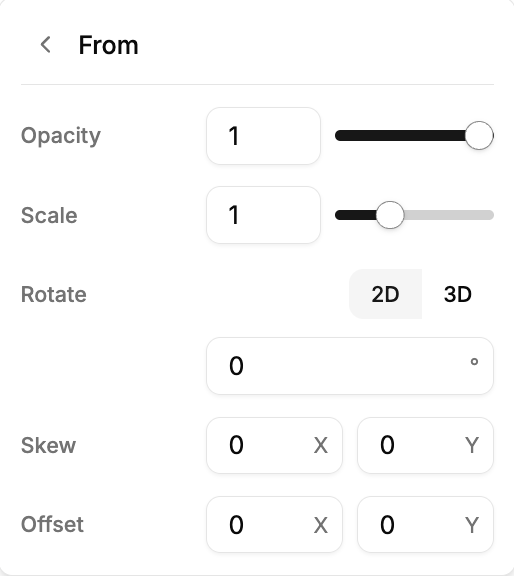
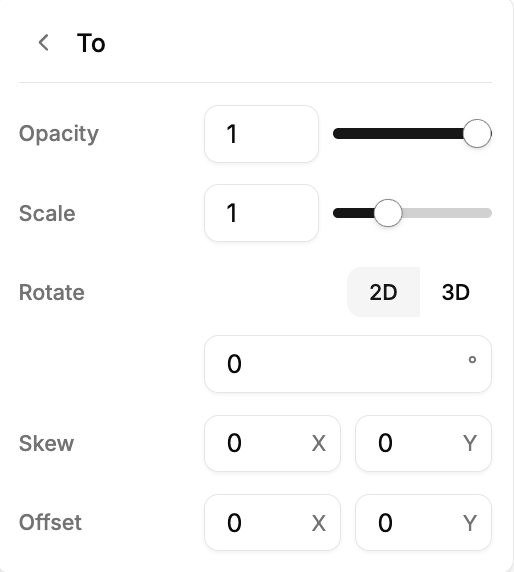
You can define exactly when the animation starts and ends.
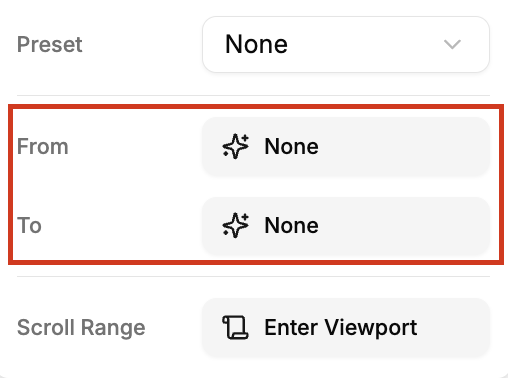
Start
Defines when the animation begins
(e.g., when the element enters the screen)
End
Defines when the animation completes
(e.g., when it reaches the center of the screen)
This allows you to create smooth, well-timed transitions that feel natural to the user.
For example:
Start when the element touches the bottom of the viewport
End when it reaches the center
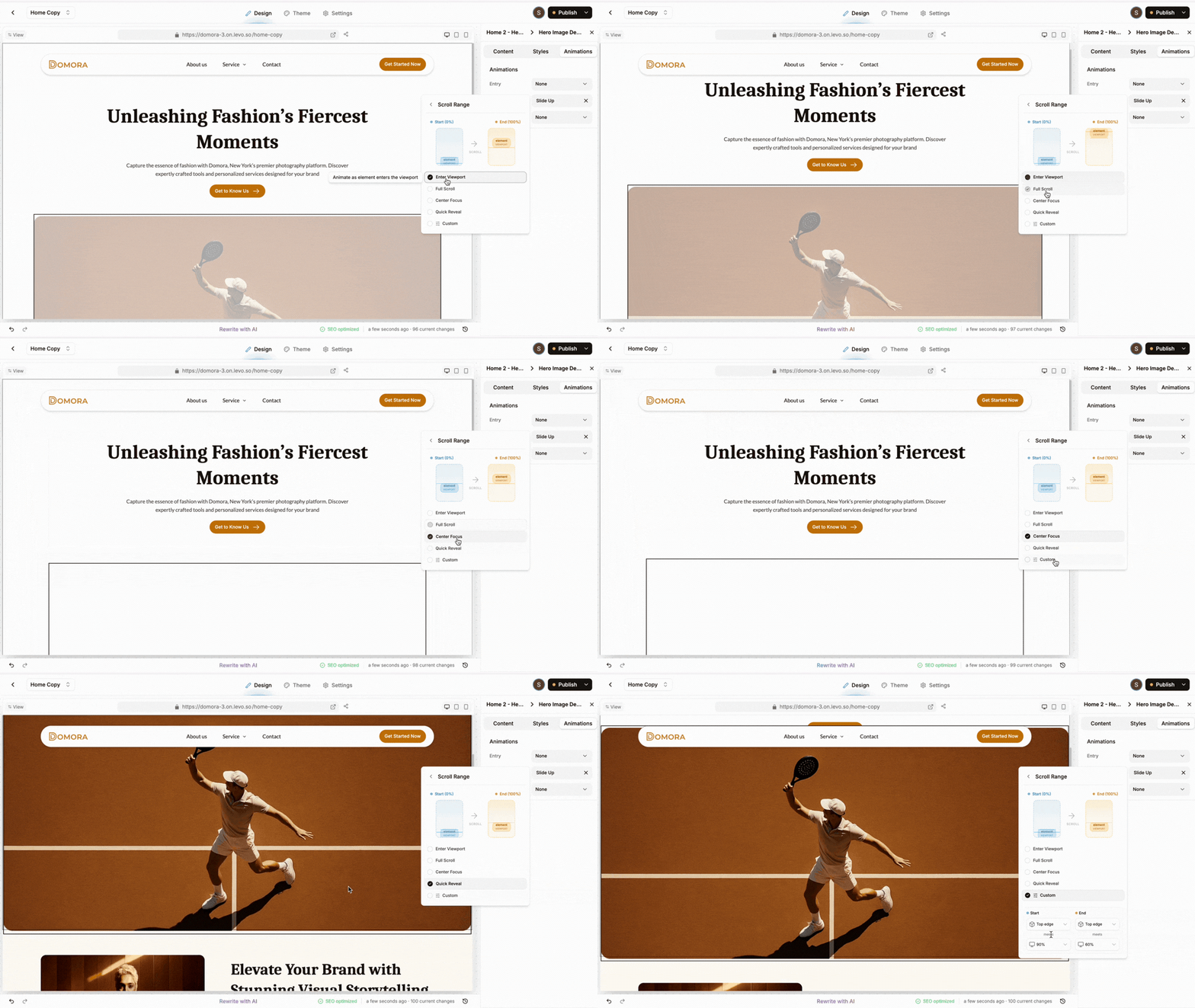
Scroll Range Options
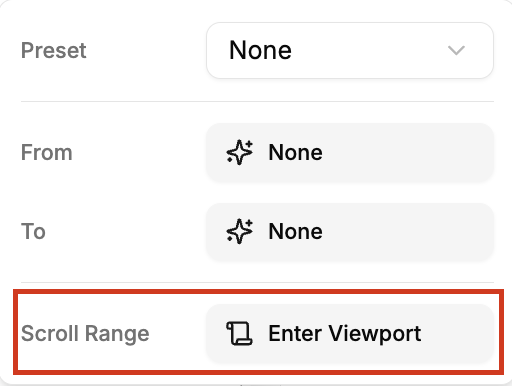
Scroll range defines how the animation behaves across scrolling.
Levo provides multiple options:
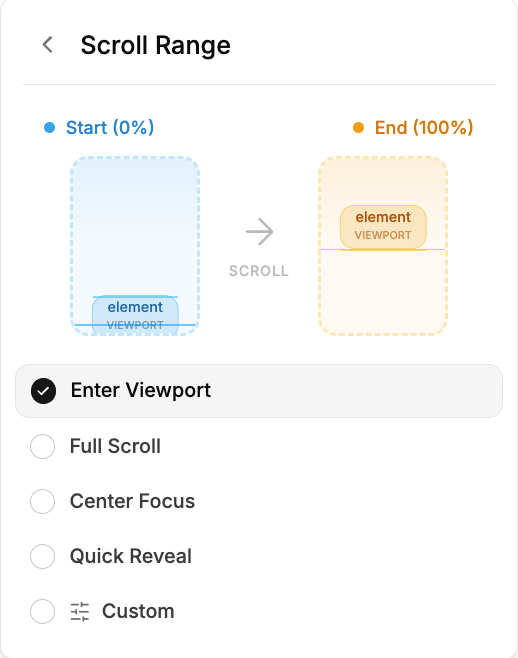
1. Enter Viewport:
Animation completes as the element enters the screen
2. Full Scroll:
Animation spans the entire scroll of the section
3. Center Focus:
Triggers when the element reaches the center
4. Quick Reveal:
Faster animation with minimal scrolling
5. Custom:
Full control over scroll timing and behavior
Each option creates a different experience — experimenting with these is key to mastering scroll animations.
Where to Use Scroll Animations?
Scroll animations work best in layouts where movement enhances storytelling.
1. Feature Sections:
Reveal features progressively as users scroll.
2. Image Sections:
Add scale or parallax for visual depth.
3. Storytelling Pages:
Guide users through content step by step.
4. Landing Pages:
Highlight key sections with motion.
5. Hero Sections:
Use parallax to create an immersive first impression.
Best Practices
To keep your animations effective:
Use scroll animations to guide flow, not distract
Avoid overusing multiple heavy effects
Keep motion smooth and consistent
Use parallax sparingly for best results
Test performance on mobile devices
The goal is to enhance the experience — not overwhelm it.
Scroll animations add a whole new layer of interaction to your website.
With Levo, you can:
create smooth, scroll-based motion
add depth and storytelling to your pages
build immersive user experiences
all with simple controls.
When used right, scroll animations don’t just decorate your page…
they bring it to life as users explore it.